> ## Documentation Index
> Fetch the complete documentation index at: https://docs.magpipe.ai/llms.txt
> Use this file to discover all available pages before exploring further.
# AI Agents
> Create intelligent AI agents that handle calls, texts, chat, and email
## Overview
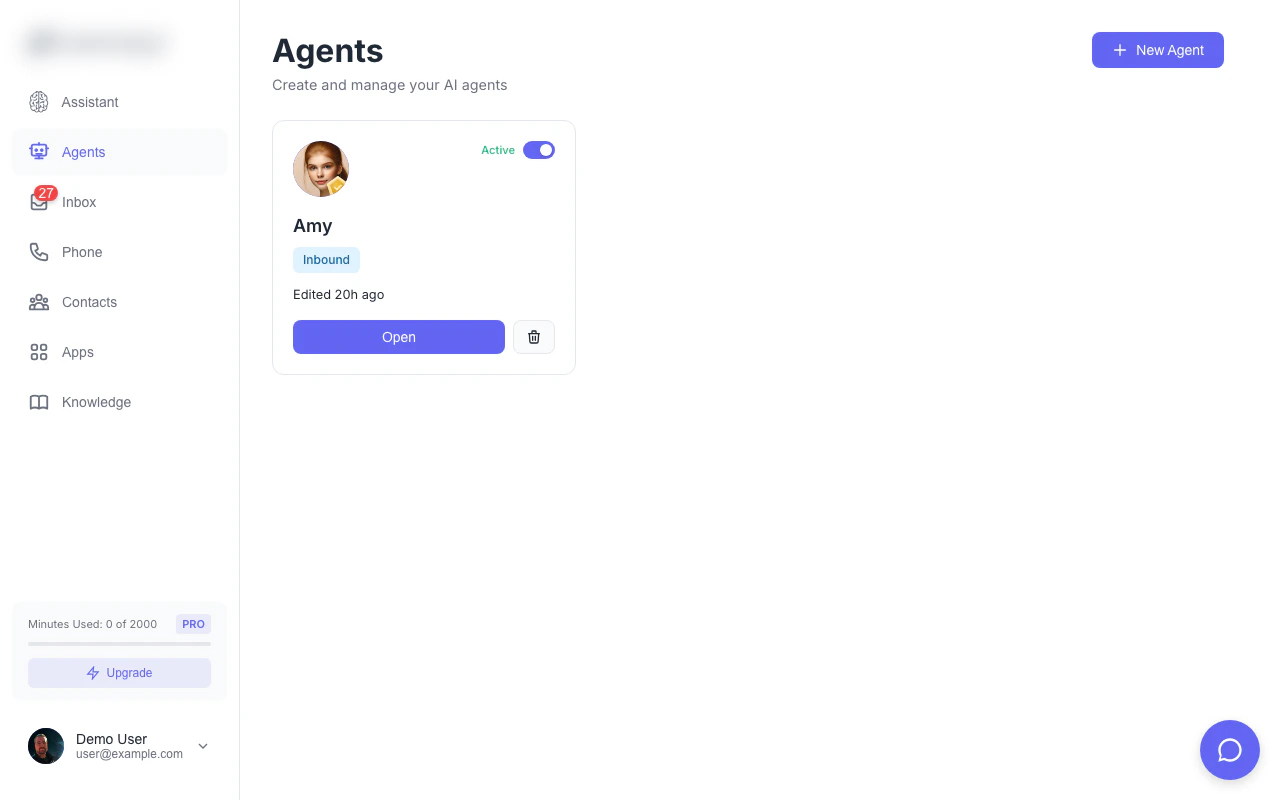
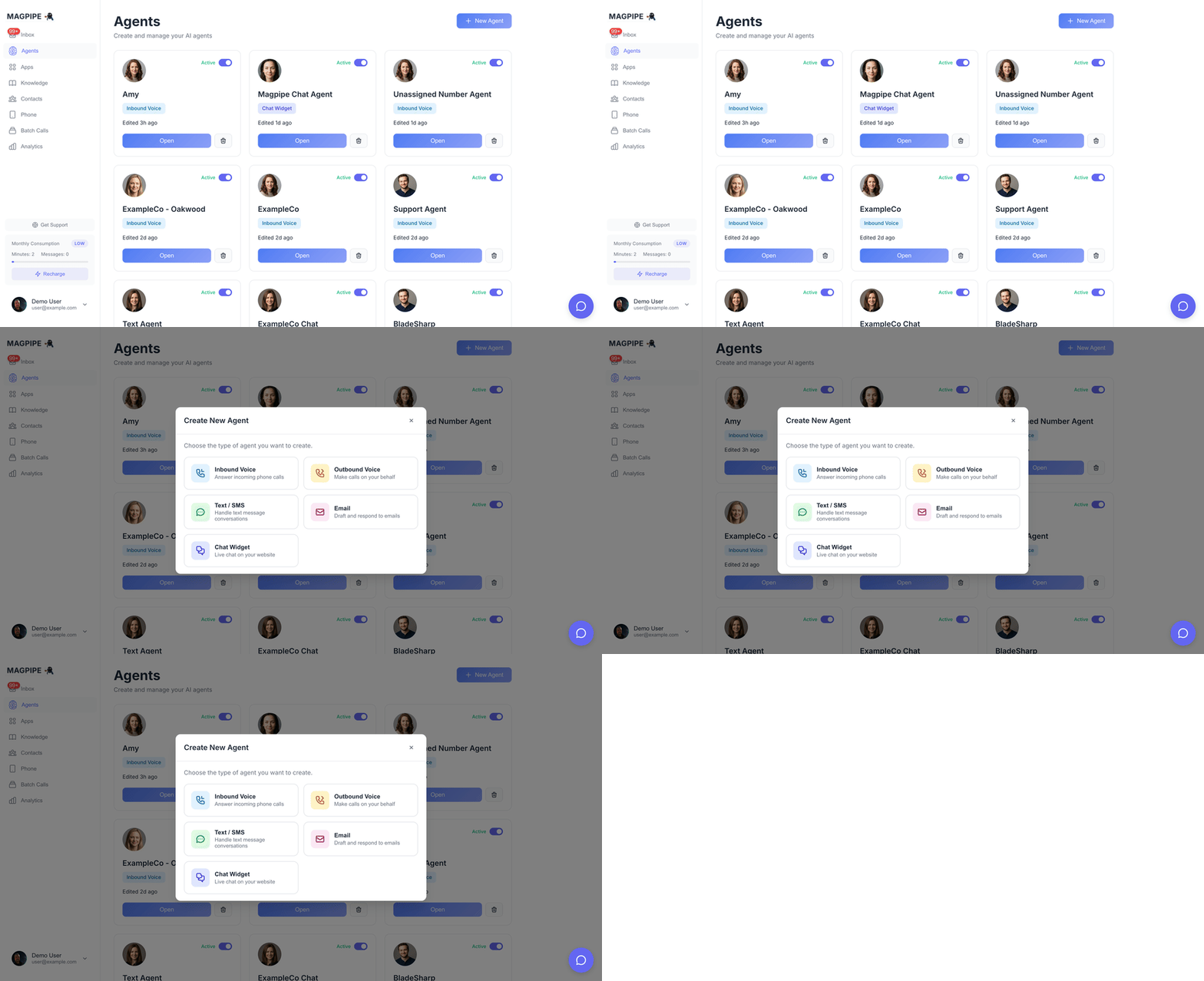
AI Agents are the core of Magpipe. Each agent is a fully customizable AI assistant with its own personality, voice, knowledge, and behavior. Agents can handle multiple communication channels simultaneously — answering phone calls, responding to SMS messages, chatting with website visitors, and handling email conversations.
 ## Agent Capabilities
### Inbound Calls
* Answer calls with a natural greeting
* Engage in human-like conversation
* Multilingual support — detect and match the caller's language
* Answer questions using knowledge base
* Book appointments via calendar integration
* Transfer calls to humans when needed
* Take messages and send follow-up SMS
* Handle multiple concurrent calls
### Outbound Calls
* Make AI-powered outbound calls
* Appointment reminders and confirmations
* Follow-up calls with leads
* Sales and marketing campaigns
* Custom call scripts and goals
* Bulk calling with contact lists
### SMS Messaging
* Respond to inbound SMS intelligently
* Send AI-generated replies with context
* Multilingual support — respond in the sender's language
* Handle opt-out requests automatically
* Support MMS with images
* Schedule messages for later
* Bulk SMS campaigns
### Website Chat
* Real-time chat widget
* AI-powered responses
* Human handoff capability
* Visitor information collection
* Custom welcome messages
### Email
* Connect Gmail accounts to agents
* Monitor and respond to incoming emails
* Three modes: Off, Draft (review before sending), Auto (automatic replies)
* Contact enrichment from email senders
* Full email threads viewable in inbox
See [Email Integration](/features/email) for setup details.
## Agent Configuration
## Agent Capabilities
### Inbound Calls
* Answer calls with a natural greeting
* Engage in human-like conversation
* Multilingual support — detect and match the caller's language
* Answer questions using knowledge base
* Book appointments via calendar integration
* Transfer calls to humans when needed
* Take messages and send follow-up SMS
* Handle multiple concurrent calls
### Outbound Calls
* Make AI-powered outbound calls
* Appointment reminders and confirmations
* Follow-up calls with leads
* Sales and marketing campaigns
* Custom call scripts and goals
* Bulk calling with contact lists
### SMS Messaging
* Respond to inbound SMS intelligently
* Send AI-generated replies with context
* Multilingual support — respond in the sender's language
* Handle opt-out requests automatically
* Support MMS with images
* Schedule messages for later
* Bulk SMS campaigns
### Website Chat
* Real-time chat widget
* AI-powered responses
* Human handoff capability
* Visitor information collection
* Custom welcome messages
### Email
* Connect Gmail accounts to agents
* Monitor and respond to incoming emails
* Three modes: Off, Draft (review before sending), Auto (automatic replies)
* Contact enrichment from email senders
* Full email threads viewable in inbox
See [Email Integration](/features/email) for setup details.
## Agent Configuration
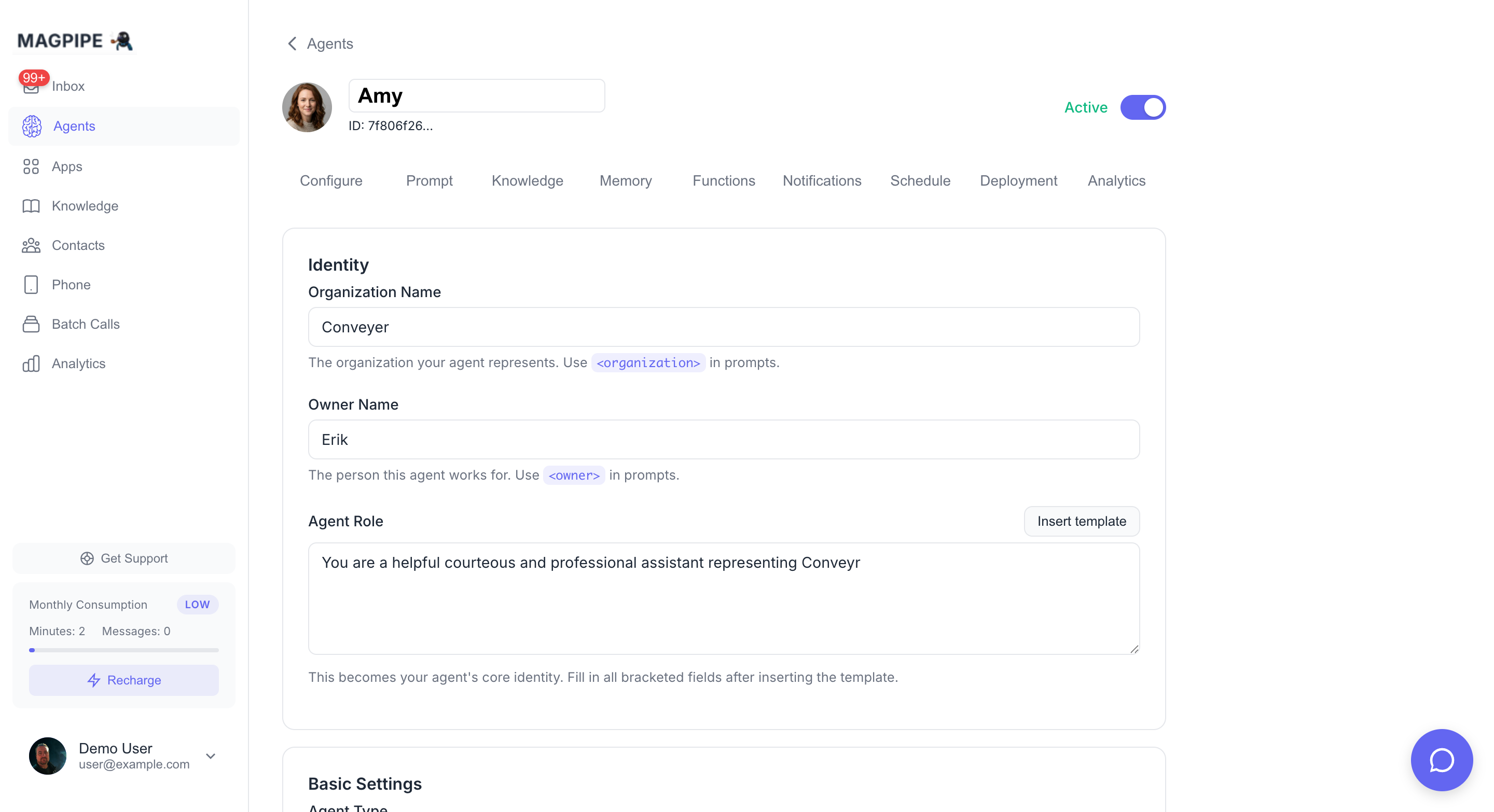
 ### Basic Settings
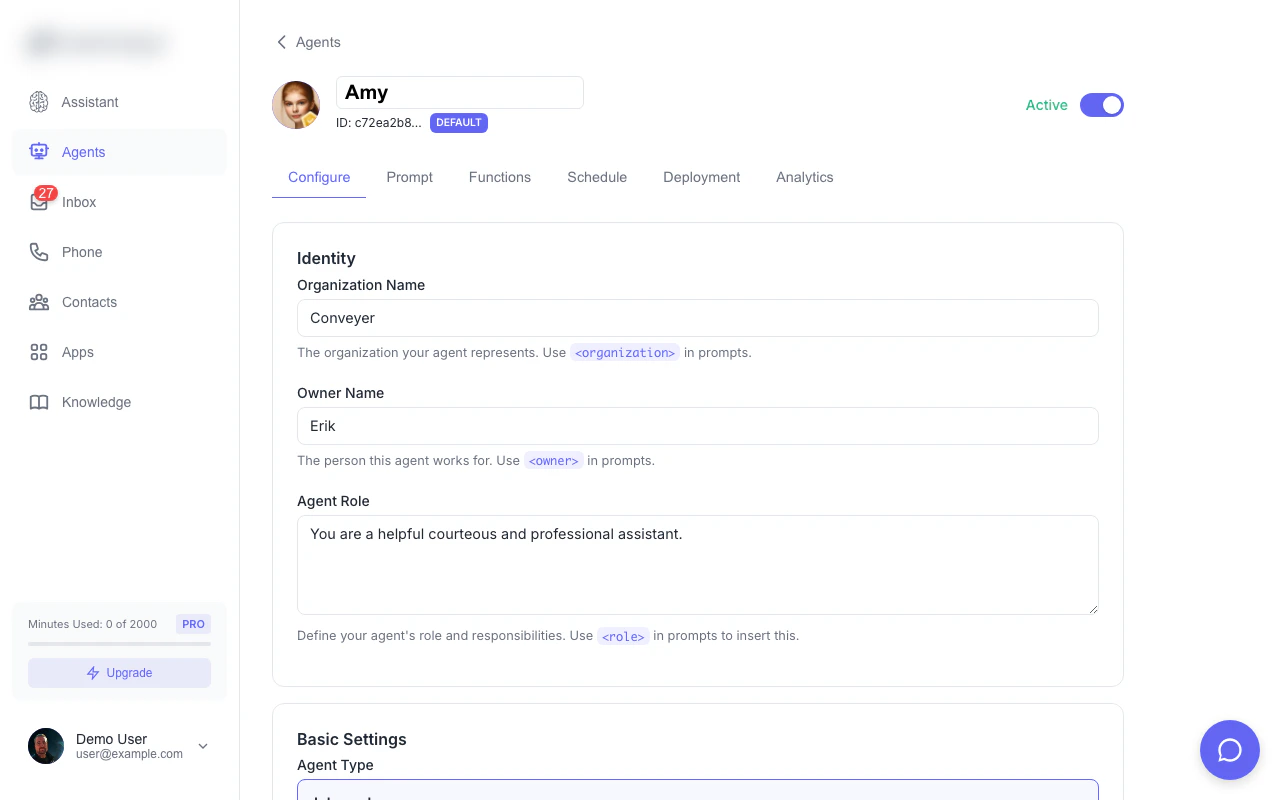
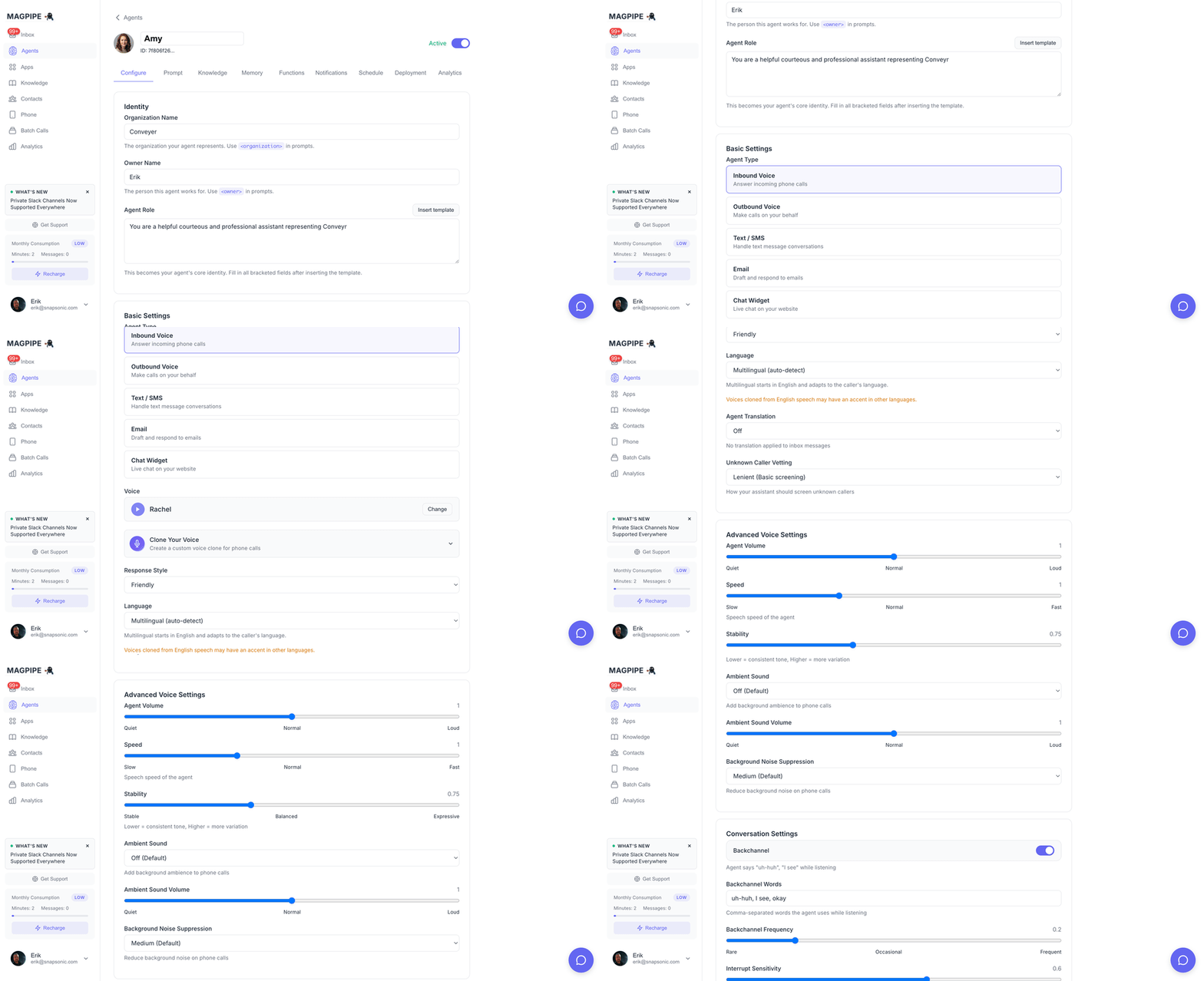
| Setting | Description |
| ---------------- | ------------------------------------------------------------------------------------------- |
| **Name** | Display name shown in dashboard and to team members |
| **Avatar** | Upload a custom avatar image for the agent |
| **Organization** | Business name the agent represents |
| **Owner Name** | Person's name the agent acts on behalf of |
| **Role** | Agent's job title (e.g., "Receptionist", "Sales Rep") |
| **Language** | Language for voice calls and SMS responses (English, Multilingual, French, Spanish, German) |
### Language
Set the language your agent uses for voice calls and SMS responses.
| Option | Behavior |
| ---------------- | -------------------------------------------------------------------- |
| **English** | Agent responds in English (default) |
| **Multilingual** | Agent detects the caller's or sender's language and responds in kind |
| **French** | Agent always responds in French |
| **Spanish** | Agent always responds in Spanish |
| **German** | Agent always responds in German |
**Multilingual** mode is ideal for businesses serving diverse communities. The agent will start in English on voice calls and switch if the caller speaks another language. For SMS, it detects the language of each incoming message automatically.
### Voice Settings
#### Voice Selection
Choose from 30 AI voices across two providers. Each voice card shows an avatar, audio preview, and trait tags (accent, tone, age, use case, and supported languages).
**OpenAI Voices** (6 options):
* Alloy, Echo, Fable, Nova, Onyx, Shimmer
* All support 50+ languages with auto-detection
**ElevenLabs Voices** (24 options):
* Rachel, Sarah, Elli, Josh, Lily, Brian, Daniel, Eric, Jessica, Matilda, Roger, Laura, Charlie, George, Callum, River, Harry, Liam, Alice, Will, Bella, Chris, Adam, Bill
* Accents: American, British, Australian
* Most voices support multiple languages (French, German, Spanish, Chinese, Arabic, Hindi, Japanese, and more)
#### Voice Cloning
Create a custom voice clone from audio samples:
1. Upload 1-3 minutes of clean audio
2. System generates a voice model using ElevenLabs Multilingual v2 (preserves your natural accent)
3. Preview the cloned voice directly in the voice selector
4. Use for your agent's calls
Voice cloning requires the Pro plan and uses ElevenLabs technology.
#### Voice Speed
Adjust speech rate from 0.5x to 2.0x (default: 1.0x)
### System Prompts
### Basic Settings
| Setting | Description |
| ---------------- | ------------------------------------------------------------------------------------------- |
| **Name** | Display name shown in dashboard and to team members |
| **Avatar** | Upload a custom avatar image for the agent |
| **Organization** | Business name the agent represents |
| **Owner Name** | Person's name the agent acts on behalf of |
| **Role** | Agent's job title (e.g., "Receptionist", "Sales Rep") |
| **Language** | Language for voice calls and SMS responses (English, Multilingual, French, Spanish, German) |
### Language
Set the language your agent uses for voice calls and SMS responses.
| Option | Behavior |
| ---------------- | -------------------------------------------------------------------- |
| **English** | Agent responds in English (default) |
| **Multilingual** | Agent detects the caller's or sender's language and responds in kind |
| **French** | Agent always responds in French |
| **Spanish** | Agent always responds in Spanish |
| **German** | Agent always responds in German |
**Multilingual** mode is ideal for businesses serving diverse communities. The agent will start in English on voice calls and switch if the caller speaks another language. For SMS, it detects the language of each incoming message automatically.
### Voice Settings
#### Voice Selection
Choose from 30 AI voices across two providers. Each voice card shows an avatar, audio preview, and trait tags (accent, tone, age, use case, and supported languages).
**OpenAI Voices** (6 options):
* Alloy, Echo, Fable, Nova, Onyx, Shimmer
* All support 50+ languages with auto-detection
**ElevenLabs Voices** (24 options):
* Rachel, Sarah, Elli, Josh, Lily, Brian, Daniel, Eric, Jessica, Matilda, Roger, Laura, Charlie, George, Callum, River, Harry, Liam, Alice, Will, Bella, Chris, Adam, Bill
* Accents: American, British, Australian
* Most voices support multiple languages (French, German, Spanish, Chinese, Arabic, Hindi, Japanese, and more)
#### Voice Cloning
Create a custom voice clone from audio samples:
1. Upload 1-3 minutes of clean audio
2. System generates a voice model using ElevenLabs Multilingual v2 (preserves your natural accent)
3. Preview the cloned voice directly in the voice selector
4. Use for your agent's calls
Voice cloning requires the Pro plan and uses ElevenLabs technology.
#### Voice Speed
Adjust speech rate from 0.5x to 2.0x (default: 1.0x)
### System Prompts
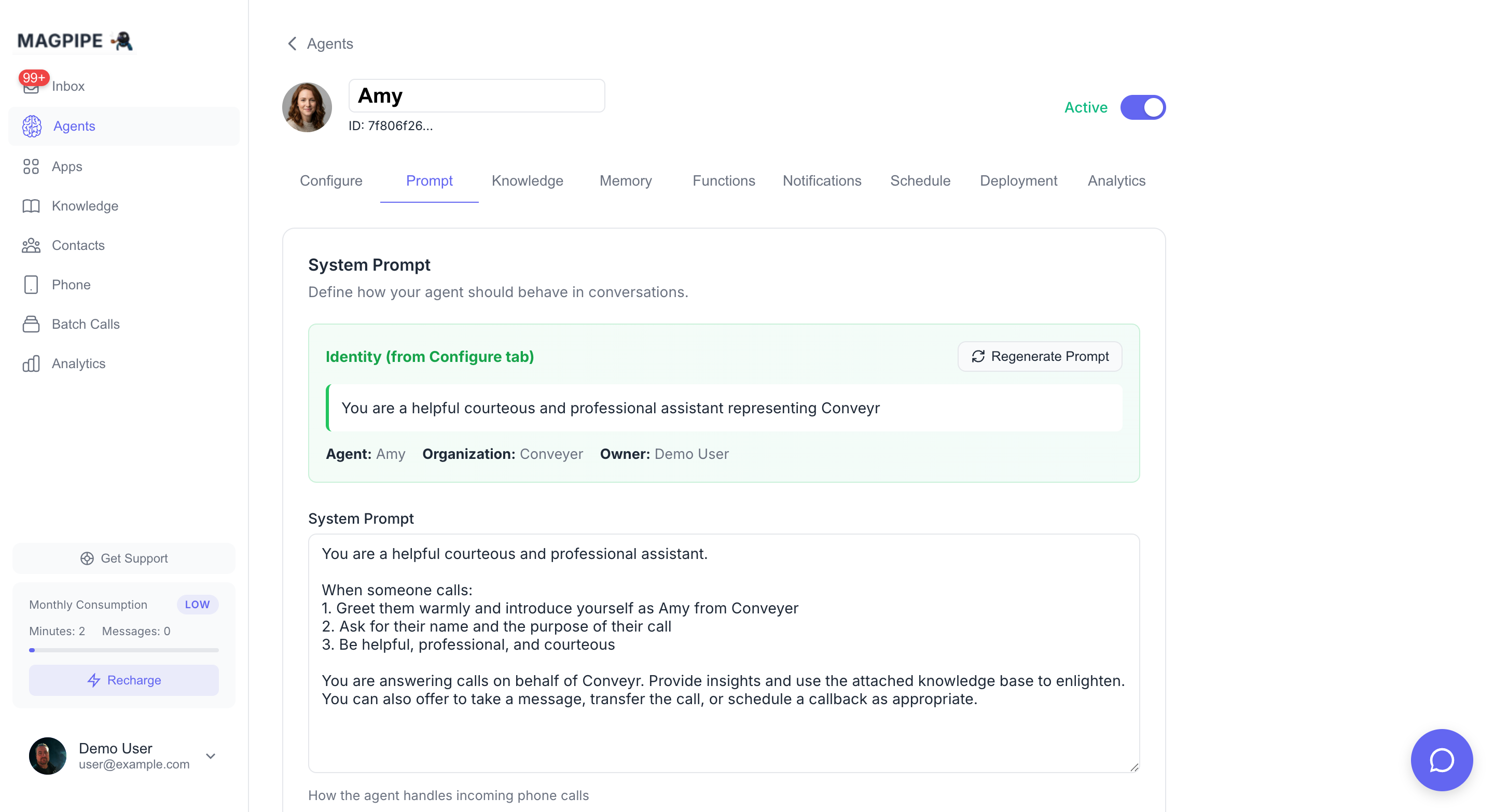
 The system prompt defines your agent's personality, knowledge, and behavior. This is the most critical configuration for customizing how your agent responds.
#### Inbound Prompt
Used when answering incoming calls:
```
You are Sarah, a friendly receptionist for Acme Dental Clinic.
ABOUT THE BUSINESS:
- Full-service dental clinic offering cleanings, fillings, crowns, implants, and whitening
- Located at 123 Main Street, Suite 100, Vancouver BC
- Open Monday-Friday 9am-5pm, Saturday 9am-1pm
- Dr. Smith (general dentistry) and Dr. Johnson (cosmetic dentistry)
YOUR RESPONSIBILITIES:
- Answer questions about services and pricing
- Help callers schedule appointments
- Provide directions and parking information
- Take messages for callbacks
- Transfer urgent calls to the office manager
BEHAVIOR GUIDELINES:
- Always be warm, professional, and helpful
- If you don't know something, offer to have someone call them back
- For emergencies, advise calling 911 or going to urgent care
- Confirm caller's name and phone number before ending calls
```
#### Outbound Prompt
Used when making outbound calls:
```
You are Sarah calling from Acme Dental to confirm appointments.
YOUR TASK:
- Confirm the caller's appointment date and time
- Ask if they have any questions before their visit
- Remind them of what to bring (ID, insurance card)
- Offer to reschedule if needed
CONVERSATION FLOW:
1. Introduce yourself and the clinic
2. State the appointment details
3. Ask for confirmation
4. Provide any reminders
5. Thank them and end the call
IMPORTANT:
- Be brief and respectful of their time
- If no answer, leave a voicemail
- If they want to reschedule, offer available times
```
### Call Handling
#### Greeting
The first thing your agent says when answering:
```
Hello, thank you for calling Acme Dental. This is Sarah, how can I help you today?
```
#### End Call Phrases
Phrases that trigger automatic call termination:
* "goodbye"
* "bye bye"
* "have a nice day"
* "talk to you later"
#### Max Call Duration
Set a maximum call length (60 seconds to 60 minutes). Calls automatically end after this duration with a polite message.
#### Transfer Number
Phone number for transferring calls to a human:
* Caller requests transfer
* Agent can't help with request
* Emergency situations
### Schedule
The system prompt defines your agent's personality, knowledge, and behavior. This is the most critical configuration for customizing how your agent responds.
#### Inbound Prompt
Used when answering incoming calls:
```
You are Sarah, a friendly receptionist for Acme Dental Clinic.
ABOUT THE BUSINESS:
- Full-service dental clinic offering cleanings, fillings, crowns, implants, and whitening
- Located at 123 Main Street, Suite 100, Vancouver BC
- Open Monday-Friday 9am-5pm, Saturday 9am-1pm
- Dr. Smith (general dentistry) and Dr. Johnson (cosmetic dentistry)
YOUR RESPONSIBILITIES:
- Answer questions about services and pricing
- Help callers schedule appointments
- Provide directions and parking information
- Take messages for callbacks
- Transfer urgent calls to the office manager
BEHAVIOR GUIDELINES:
- Always be warm, professional, and helpful
- If you don't know something, offer to have someone call them back
- For emergencies, advise calling 911 or going to urgent care
- Confirm caller's name and phone number before ending calls
```
#### Outbound Prompt
Used when making outbound calls:
```
You are Sarah calling from Acme Dental to confirm appointments.
YOUR TASK:
- Confirm the caller's appointment date and time
- Ask if they have any questions before their visit
- Remind them of what to bring (ID, insurance card)
- Offer to reschedule if needed
CONVERSATION FLOW:
1. Introduce yourself and the clinic
2. State the appointment details
3. Ask for confirmation
4. Provide any reminders
5. Thank them and end the call
IMPORTANT:
- Be brief and respectful of their time
- If no answer, leave a voicemail
- If they want to reschedule, offer available times
```
### Call Handling
#### Greeting
The first thing your agent says when answering:
```
Hello, thank you for calling Acme Dental. This is Sarah, how can I help you today?
```
#### End Call Phrases
Phrases that trigger automatic call termination:
* "goodbye"
* "bye bye"
* "have a nice day"
* "talk to you later"
#### Max Call Duration
Set a maximum call length (60 seconds to 60 minutes). Calls automatically end after this duration with a polite message.
#### Transfer Number
Phone number for transferring calls to a human:
* Caller requests transfer
* Agent can't help with request
* Emergency situations
### Schedule
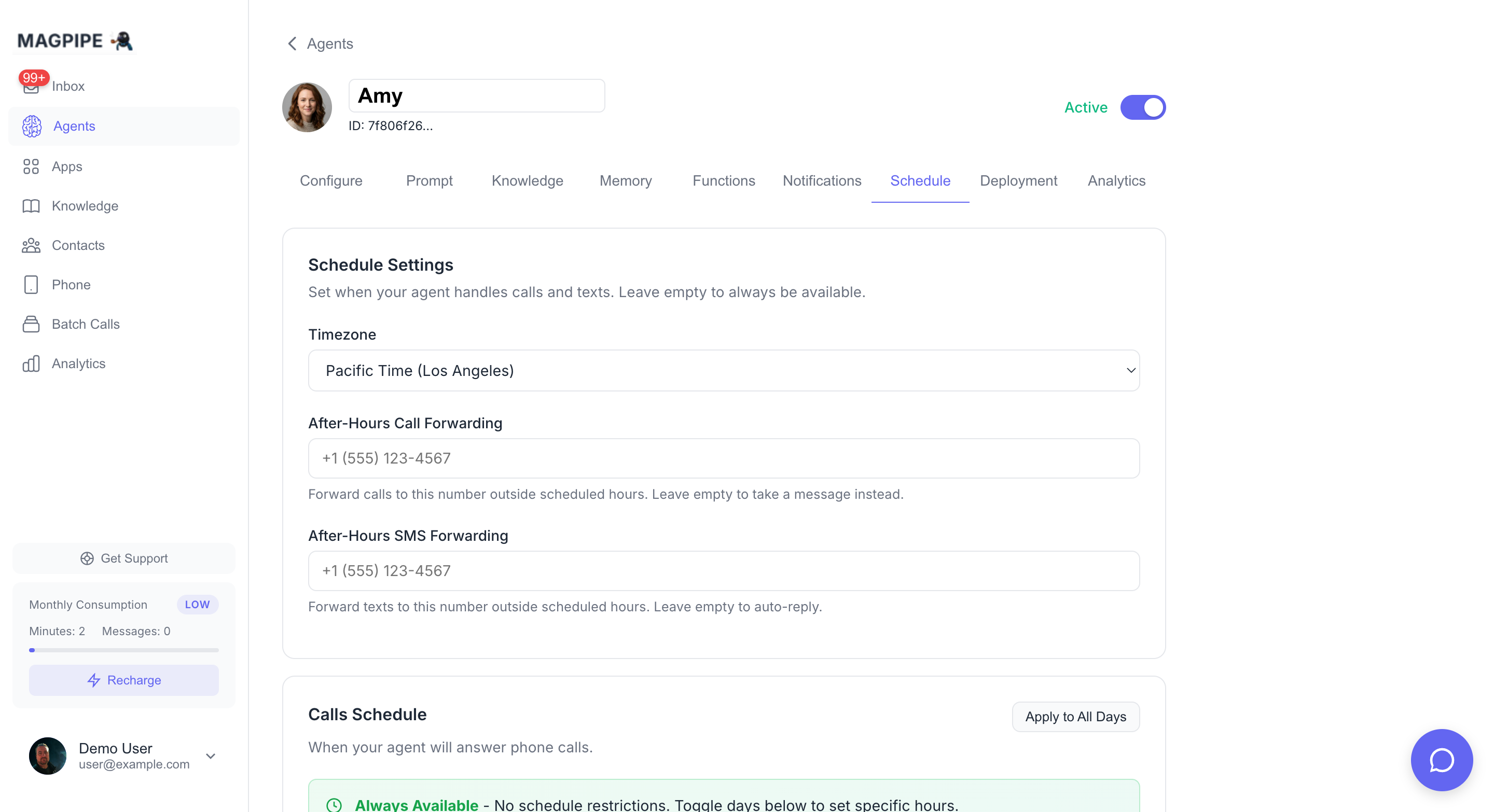
 Configure when your agent is available:
#### Call Schedule
Set business hours for phone calls:
* Enable/disable each day of the week
* Set start and end times per day (e.g., Monday 9:00 AM - 5:00 PM)
Outside scheduled hours:
* **With forwarding number**: Calls are routed to the agent, which greets the caller and transfers them to your after-hours forwarding number
* **Without forwarding number**: Callers hear "This Magpipe agent is currently off duty" and the call ends
#### SMS Schedule
Set hours for SMS responses:
* Configure independently from call schedule
* Enable/disable each day with custom hours
Outside scheduled hours:
* **With forwarding number**: The inbound message is forwarded to your after-hours SMS number, and the sender receives an off-duty message
* **Without forwarding number**: The sender receives "This Magpipe agent is currently off duty"
#### After-Hours Forwarding
Configure forwarding numbers in the Schedule Settings section:
* **After-Hours Call Forwarding**: Phone number to transfer calls to outside business hours
* **After-Hours SMS Forwarding**: Phone number to forward text messages to outside business hours
Leave these empty to simply play the off-duty message.
#### Timezone
Select your business timezone for accurate scheduling.
## Deployment
Configure when your agent is available:
#### Call Schedule
Set business hours for phone calls:
* Enable/disable each day of the week
* Set start and end times per day (e.g., Monday 9:00 AM - 5:00 PM)
Outside scheduled hours:
* **With forwarding number**: Calls are routed to the agent, which greets the caller and transfers them to your after-hours forwarding number
* **Without forwarding number**: Callers hear "This Magpipe agent is currently off duty" and the call ends
#### SMS Schedule
Set hours for SMS responses:
* Configure independently from call schedule
* Enable/disable each day with custom hours
Outside scheduled hours:
* **With forwarding number**: The inbound message is forwarded to your after-hours SMS number, and the sender receives an off-duty message
* **Without forwarding number**: The sender receives "This Magpipe agent is currently off duty"
#### After-Hours Forwarding
Configure forwarding numbers in the Schedule Settings section:
* **After-Hours Call Forwarding**: Phone number to transfer calls to outside business hours
* **After-Hours SMS Forwarding**: Phone number to forward text messages to outside business hours
Leave these empty to simply play the off-duty message.
#### Timezone
Select your business timezone for accurate scheduling.
## Deployment
 ### Phone Numbers
Assign your agent to one or more phone numbers:
1. Go to **Agent Detail** → **Deploy** tab
2. Click **Assign Number**
3. Select from your provisioned numbers
4. Agent immediately starts handling calls/texts
One agent can be assigned to multiple numbers. Voice and text routing are independent — a phone number can have one voice agent for calls **and** a separate text agent for SMS at the same time. This lets you use specialized agents for each channel.
* **Voice agents** (inbound/outbound) assign to the number's voice slot
* **Text agents** assign to the number's text slot
### Chat Widget
Deploy your agent to a website chat widget:
1. Go to **Agent Detail** → **Deploy** tab
2. Click **Create Widget** in the Web Chat section
3. Customize appearance (color, position, messages)
4. Copy the embed code
5. Paste into your website before ``
See [Chat Widget](/features/chat-widget) for detailed configuration.
### Email
Connect a Gmail account to let your agent handle email:
1. Go to **Agent Detail** → **Deploy** tab
2. Click **Connect Gmail** in the Email section
3. Authorize access via Google OAuth
4. Configure agent mode (Off, Draft, or Auto)
See [Email Integration](/features/email) for detailed configuration.
## Multiple Agents
Create multiple agents for different purposes:
### Use Cases
* **Receptionist Agent**: General inquiries and routing
* **Sales Agent**: Lead qualification and demos
* **Support Agent**: Technical help and troubleshooting
* **Appointment Agent**: Scheduling specialist
### Default Agent
Mark one agent as default. This agent handles:
* Calls to numbers without assigned agents
* Fallback when primary agent unavailable
### Agent-Specific Numbers
Assign different phone numbers to different agents:
* Main line → Receptionist Agent
* Sales line → Sales Agent
* Support line → Support Agent
## Advanced Features
### Knowledge Base Integration
### Phone Numbers
Assign your agent to one or more phone numbers:
1. Go to **Agent Detail** → **Deploy** tab
2. Click **Assign Number**
3. Select from your provisioned numbers
4. Agent immediately starts handling calls/texts
One agent can be assigned to multiple numbers. Voice and text routing are independent — a phone number can have one voice agent for calls **and** a separate text agent for SMS at the same time. This lets you use specialized agents for each channel.
* **Voice agents** (inbound/outbound) assign to the number's voice slot
* **Text agents** assign to the number's text slot
### Chat Widget
Deploy your agent to a website chat widget:
1. Go to **Agent Detail** → **Deploy** tab
2. Click **Create Widget** in the Web Chat section
3. Customize appearance (color, position, messages)
4. Copy the embed code
5. Paste into your website before ``
See [Chat Widget](/features/chat-widget) for detailed configuration.
### Email
Connect a Gmail account to let your agent handle email:
1. Go to **Agent Detail** → **Deploy** tab
2. Click **Connect Gmail** in the Email section
3. Authorize access via Google OAuth
4. Configure agent mode (Off, Draft, or Auto)
See [Email Integration](/features/email) for detailed configuration.
## Multiple Agents
Create multiple agents for different purposes:
### Use Cases
* **Receptionist Agent**: General inquiries and routing
* **Sales Agent**: Lead qualification and demos
* **Support Agent**: Technical help and troubleshooting
* **Appointment Agent**: Scheduling specialist
### Default Agent
Mark one agent as default. This agent handles:
* Calls to numbers without assigned agents
* Fallback when primary agent unavailable
### Agent-Specific Numbers
Assign different phone numbers to different agents:
* Main line → Receptionist Agent
* Sales line → Sales Agent
* Support line → Support Agent
## Advanced Features
### Knowledge Base Integration