> ## Documentation Index
> Fetch the complete documentation index at: https://docs.magpipe.ai/llms.txt
> Use this file to discover all available pages before exploring further.
# Batch Calling
> Create and manage batch outbound call campaigns with scheduling, CSV upload, concurrency controls, and recurring schedules
Batch Calling lets you create large-scale outbound call campaigns using your AI agents. Upload a CSV of recipients, configure scheduling and concurrency, then let your agents handle each conversation.
 ## Overview
Batch Calling provides enterprise-grade outbound calling capabilities:
* **CSV Upload** - Upload recipients via CSV file with a downloadable template
* **Scheduling** - Send now or schedule for a specific date and time
* **Call Windows** - Restrict calls to specific hours and days of the week
* **Concurrency** - Control how many calls run simultaneously
* **Draft & History** - Save drafts and track all batch campaigns
### Use Cases
* **Appointment reminders** - Call patients/clients about upcoming appointments
* **Follow-up campaigns** - Reach out to leads after an event or inquiry
* **Survey calls** - Collect feedback from customers at scale
* **Notification calls** - Inform contacts about important updates
* **Outreach campaigns** - Introduce new products or services
## How It Works
### 1. Create a Batch
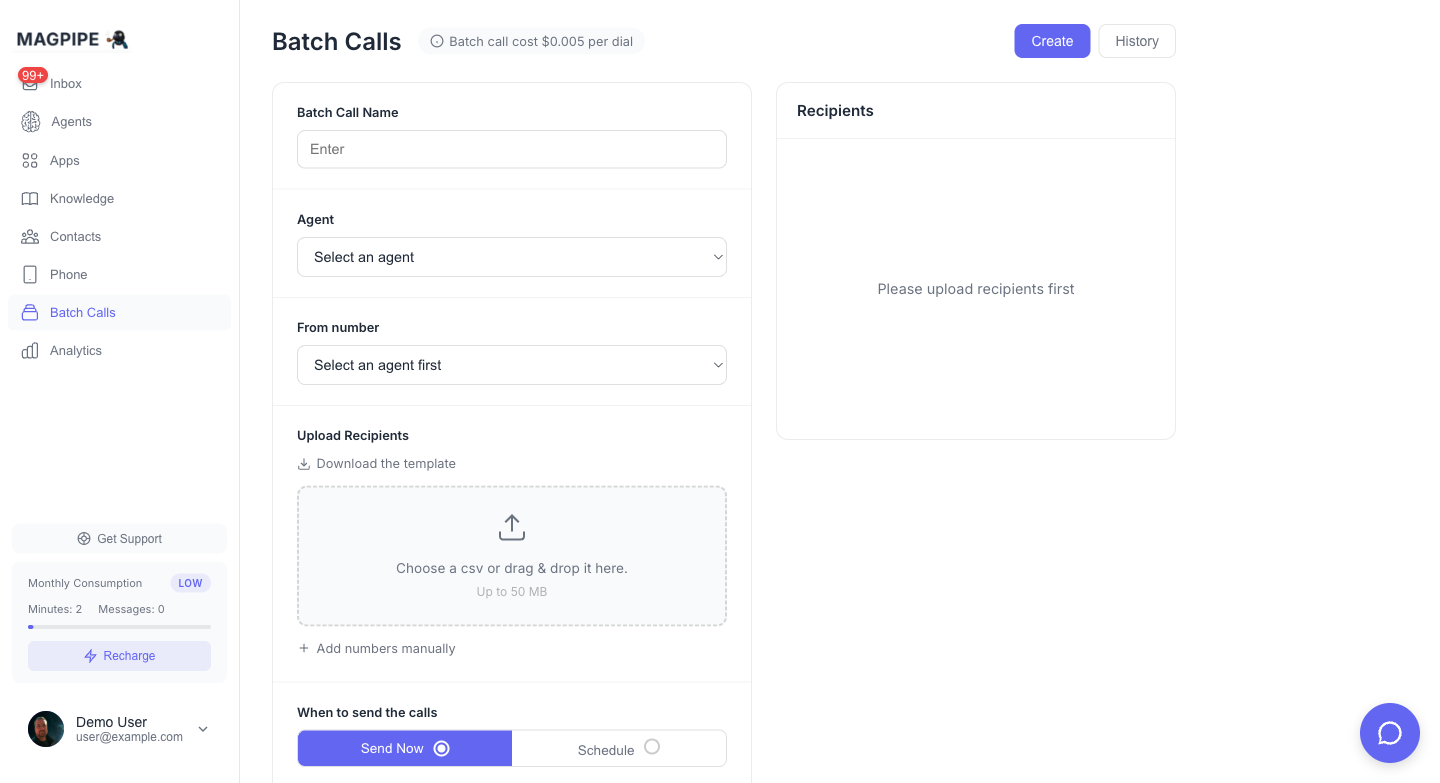
Navigate to **Batch Calls** in the sidebar to access the feature.
Fill in the batch configuration:
* **Batch Call Name** - A descriptive name for your campaign
* **From Number** - Select which Magpipe phone number to call from (shows associated agent)
### 2. Upload Recipients
Upload a CSV file with your recipient list. Download the template for the correct format:
```csv theme={null}
name,phone_number
John Doe,+14155551234
Jane Smith,+12125559876
```
The CSV parser automatically detects columns including `name`, `first_name`, `last_name`, `phone`, `phone_number`, `mobile`, and `cell`.
Phone numbers should be in E.164 format (+1XXXXXXXXXX). Numbers without the + prefix will be auto-formatted.
### 3. Configure Scheduling
* **Send Now** - Calls begin immediately after creation
* **Schedule** - Pick a specific date and time to start the campaign
### 4. Set Call Window
Control when calls can be made:
* **Time Range** - e.g., 9:00 AM to 5:00 PM
* **Days** - Select which days of the week (default: Monday-Friday)
Calls outside the window are automatically paused and resume when the window reopens.
### 5. Concurrency Settings
* **Reserved Concurrency** - Slots reserved for inbound and other calls
* **Batch Concurrency** - Remaining slots allocated to batch calling
### 6. Send or Save Draft
* **Save as Draft** - Save your batch to edit and send later
* **Send** - Start the campaign (or schedule it)
### 7. Track Results
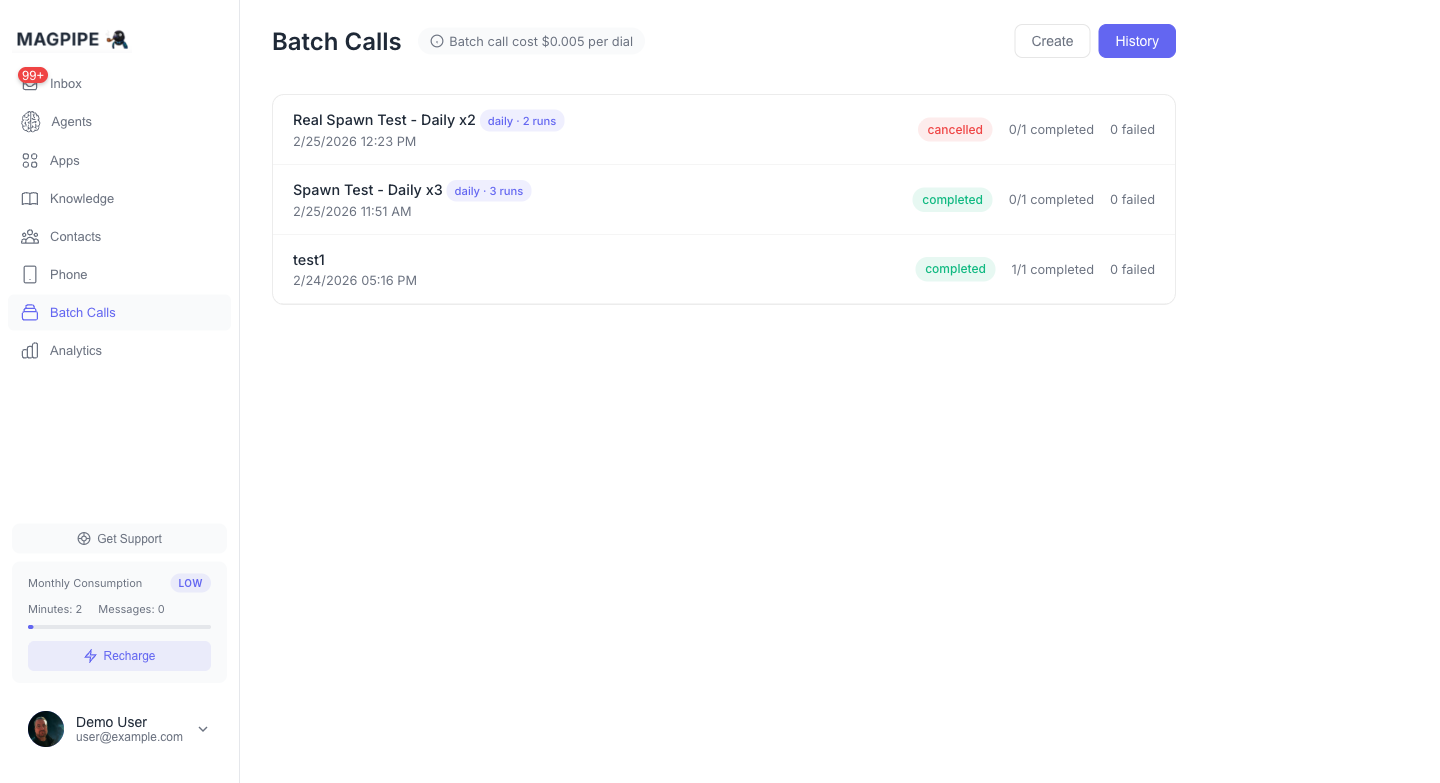
Switch to the **History** tab to view all batches with:
* Status (draft, scheduled, running, completed, cancelled, failed)
* Completion counts and failure counts
* Click any batch to view individual recipient status updating in real-time
* Re-run completed or failed batches with one click
## Batch Status Flow
```
draft → scheduled → running → completed ↘
↘ paused ↗ → re-run → running
↘ cancelled ↗
↘ failed ↗
recurring → paused → recurring (resumed)
→ cancelled
→ completed (max runs / end date)
```
| Status | Description |
| ----------- | --------------------------------------------------------- |
| `draft` | Saved but not sent |
| `scheduled` | Scheduled for future execution |
| `running` | Currently making calls |
| `paused` | Temporarily paused (outside call window or series paused) |
| `completed` | All recipients processed (or recurring series finished) |
| `cancelled` | Manually cancelled |
| `failed` | Batch encountered a critical error |
| `recurring` | Parent batch actively spawning child runs on schedule |
## Recipient Status
Each recipient's status updates in real-time as the call progresses:
| Status | UI Label | Description |
| ------------- | ---------- | ------------------------------------ |
| `pending` | Pending | Waiting to be called |
| `calling` | Initiating | Call is being placed |
| `initiated` | Initiating | Call initiated with carrier |
| `ringing` | Ringing | Recipient's phone is ringing |
| `in_progress` | Connected | Recipient answered, call in progress |
| `completed` | Hungup | Call completed successfully |
| `failed` | Failed | Call failed to connect |
| `busy` | Busy | Recipient's line was busy |
| `no_answer` | No Answer | Recipient did not answer |
| `skipped` | Skipped | Skipped (batch cancelled) |
## Recurring Batches
Recurring batches repeat on a schedule — hourly, daily, weekly, or monthly. Each run calls ALL recipients again. This is useful for daily appointment reminders, recurring outreach campaigns, or weekly check-in calls.
### How It Works
Recurring batches use a **parent-child model**:
* **Parent batch** stores the recurrence config and recipients template. Status = `recurring`.
* **Child batch** is an actual run, cloned from the parent. Has its own recipients and status tracking.
* When a child completes, the system automatically spawns the next child scheduled for the next occurrence.
### Setting Up Recurrence
In the Create view, configure the **Repeat** section:
1. **Frequency** — None, Hourly, Daily, Weekly, or Monthly
2. **Interval** — Every N units (e.g., every 2 days)
3. **End Condition** — Never, After N runs, or On a specific date
The existing call window (`window_days` + `window_start_time`/`window_end_time`) is still respected for each run.
### Managing a Recurring Series
From the History view, click a recurring batch to see:
* **Recurrence config** — frequency, interval, end condition
* **Run count** — how many runs have completed
* **Runs list** — all past and current runs (click to see recipient details)
Series controls:
* **Pause Series** — stops new runs from spawning (active runs continue)
* **Resume Series** — resumes spawning new runs
* **Cancel Series** — cancels the parent and all scheduled/running children
### Status Flow
```
recurring → paused → recurring (resumed)
→ cancelled
→ completed (max runs reached or end date passed)
```
### API Example
```javascript theme={null}
await fetch('https://api.magpipe.ai/functions/v1/batch-calls', {
method: 'POST',
headers: {
'Authorization': `Bearer ${apiKey}`,
'Content-Type': 'application/json'
},
body: JSON.stringify({
action: 'create',
name: 'Daily Appointment Reminders',
caller_id: '+16045551234',
send_now: true,
recurrence_type: 'daily',
recurrence_interval: 1,
recurrence_max_runs: 30,
window_start_time: '09:00',
window_end_time: '17:00',
window_days: [1, 2, 3, 4, 5],
recipients: [
{ name: 'John Doe', phone_number: '+14155551234' }
]
})
});
```
To list child runs for a recurring parent:
```javascript theme={null}
await fetch('https://api.magpipe.ai/functions/v1/batch-calls', {
method: 'POST',
headers: { ... },
body: JSON.stringify({
action: 'list_runs',
parent_batch_id: ''
})
});
```
## Re-running Batches
Completed, cancelled, or failed batches can be re-run from the History view. Click the **Re-Run** button to reset all recipients back to pending and restart the campaign. This is useful for:
* Retrying failed calls after fixing issues
* Re-running campaigns with updated agent prompts
* Reaching contacts who didn't answer the first time
## API Integration
You can create and manage batch calls programmatically via the API:
```javascript theme={null}
const response = await fetch('https://api.magpipe.ai/functions/v1/batch-calls', {
method: 'POST',
headers: {
'Authorization': `Bearer ${apiKey}`,
'Content-Type': 'application/json'
},
body: JSON.stringify({
action: 'create',
name: 'Appointment Reminders - January',
caller_id: '+16045551234',
send_now: true,
window_start_time: '09:00',
window_end_time: '17:00',
window_days: [1, 2, 3, 4, 5],
reserved_concurrency: 5,
recipients: [
{ name: 'John Doe', phone_number: '+14155551234' },
{ name: 'Jane Smith', phone_number: '+12125559876' }
]
})
});
```
See the [Batch Calls API Reference](/api-reference/endpoints/create-batch) for full details.
## Best Practices
### Contact Preparation
* **Verify phone numbers** - Ensure all numbers are in E.164 format
* **Segment your list** - Group contacts by campaign type
* **Check consent** - Only call contacts who've opted in
### Timing
* **Business hours** - Use call windows to restrict calling hours
* **Time zones** - Consider contact locations when setting windows
* **Scheduling** - Schedule campaigns for optimal pickup rates
### Agent Configuration
Make sure your outbound agent's system prompt includes context about why you're calling and what to achieve. Consider using outbound call templates for consistency.
### Compliance
Ensure your batch calling campaigns comply with local regulations:
* **TCPA** (US) - Requires prior express consent for automated calls
* **Do Not Call** - Respect opt-out requests
* **Local laws** - Check requirements in your jurisdiction
## Limits
| Limit | Value |
| -------------------- | --------- |
| Recipients per batch | Unlimited |
| Max concurrency | 20 |
| Cost per dial | \$0.005 |
## FAQ
Yes, you can cancel a running batch from the History view. All pending recipients will be marked as skipped.
The batch processor automatically pauses when outside your configured call window and resumes when the window reopens.
Only draft batches can be edited. Once a batch is scheduled or running, you can only cancel it.
Each dial costs \$0.005 plus standard per-minute calling charges. Your credit balance is checked before each call.
The batch will pause when credits are insufficient. Add credits and restart the batch to continue.
Recurring batches use a parent-child model. The parent stores your config and recipients template. Each run creates a child batch that calls all recipients. When a run completes, the next one is automatically scheduled based on your frequency settings.
Yes, use the Pause Series button in the batch detail modal. Currently running calls will finish, but no new runs will start until you resume.
## Overview
Batch Calling provides enterprise-grade outbound calling capabilities:
* **CSV Upload** - Upload recipients via CSV file with a downloadable template
* **Scheduling** - Send now or schedule for a specific date and time
* **Call Windows** - Restrict calls to specific hours and days of the week
* **Concurrency** - Control how many calls run simultaneously
* **Draft & History** - Save drafts and track all batch campaigns
### Use Cases
* **Appointment reminders** - Call patients/clients about upcoming appointments
* **Follow-up campaigns** - Reach out to leads after an event or inquiry
* **Survey calls** - Collect feedback from customers at scale
* **Notification calls** - Inform contacts about important updates
* **Outreach campaigns** - Introduce new products or services
## How It Works
### 1. Create a Batch
Navigate to **Batch Calls** in the sidebar to access the feature.
Fill in the batch configuration:
* **Batch Call Name** - A descriptive name for your campaign
* **From Number** - Select which Magpipe phone number to call from (shows associated agent)
### 2. Upload Recipients
Upload a CSV file with your recipient list. Download the template for the correct format:
```csv theme={null}
name,phone_number
John Doe,+14155551234
Jane Smith,+12125559876
```
The CSV parser automatically detects columns including `name`, `first_name`, `last_name`, `phone`, `phone_number`, `mobile`, and `cell`.
Phone numbers should be in E.164 format (+1XXXXXXXXXX). Numbers without the + prefix will be auto-formatted.
### 3. Configure Scheduling
* **Send Now** - Calls begin immediately after creation
* **Schedule** - Pick a specific date and time to start the campaign
### 4. Set Call Window
Control when calls can be made:
* **Time Range** - e.g., 9:00 AM to 5:00 PM
* **Days** - Select which days of the week (default: Monday-Friday)
Calls outside the window are automatically paused and resume when the window reopens.
### 5. Concurrency Settings
* **Reserved Concurrency** - Slots reserved for inbound and other calls
* **Batch Concurrency** - Remaining slots allocated to batch calling
### 6. Send or Save Draft
* **Save as Draft** - Save your batch to edit and send later
* **Send** - Start the campaign (or schedule it)
### 7. Track Results
Switch to the **History** tab to view all batches with:
* Status (draft, scheduled, running, completed, cancelled, failed)
* Completion counts and failure counts
* Click any batch to view individual recipient status updating in real-time
* Re-run completed or failed batches with one click
## Batch Status Flow
```
draft → scheduled → running → completed ↘
↘ paused ↗ → re-run → running
↘ cancelled ↗
↘ failed ↗
recurring → paused → recurring (resumed)
→ cancelled
→ completed (max runs / end date)
```
| Status | Description |
| ----------- | --------------------------------------------------------- |
| `draft` | Saved but not sent |
| `scheduled` | Scheduled for future execution |
| `running` | Currently making calls |
| `paused` | Temporarily paused (outside call window or series paused) |
| `completed` | All recipients processed (or recurring series finished) |
| `cancelled` | Manually cancelled |
| `failed` | Batch encountered a critical error |
| `recurring` | Parent batch actively spawning child runs on schedule |
## Recipient Status
Each recipient's status updates in real-time as the call progresses:
| Status | UI Label | Description |
| ------------- | ---------- | ------------------------------------ |
| `pending` | Pending | Waiting to be called |
| `calling` | Initiating | Call is being placed |
| `initiated` | Initiating | Call initiated with carrier |
| `ringing` | Ringing | Recipient's phone is ringing |
| `in_progress` | Connected | Recipient answered, call in progress |
| `completed` | Hungup | Call completed successfully |
| `failed` | Failed | Call failed to connect |
| `busy` | Busy | Recipient's line was busy |
| `no_answer` | No Answer | Recipient did not answer |
| `skipped` | Skipped | Skipped (batch cancelled) |
## Recurring Batches
Recurring batches repeat on a schedule — hourly, daily, weekly, or monthly. Each run calls ALL recipients again. This is useful for daily appointment reminders, recurring outreach campaigns, or weekly check-in calls.
### How It Works
Recurring batches use a **parent-child model**:
* **Parent batch** stores the recurrence config and recipients template. Status = `recurring`.
* **Child batch** is an actual run, cloned from the parent. Has its own recipients and status tracking.
* When a child completes, the system automatically spawns the next child scheduled for the next occurrence.
### Setting Up Recurrence
In the Create view, configure the **Repeat** section:
1. **Frequency** — None, Hourly, Daily, Weekly, or Monthly
2. **Interval** — Every N units (e.g., every 2 days)
3. **End Condition** — Never, After N runs, or On a specific date
The existing call window (`window_days` + `window_start_time`/`window_end_time`) is still respected for each run.
### Managing a Recurring Series
From the History view, click a recurring batch to see:
* **Recurrence config** — frequency, interval, end condition
* **Run count** — how many runs have completed
* **Runs list** — all past and current runs (click to see recipient details)
Series controls:
* **Pause Series** — stops new runs from spawning (active runs continue)
* **Resume Series** — resumes spawning new runs
* **Cancel Series** — cancels the parent and all scheduled/running children
### Status Flow
```
recurring → paused → recurring (resumed)
→ cancelled
→ completed (max runs reached or end date passed)
```
### API Example
```javascript theme={null}
await fetch('https://api.magpipe.ai/functions/v1/batch-calls', {
method: 'POST',
headers: {
'Authorization': `Bearer ${apiKey}`,
'Content-Type': 'application/json'
},
body: JSON.stringify({
action: 'create',
name: 'Daily Appointment Reminders',
caller_id: '+16045551234',
send_now: true,
recurrence_type: 'daily',
recurrence_interval: 1,
recurrence_max_runs: 30,
window_start_time: '09:00',
window_end_time: '17:00',
window_days: [1, 2, 3, 4, 5],
recipients: [
{ name: 'John Doe', phone_number: '+14155551234' }
]
})
});
```
To list child runs for a recurring parent:
```javascript theme={null}
await fetch('https://api.magpipe.ai/functions/v1/batch-calls', {
method: 'POST',
headers: { ... },
body: JSON.stringify({
action: 'list_runs',
parent_batch_id: ''
})
});
```
## Re-running Batches
Completed, cancelled, or failed batches can be re-run from the History view. Click the **Re-Run** button to reset all recipients back to pending and restart the campaign. This is useful for:
* Retrying failed calls after fixing issues
* Re-running campaigns with updated agent prompts
* Reaching contacts who didn't answer the first time
## API Integration
You can create and manage batch calls programmatically via the API:
```javascript theme={null}
const response = await fetch('https://api.magpipe.ai/functions/v1/batch-calls', {
method: 'POST',
headers: {
'Authorization': `Bearer ${apiKey}`,
'Content-Type': 'application/json'
},
body: JSON.stringify({
action: 'create',
name: 'Appointment Reminders - January',
caller_id: '+16045551234',
send_now: true,
window_start_time: '09:00',
window_end_time: '17:00',
window_days: [1, 2, 3, 4, 5],
reserved_concurrency: 5,
recipients: [
{ name: 'John Doe', phone_number: '+14155551234' },
{ name: 'Jane Smith', phone_number: '+12125559876' }
]
})
});
```
See the [Batch Calls API Reference](/api-reference/endpoints/create-batch) for full details.
## Best Practices
### Contact Preparation
* **Verify phone numbers** - Ensure all numbers are in E.164 format
* **Segment your list** - Group contacts by campaign type
* **Check consent** - Only call contacts who've opted in
### Timing
* **Business hours** - Use call windows to restrict calling hours
* **Time zones** - Consider contact locations when setting windows
* **Scheduling** - Schedule campaigns for optimal pickup rates
### Agent Configuration
Make sure your outbound agent's system prompt includes context about why you're calling and what to achieve. Consider using outbound call templates for consistency.
### Compliance
Ensure your batch calling campaigns comply with local regulations:
* **TCPA** (US) - Requires prior express consent for automated calls
* **Do Not Call** - Respect opt-out requests
* **Local laws** - Check requirements in your jurisdiction
## Limits
| Limit | Value |
| -------------------- | --------- |
| Recipients per batch | Unlimited |
| Max concurrency | 20 |
| Cost per dial | \$0.005 |
## FAQ
Yes, you can cancel a running batch from the History view. All pending recipients will be marked as skipped.
The batch processor automatically pauses when outside your configured call window and resumes when the window reopens.
Only draft batches can be edited. Once a batch is scheduled or running, you can only cancel it.
Each dial costs \$0.005 plus standard per-minute calling charges. Your credit balance is checked before each call.
The batch will pause when credits are insufficient. Add credits and restart the batch to continue.
Recurring batches use a parent-child model. The parent stores your config and recipients template. Each run creates a child batch that calls all recipients. When a run completes, the next one is automatically scheduled based on your frequency settings.
Yes, use the Pause Series button in the batch detail modal. Currently running calls will finish, but no new runs will start until you resume.