> ## Documentation Index
> Fetch the complete documentation index at: https://docs.magpipe.ai/llms.txt
> Use this file to discover all available pages before exploring further.
# Contacts
> Manage your contact database and customer information
## Overview
Contacts stores information about people who call, text, chat with, or email your AI agents. Build a database of customers with names, emails, phone numbers, company info, and conversation history. Contacts are created automatically from incoming communications or manually.
 ## Contact Features
### Automatic Creation
When someone new contacts you:
* A contact is automatically created
* Phone number or email is saved
* Name added if mentioned during conversation
* All communications linked to this contact
### Email Enrichment
When an email arrives from a new sender:
* Contact data is automatically looked up (company, phone, job title, LinkedIn, Twitter)
* If the sender already exists as a phone contact, their record is updated with email data
* No duplicates created — phone and email contacts are automatically merged
### Contact Information
Each contact can include:
| Field | Description | Auto-Populated |
| ---------------- | ---------------------------- | :-----------------: |
| **Phone Number** | Primary phone (E.164 format) | ✓ |
| **First Name** | First name | Sometimes |
| **Last Name** | Last name | Sometimes |
| **Email** | Email address | ✓ (from email) |
| **Company** | Organization name | ✓ (from enrichment) |
| **Job Title** | Role at company | ✓ (from enrichment) |
| **Address** | Mailing address | ✓ (from enrichment) |
| **LinkedIn** | LinkedIn profile URL | ✓ (from enrichment) |
| **Twitter** | Twitter profile URL | ✓ (from enrichment) |
| **Facebook** | Facebook profile URL | ✓ (from enrichment) |
| **Avatar** | Profile photo | ✓ (from enrichment) |
| **Notes** | Free-form notes | ✗ |
| **Created** | When contact was added | ✓ |
### Conversation History
Every contact shows their complete communication history:
* All phone calls (with recordings)
* All SMS/MMS messages
* All chat conversations
* All email threads
* Timestamps and duration
## Managing Contacts
### Viewing Contacts
1. Go to **Contacts** from the main navigation
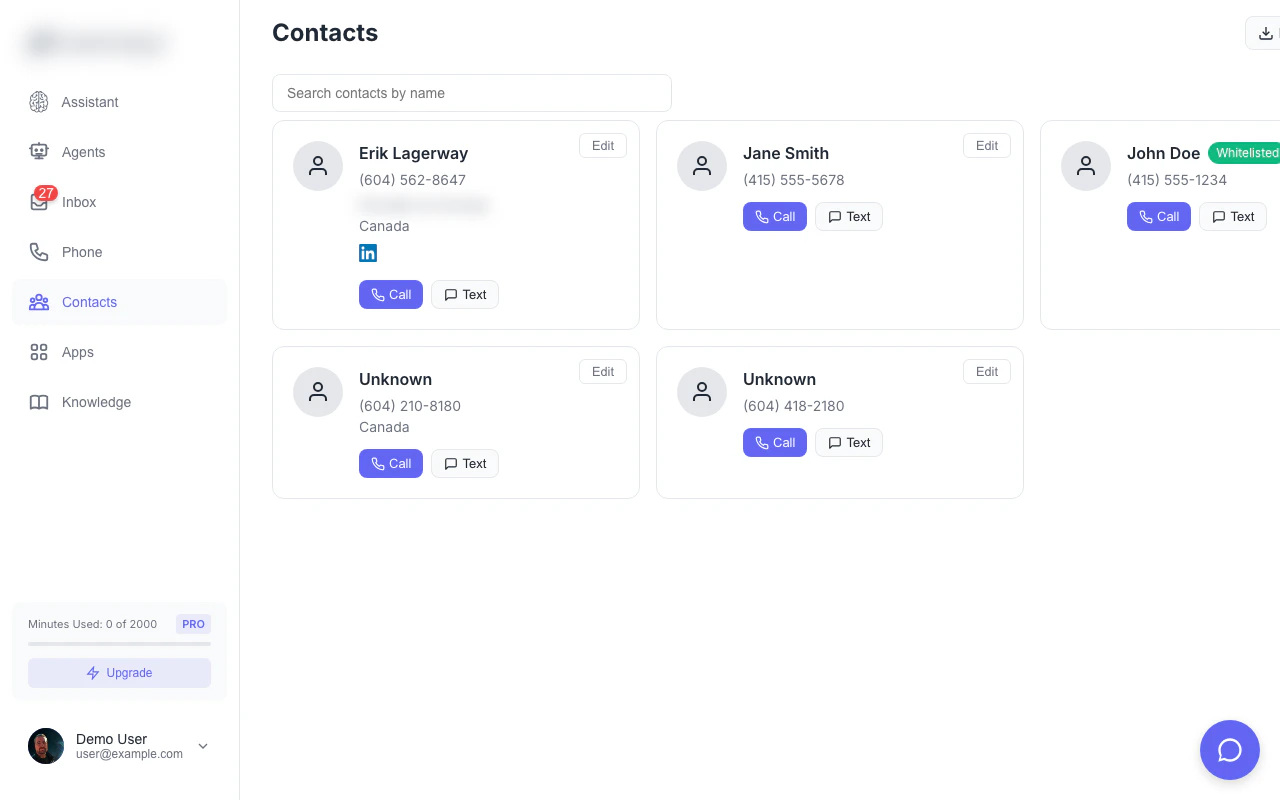
2. See all contacts in a card list view
3. Search by name, phone, or email
4. Each card shows avatar, name, phone, email, and company
### Editing a Contact
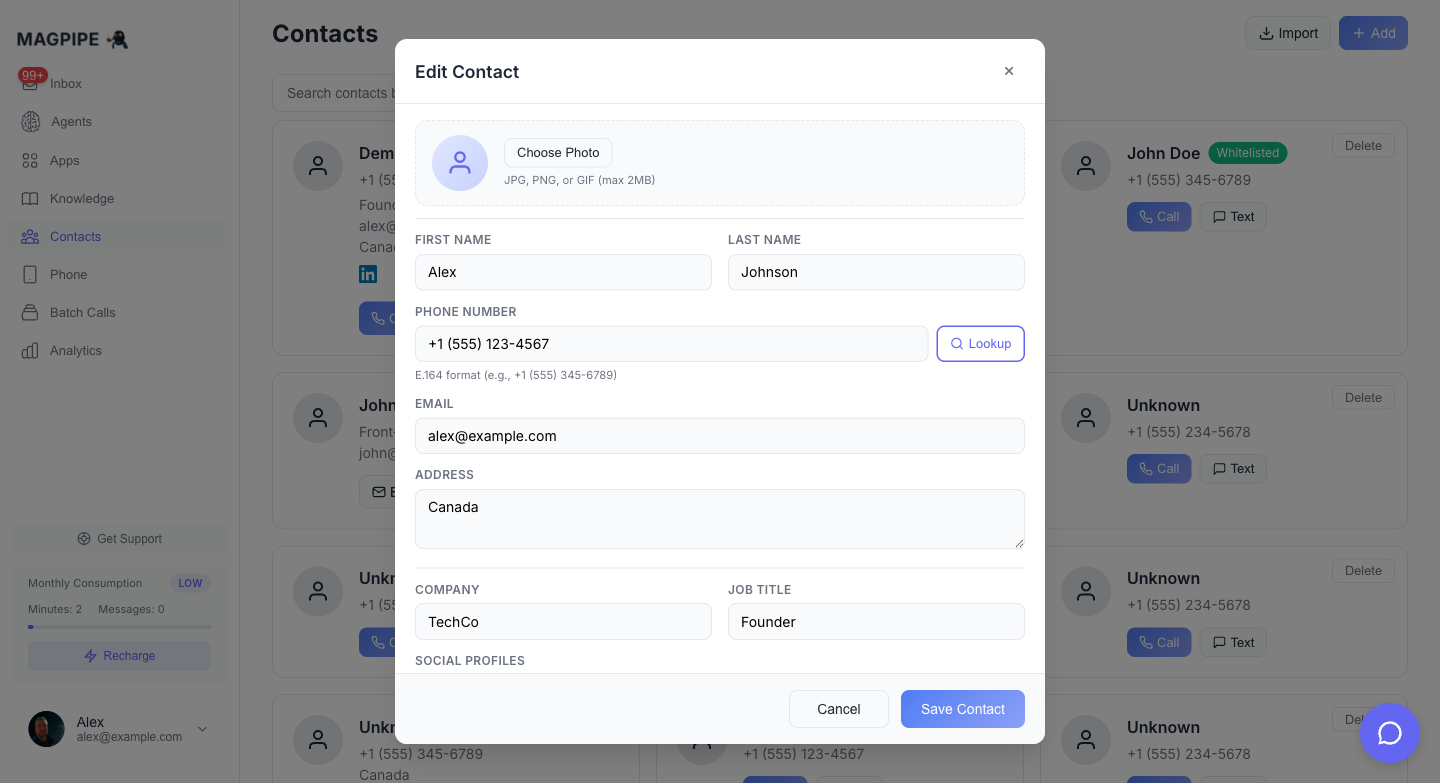
Click on any contact card to open the edit form:
* Update name, email, phone, company, job title, address
* Add notes
* Social profile links (LinkedIn, Twitter, Facebook)
* Save changes with the footer button
### Quick Actions
Each contact card has quick action buttons:
* **Call** — Start an outbound call to this contact
* **Text** — Open SMS composer
* **Delete** — Remove the contact (with confirmation)
## Creating Contacts
### Automatic Creation
Contacts are created automatically when:
* Someone calls your agent for the first time
* Someone texts your number for the first time
* Someone starts a chat session
* An email arrives from a new sender
The AI agent may capture additional info:
* Name (if caller provides it)
* Email (if collected in conversation)
* Other details mentioned
### Manual Creation
Create contacts manually:
Navigate to **Contacts** from main nav.
Click the **+ Add Contact** button.
Fill in the contact details:
* First name and last name
* Phone number
* Email
* Company and job title
* Address
* Notes
Click **Save Contact**.
### Bulk Import
Import multiple contacts at once:
1. Go to **Contacts**
2. Click **Import CSV**
3. Upload a CSV file
4. Map columns to fields
5. Review and confirm
**CSV Format:**
```csv theme={null}
phone,name,email,company,notes
+16045551234,John Smith,john@example.com,Acme Corp,VIP customer
+16045555678,Jane Doe,jane@example.com,,Interested in premium
```
**Required columns:**
* `phone` - Phone number (E.164 or local format)
**Optional columns:**
* `name` - Full name or first name
* `email` - Email address
* `company` - Company name
* `notes` - Any notes
## Searching Contacts
### Quick Search
Use the search bar to find contacts by:
* Phone number (full or partial)
* Name
* Email
* Company name
## Deleting Contacts
Deleting a contact removes their information. A confirmation dialog will appear before deletion.
To delete:
1. Click the **Delete** button on the contact card
2. Confirm deletion in the modal
## Integration with Other Features
### Inbox
When viewing a conversation:
* Contact info shown in conversation header
* Avatar, name, job title, and social links displayed
* All conversations linked to that contact
### Outbound Calls
Use contacts for outbound calls:
1. Click the **Call** button on any contact card
2. AI agent calls with contact context
### Call Context
When a known contact calls:
* Agent sees their name
* Agent has access to conversation history
* Previous notes available for context
* Personalized greeting possible
### HubSpot Sync
With HubSpot connected:
* Create contacts in HubSpot via agent tools
* Search HubSpot contacts during calls
* Add notes to HubSpot contact records
## API Access
### List Contacts
```bash theme={null}
curl -X GET "https://api.magpipe.ai/functions/v1/list-contacts" \
-H "Authorization: Bearer YOUR_API_KEY"
```
### Create Contact
```bash theme={null}
curl -X POST "https://api.magpipe.ai/functions/v1/create-contact" \
-H "Authorization: Bearer YOUR_API_KEY" \
-H "Content-Type: application/json" \
-d '{
"phone": "+16045551234",
"name": "John Smith",
"email": "john@example.com"
}'
```
### Update Contact
```bash theme={null}
curl -X POST "https://api.magpipe.ai/functions/v1/update-contact" \
-H "Authorization: Bearer YOUR_API_KEY" \
-H "Content-Type: application/json" \
-d '{
"contact_id": "uuid-here",
"name": "John Smith Jr."
}'
```
Full API documentation
View contact conversations
Email contact enrichment
## Contact Features
### Automatic Creation
When someone new contacts you:
* A contact is automatically created
* Phone number or email is saved
* Name added if mentioned during conversation
* All communications linked to this contact
### Email Enrichment
When an email arrives from a new sender:
* Contact data is automatically looked up (company, phone, job title, LinkedIn, Twitter)
* If the sender already exists as a phone contact, their record is updated with email data
* No duplicates created — phone and email contacts are automatically merged
### Contact Information
Each contact can include:
| Field | Description | Auto-Populated |
| ---------------- | ---------------------------- | :-----------------: |
| **Phone Number** | Primary phone (E.164 format) | ✓ |
| **First Name** | First name | Sometimes |
| **Last Name** | Last name | Sometimes |
| **Email** | Email address | ✓ (from email) |
| **Company** | Organization name | ✓ (from enrichment) |
| **Job Title** | Role at company | ✓ (from enrichment) |
| **Address** | Mailing address | ✓ (from enrichment) |
| **LinkedIn** | LinkedIn profile URL | ✓ (from enrichment) |
| **Twitter** | Twitter profile URL | ✓ (from enrichment) |
| **Facebook** | Facebook profile URL | ✓ (from enrichment) |
| **Avatar** | Profile photo | ✓ (from enrichment) |
| **Notes** | Free-form notes | ✗ |
| **Created** | When contact was added | ✓ |
### Conversation History
Every contact shows their complete communication history:
* All phone calls (with recordings)
* All SMS/MMS messages
* All chat conversations
* All email threads
* Timestamps and duration
## Managing Contacts
### Viewing Contacts
1. Go to **Contacts** from the main navigation
2. See all contacts in a card list view
3. Search by name, phone, or email
4. Each card shows avatar, name, phone, email, and company
### Editing a Contact
Click on any contact card to open the edit form:
* Update name, email, phone, company, job title, address
* Add notes
* Social profile links (LinkedIn, Twitter, Facebook)
* Save changes with the footer button
### Quick Actions
Each contact card has quick action buttons:
* **Call** — Start an outbound call to this contact
* **Text** — Open SMS composer
* **Delete** — Remove the contact (with confirmation)
## Creating Contacts
### Automatic Creation
Contacts are created automatically when:
* Someone calls your agent for the first time
* Someone texts your number for the first time
* Someone starts a chat session
* An email arrives from a new sender
The AI agent may capture additional info:
* Name (if caller provides it)
* Email (if collected in conversation)
* Other details mentioned
### Manual Creation
Create contacts manually:
Navigate to **Contacts** from main nav.
Click the **+ Add Contact** button.
Fill in the contact details:
* First name and last name
* Phone number
* Email
* Company and job title
* Address
* Notes
Click **Save Contact**.
### Bulk Import
Import multiple contacts at once:
1. Go to **Contacts**
2. Click **Import CSV**
3. Upload a CSV file
4. Map columns to fields
5. Review and confirm
**CSV Format:**
```csv theme={null}
phone,name,email,company,notes
+16045551234,John Smith,john@example.com,Acme Corp,VIP customer
+16045555678,Jane Doe,jane@example.com,,Interested in premium
```
**Required columns:**
* `phone` - Phone number (E.164 or local format)
**Optional columns:**
* `name` - Full name or first name
* `email` - Email address
* `company` - Company name
* `notes` - Any notes
## Searching Contacts
### Quick Search
Use the search bar to find contacts by:
* Phone number (full or partial)
* Name
* Email
* Company name
## Deleting Contacts
Deleting a contact removes their information. A confirmation dialog will appear before deletion.
To delete:
1. Click the **Delete** button on the contact card
2. Confirm deletion in the modal
## Integration with Other Features
### Inbox
When viewing a conversation:
* Contact info shown in conversation header
* Avatar, name, job title, and social links displayed
* All conversations linked to that contact
### Outbound Calls
Use contacts for outbound calls:
1. Click the **Call** button on any contact card
2. AI agent calls with contact context
### Call Context
When a known contact calls:
* Agent sees their name
* Agent has access to conversation history
* Previous notes available for context
* Personalized greeting possible
### HubSpot Sync
With HubSpot connected:
* Create contacts in HubSpot via agent tools
* Search HubSpot contacts during calls
* Add notes to HubSpot contact records
## API Access
### List Contacts
```bash theme={null}
curl -X GET "https://api.magpipe.ai/functions/v1/list-contacts" \
-H "Authorization: Bearer YOUR_API_KEY"
```
### Create Contact
```bash theme={null}
curl -X POST "https://api.magpipe.ai/functions/v1/create-contact" \
-H "Authorization: Bearer YOUR_API_KEY" \
-H "Content-Type: application/json" \
-d '{
"phone": "+16045551234",
"name": "John Smith",
"email": "john@example.com"
}'
```
### Update Contact
```bash theme={null}
curl -X POST "https://api.magpipe.ai/functions/v1/update-contact" \
-H "Authorization: Bearer YOUR_API_KEY" \
-H "Content-Type: application/json" \
-d '{
"contact_id": "uuid-here",
"name": "John Smith Jr."
}'
```
Full API documentation
View contact conversations
Email contact enrichment