> ## Documentation Index
> Fetch the complete documentation index at: https://docs.magpipe.ai/llms.txt
> Use this file to discover all available pages before exploring further.
# Email Integration
> Connect Gmail to send and receive emails through your AI agents
## Overview
Email integration lets you connect a Gmail account to your AI agents, bringing email conversations into your unified inbox alongside calls, texts, and chat. Your agents can monitor incoming emails, auto-enrich contacts from email senders, and respond on your behalf.
 ## How It Works
1. **Connect Gmail** via OAuth in the agent's Deploy tab
2. **Emails sync** to your inbox automatically via push notifications
3. **Contacts are enriched** — new email senders get company, phone, job title, and social profiles added automatically
4. **View and reply** to email threads directly from the inbox
5. **Agent mode** (optional) — let your AI agent draft or auto-send email replies
## Connecting Gmail
Navigate to **Agents** → select your agent → **Deploy** tab.
In the **Email** section, click **Connect Gmail**. A Google OAuth popup will appear.
Grant Magpipe permission to read and send email on your behalf. Only the connected Gmail address is accessed.
Once connected, configure the email channel:
* **Active toggle** — Enable/disable email handling for this agent
* **Send As** — Optional: set a different reply-from address
* **Agent Mode** — Choose how the AI handles emails (see below)
One Gmail account can be connected to multiple agents. Each agent has its own email configuration.
## Agent Email Modes
Control how your AI agent interacts with incoming emails:
| Mode | Behavior |
| --------- | ---------------------------------------------------- |
| **Off** | Emails appear in inbox but agent does not respond |
| **Draft** | Agent drafts a reply for your review before sending |
| **Auto** | Agent automatically sends replies to incoming emails |
Set the mode in **Agents** → **Deploy** → **Email** → **Agent Mode**.
## Email in the Inbox
### Viewing Email Threads
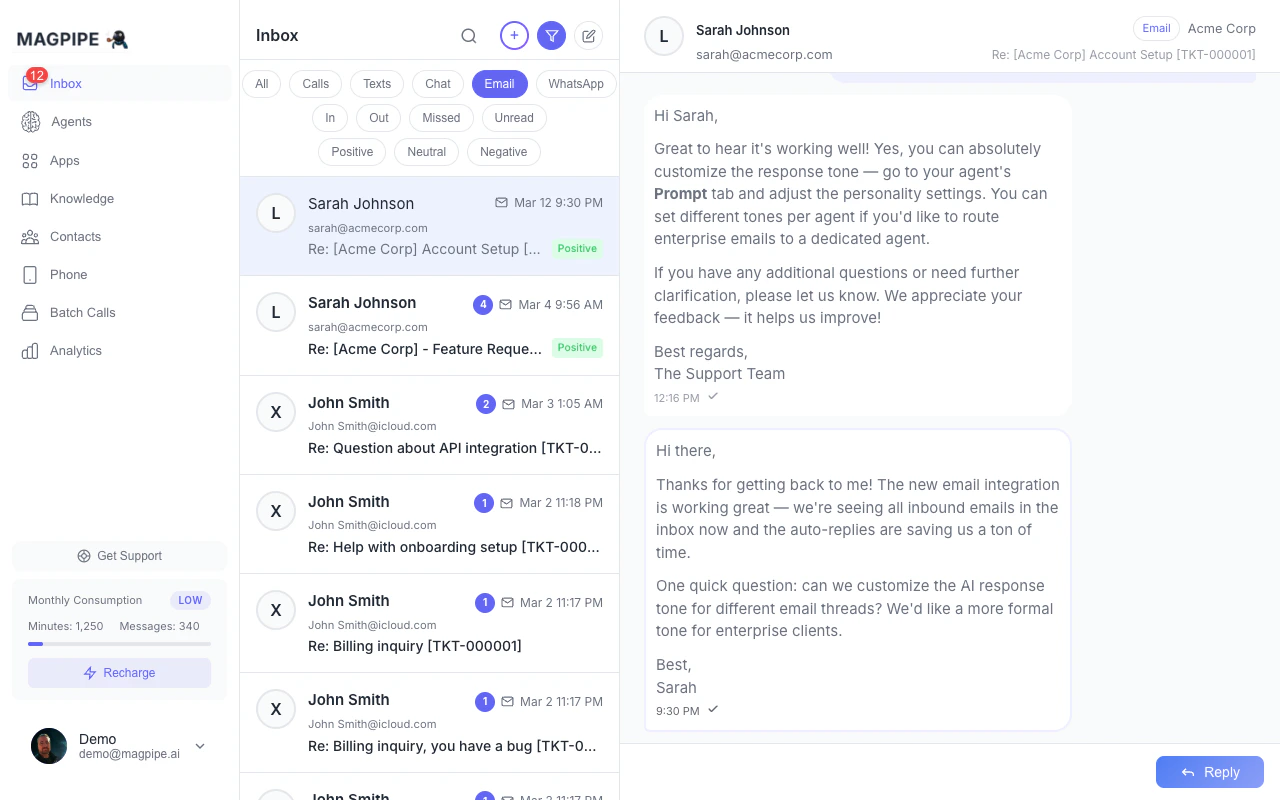
Email conversations appear in the inbox alongside your other communication channels. Filter to **Email only** using the type filter pills.
Each email thread shows:
* Sender name and email address
* Subject line
* Message preview
* Timestamp
* Contact avatar (if available)
### Thread Detail View
Click an email thread to see the full conversation:
* All messages displayed in chronological order
* **From** labels on each message
* Quoted text and email signatures are automatically stripped for clean reading
* Delivery status indicators
### Quick Actions
From an email thread, you can:
* **Reply** — Send a reply directly from the inbox
* **Call** — Call the contact (if phone number is known)
* **Message** — Send an SMS (if phone number is known)
* **Email** — Compose a new email
## Contact Enrichment
When an email arrives from a new sender, the system automatically:
1. **Looks up the sender** using the email address
2. **Enriches the contact** with publicly available data:
* Full name
* Company and job title
* Phone number
* LinkedIn, Twitter, and Facebook profiles
* Avatar/photo
3. **Merges with existing contacts** — if the sender already exists as a phone contact, their record is updated with the email address and any missing fields. No duplicates are created.
This means a contact who previously only had a phone number from calls/texts will automatically get their email, company info, and social profiles added when they email you.
## Email Sync
### Push Notifications
Email delivery uses Gmail Pub/Sub push notifications for near-real-time sync. When a new email arrives in Gmail, it's pushed to your inbox within seconds.
### Fallback Polling
As a backup, the system polls Gmail every 30 minutes to catch any emails that might have been missed by the push mechanism.
### Watch Renewal
Gmail push notification subscriptions expire periodically. The system automatically renews them daily to ensure uninterrupted delivery.
## Managing Email
### Detaching Email
To remove email from an agent:
1. Go to **Agents** → select agent → **Deploy** tab
2. In the Email section, click **Detach**
3. Confirm the removal
The Gmail connection remains active for other agents — only this agent's email configuration is removed.
### Multiple Agents
You can connect the same Gmail account to multiple agents. Each agent has independent settings for:
* Active/inactive status
* Send-as address
* Agent mode (off/draft/auto)
View all conversations including email
Contact enrichment from email
## How It Works
1. **Connect Gmail** via OAuth in the agent's Deploy tab
2. **Emails sync** to your inbox automatically via push notifications
3. **Contacts are enriched** — new email senders get company, phone, job title, and social profiles added automatically
4. **View and reply** to email threads directly from the inbox
5. **Agent mode** (optional) — let your AI agent draft or auto-send email replies
## Connecting Gmail
Navigate to **Agents** → select your agent → **Deploy** tab.
In the **Email** section, click **Connect Gmail**. A Google OAuth popup will appear.
Grant Magpipe permission to read and send email on your behalf. Only the connected Gmail address is accessed.
Once connected, configure the email channel:
* **Active toggle** — Enable/disable email handling for this agent
* **Send As** — Optional: set a different reply-from address
* **Agent Mode** — Choose how the AI handles emails (see below)
One Gmail account can be connected to multiple agents. Each agent has its own email configuration.
## Agent Email Modes
Control how your AI agent interacts with incoming emails:
| Mode | Behavior |
| --------- | ---------------------------------------------------- |
| **Off** | Emails appear in inbox but agent does not respond |
| **Draft** | Agent drafts a reply for your review before sending |
| **Auto** | Agent automatically sends replies to incoming emails |
Set the mode in **Agents** → **Deploy** → **Email** → **Agent Mode**.
## Email in the Inbox
### Viewing Email Threads
Email conversations appear in the inbox alongside your other communication channels. Filter to **Email only** using the type filter pills.
Each email thread shows:
* Sender name and email address
* Subject line
* Message preview
* Timestamp
* Contact avatar (if available)
### Thread Detail View
Click an email thread to see the full conversation:
* All messages displayed in chronological order
* **From** labels on each message
* Quoted text and email signatures are automatically stripped for clean reading
* Delivery status indicators
### Quick Actions
From an email thread, you can:
* **Reply** — Send a reply directly from the inbox
* **Call** — Call the contact (if phone number is known)
* **Message** — Send an SMS (if phone number is known)
* **Email** — Compose a new email
## Contact Enrichment
When an email arrives from a new sender, the system automatically:
1. **Looks up the sender** using the email address
2. **Enriches the contact** with publicly available data:
* Full name
* Company and job title
* Phone number
* LinkedIn, Twitter, and Facebook profiles
* Avatar/photo
3. **Merges with existing contacts** — if the sender already exists as a phone contact, their record is updated with the email address and any missing fields. No duplicates are created.
This means a contact who previously only had a phone number from calls/texts will automatically get their email, company info, and social profiles added when they email you.
## Email Sync
### Push Notifications
Email delivery uses Gmail Pub/Sub push notifications for near-real-time sync. When a new email arrives in Gmail, it's pushed to your inbox within seconds.
### Fallback Polling
As a backup, the system polls Gmail every 30 minutes to catch any emails that might have been missed by the push mechanism.
### Watch Renewal
Gmail push notification subscriptions expire periodically. The system automatically renews them daily to ensure uninterrupted delivery.
## Managing Email
### Detaching Email
To remove email from an agent:
1. Go to **Agents** → select agent → **Deploy** tab
2. In the Email section, click **Detach**
3. Confirm the removal
The Gmail connection remains active for other agents — only this agent's email configuration is removed.
### Multiple Agents
You can connect the same Gmail account to multiple agents. Each agent has independent settings for:
* Active/inactive status
* Send-as address
* Agent mode (off/draft/auto)
View all conversations including email
Contact enrichment from email