> ## Documentation Index
> Fetch the complete documentation index at: https://docs.magpipe.ai/llms.txt
> Use this file to discover all available pages before exploring further.
# Inbox
> Unified communication hub for calls, texts, chat, and email
## Overview
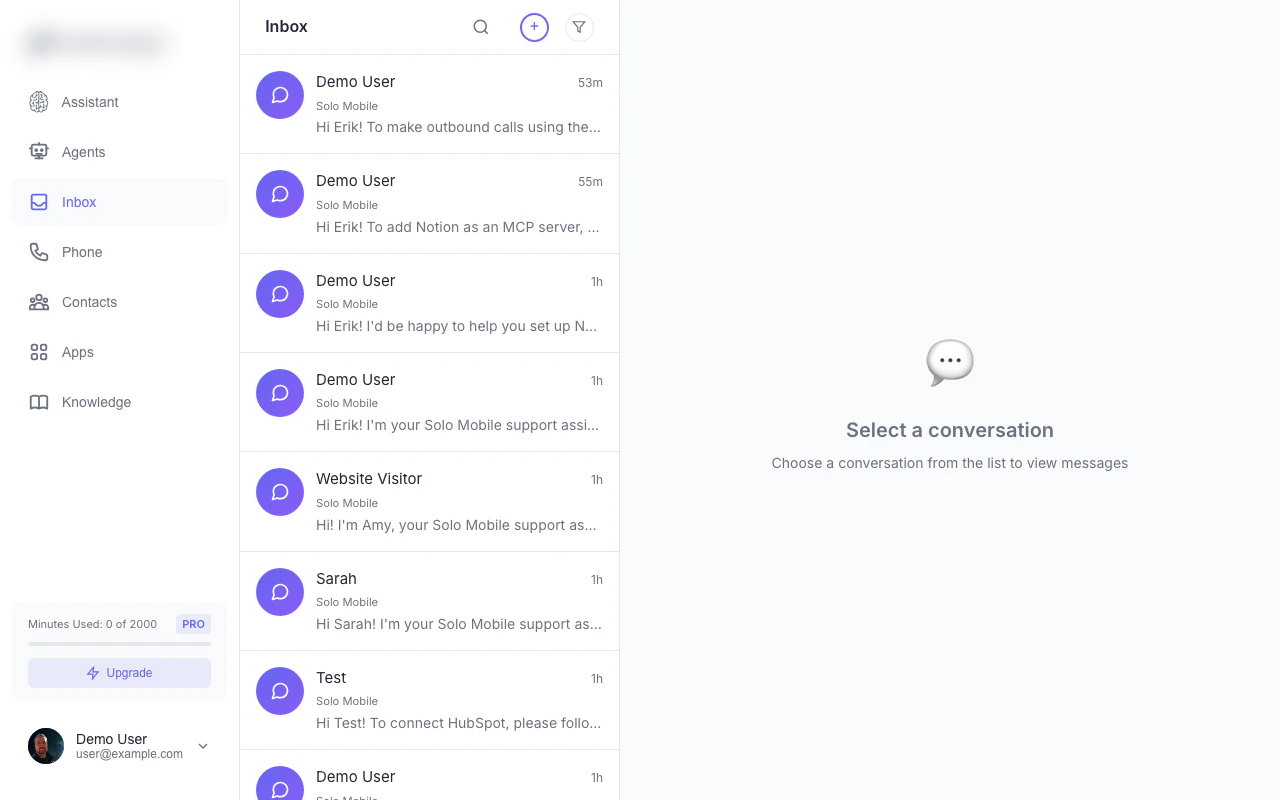
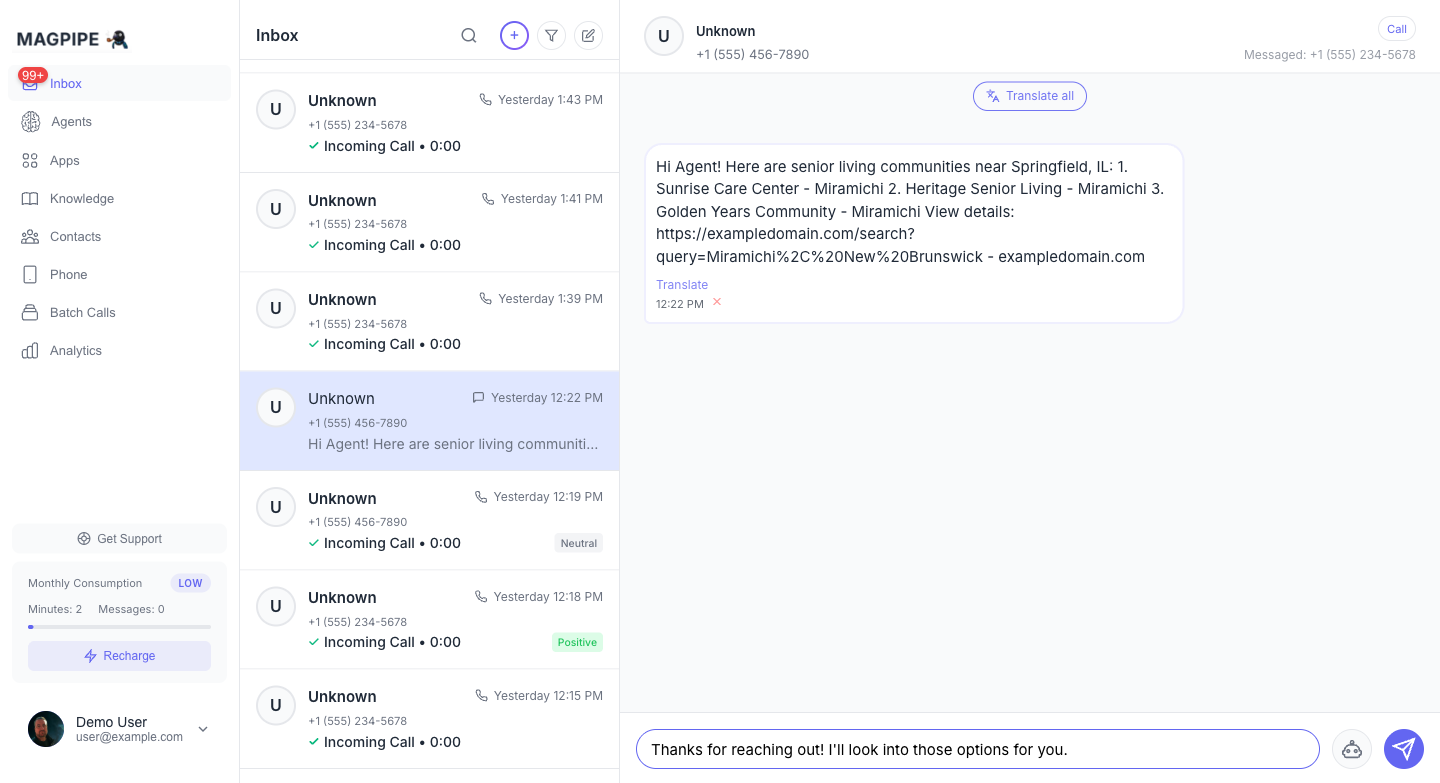
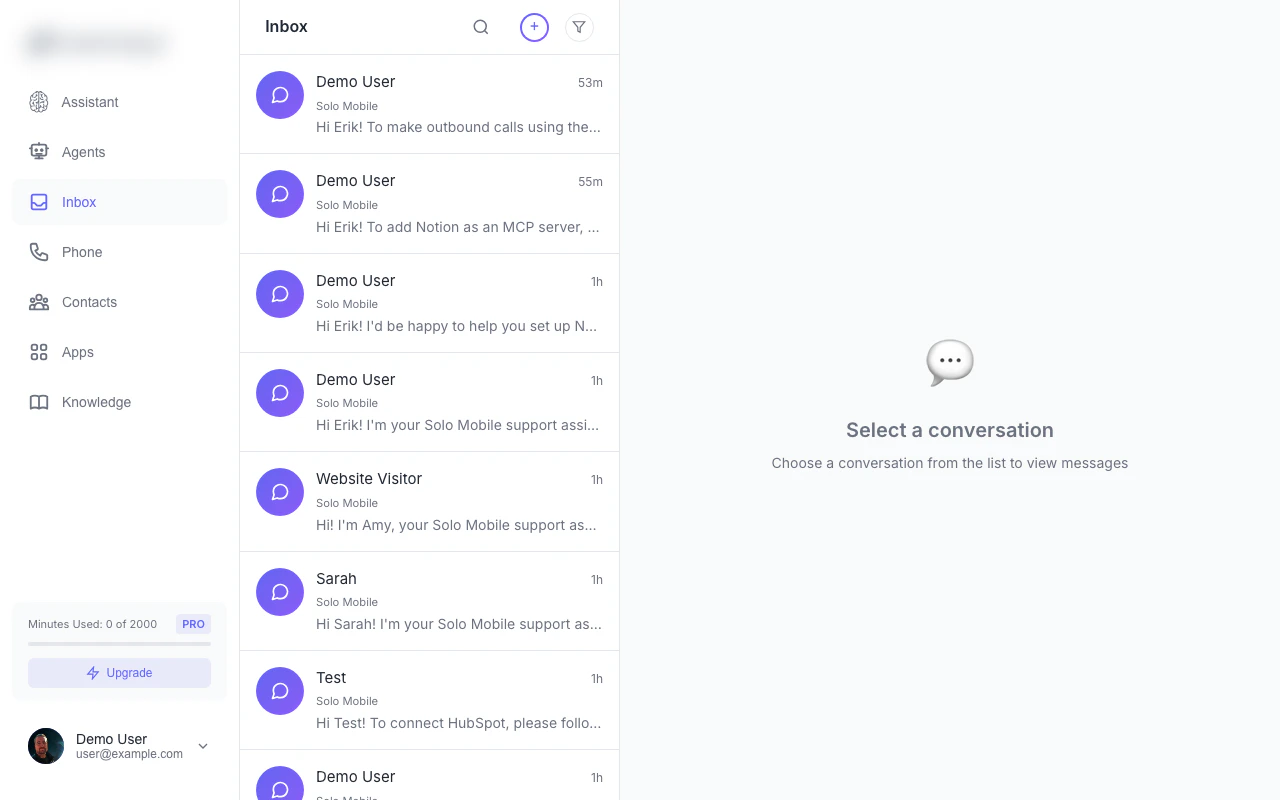
The Inbox is your unified communication center where all customer interactions converge. Whether someone calls your AI agent, sends a text message, chats on your website, or sends an email, every conversation appears here in real-time. Monitor, respond, and take over conversations when needed — all from a single interface.
 ## Conversation Types
### Voice Calls
Phone calls handled by your AI agents:
| Status | Description |
| ------------------ | ------------------------------------ |
| **Completed** | Call finished normally |
| **Answered by AI** | Agent handled the call |
| **No Answer** | Caller hung up before agent answered |
| **Transferred** | Call was transferred to a human |
| **Screened Out** | Call was screened by the agent |
| **In Progress** | Call currently active |
| **Busy** | Line was busy |
| **Failed** | Call could not connect |
Each call includes:
* Full audio recording (with playback controls)
* AI-generated transcript with speaker labels
* Call duration and timestamp
* Caller ID information
### SMS Messages
Text message conversations:
* Two-way SMS threads grouped by contact and service number
* AI-generated responses clearly marked
* Manual replies from team members
* Delivery status indicators (sent, pending, failed)
### Website Chat
Conversations from your embedded chat widget:
* Real-time message threads
* Visitor information (name, email if collected)
* Widget name shown in header
* AI responses marked with indicator
* Pause/Resume AI toggle
### Email
Email conversations connected via Gmail:
* Full email threads grouped by thread ID
* Subject line and sender info
* Quoted text automatically stripped for clean display
* Reply directly from the inbox
* Contact enrichment from email senders
See [Email Integration](/features/email) for setup details.
## Inbox Features
### Real-Time Updates
The inbox updates automatically:
* New conversations appear instantly via real-time subscriptions
* Messages arrive without refreshing
* Desktop notifications for new messages (if enabled)
### Unread Indicators
Never miss a conversation:
* **Blue dot** on unread conversations
* **Badge count** on inbox icon in navigation
* Conversations marked read when opened
* **Mark All Read** button to clear all unread indicators
### Conversation List
Each conversation shows at a glance:
* **Contact name** or phone number/email
* **Avatar** (from contacts or auto-generated)
* **Last message preview** (truncated)
* **Timestamp** (relative: "2m ago", "Yesterday")
* **Type icon** (phone, message, chat bubble, or envelope)
* **Call status** indicator for voice calls
* **Unread count** badge
### Filtering
Find conversations quickly with combinable filters:
**Filter by Type:**
* All conversations
* Calls only
* Texts only
* Chat only
* Email only
**Filter by Direction:**
* All
* Inbound
* Outbound
**Filter by Status:**
* Missed calls only
* Unread only
**Filter by Sentiment:**
* Positive
* Neutral
* Negative
**Filter by Date:**
* Today
* Yesterday
* This week
* This month
**Search:**
* Phone number
* Contact name
* Message content
* Email address or subject
* Call transcript text
## Conversation Detail View
## Conversation Types
### Voice Calls
Phone calls handled by your AI agents:
| Status | Description |
| ------------------ | ------------------------------------ |
| **Completed** | Call finished normally |
| **Answered by AI** | Agent handled the call |
| **No Answer** | Caller hung up before agent answered |
| **Transferred** | Call was transferred to a human |
| **Screened Out** | Call was screened by the agent |
| **In Progress** | Call currently active |
| **Busy** | Line was busy |
| **Failed** | Call could not connect |
Each call includes:
* Full audio recording (with playback controls)
* AI-generated transcript with speaker labels
* Call duration and timestamp
* Caller ID information
### SMS Messages
Text message conversations:
* Two-way SMS threads grouped by contact and service number
* AI-generated responses clearly marked
* Manual replies from team members
* Delivery status indicators (sent, pending, failed)
### Website Chat
Conversations from your embedded chat widget:
* Real-time message threads
* Visitor information (name, email if collected)
* Widget name shown in header
* AI responses marked with indicator
* Pause/Resume AI toggle
### Email
Email conversations connected via Gmail:
* Full email threads grouped by thread ID
* Subject line and sender info
* Quoted text automatically stripped for clean display
* Reply directly from the inbox
* Contact enrichment from email senders
See [Email Integration](/features/email) for setup details.
## Inbox Features
### Real-Time Updates
The inbox updates automatically:
* New conversations appear instantly via real-time subscriptions
* Messages arrive without refreshing
* Desktop notifications for new messages (if enabled)
### Unread Indicators
Never miss a conversation:
* **Blue dot** on unread conversations
* **Badge count** on inbox icon in navigation
* Conversations marked read when opened
* **Mark All Read** button to clear all unread indicators
### Conversation List
Each conversation shows at a glance:
* **Contact name** or phone number/email
* **Avatar** (from contacts or auto-generated)
* **Last message preview** (truncated)
* **Timestamp** (relative: "2m ago", "Yesterday")
* **Type icon** (phone, message, chat bubble, or envelope)
* **Call status** indicator for voice calls
* **Unread count** badge
### Filtering
Find conversations quickly with combinable filters:
**Filter by Type:**
* All conversations
* Calls only
* Texts only
* Chat only
* Email only
**Filter by Direction:**
* All
* Inbound
* Outbound
**Filter by Status:**
* Missed calls only
* Unread only
**Filter by Sentiment:**
* Positive
* Neutral
* Negative
**Filter by Date:**
* Today
* Yesterday
* This week
* This month
**Search:**
* Phone number
* Contact name
* Message content
* Email address or subject
* Call transcript text
## Conversation Detail View
 ### Call Details
When viewing a call conversation:
* Contact info with avatar, name, job title, social links
* Caller and callee phone numbers (clickable)
* Call timestamp and duration
* All recordings displayed with individual audio players
* Full transcript with speaker labels (Agent vs Caller)
* Translation link for multilingual conversations
* Quick actions: **Call** and **Message** buttons
**Recording Features:**
* Play/pause control
* Multiple recordings per call (Main Call, Reconnect, Transfer, etc.)
* Recording ID for reference
### SMS Details
When viewing a message conversation:
* Contact name and phone number with avatar
* Service number indicator (which of your numbers)
* Messages in chronological order with timestamps
* Delivery status icons (sent, pending, failed)
* Per-message translation link
* **Translate All** button for full thread
* Reply input at the bottom
* Quick action: **Call** button
### Email Details
When viewing an email conversation:
* Contact name and email address
* Service number indicator
* Email subject line
* All messages in thread with sender labels
* Quoted text and signatures stripped for clean display
* **Reply** button
* Quick actions: **Call**, **Message**, and **Email** buttons
### Chat Details
When viewing a chat conversation:
* Visitor name and avatar
* Widget name
* Visitor email (if collected)
* **AI Paused** indicator when human has taken over
* **Resume AI** button to re-enable agent
* Message thread with input
* Infinite scroll for long conversations
## Human Handoff
### Taking Over a Conversation
You can intervene in any SMS or chat conversation:
1. **Open the conversation** from the inbox
2. **Type your message** in the reply box
3. **Click Send** to deliver your response
When you send a manual reply:
* Your message is delivered immediately
* The AI agent pauses for this conversation
* Your messages appear without the AI indicator
* Customer sees a seamless conversation
### Chat AI Controls
For chat conversations specifically:
* **AI Paused** indicator shows when you've taken over
* **Resume AI** button to let the agent handle responses again
## Multi-Select & Deletion
### Deleting Conversations
Remove conversations you no longer need:
1. Tap **Edit** in the inbox toolbar
2. Tap **Select to Delete** to enter selection mode
3. Check the conversations you want to remove
4. Tap **Delete (N)** to confirm
5. A confirmation modal appears before permanent deletion
### Mobile Swipe Delete
On mobile devices, swipe left on any conversation to reveal the delete button.
### Mark All Read
Clear all unread indicators at once with the **Mark All Read** button in the Edit menu.
## Translation
For multilingual conversations:
* **Per-message translation** links on SMS messages
* **Translate All Messages** button for full SMS threads
* **Transcript translation** for call recordings
* Translation respects your agent's language setting
## Contacts Integration
### Auto-Created Contacts
When someone new calls, texts, or emails:
* A contact is automatically created
* Phone number or email is saved
* Name added if provided during conversation or enriched from email data
### Linked Contacts
If a contact already exists:
* Conversation shows contact name and avatar
* Job title, company, and social links displayed
* All conversations linked to that contact
### Email Contact Enrichment
When an email arrives from a new sender:
* Contact data is automatically looked up (company, phone, job title, social profiles)
* If the person already exists as a phone contact, their record is updated with email data
* No duplicate contacts created
## Mobile Experience
On mobile devices:
* Full-screen conversation views with back button
* Swipe left to delete conversations
* Optimized touch targets
* Infinite scroll for conversation list
* Bottom navigation with unread badges
## Notifications
### Desktop Notifications
Enable browser notifications to get alerts for:
* New incoming calls
* New SMS messages
* New chat messages
Configure in **Settings** → **Notifications**.
### Push Notifications (PWA)
When installed as a PWA on your home screen:
* Push notifications for new conversations
* Works even when the app isn't open
* Requires iOS 16.4+ for iPhone
Connect Gmail for email in your inbox
Retrieve calls programmatically
Access message history via API
Add chat to your website
### Call Details
When viewing a call conversation:
* Contact info with avatar, name, job title, social links
* Caller and callee phone numbers (clickable)
* Call timestamp and duration
* All recordings displayed with individual audio players
* Full transcript with speaker labels (Agent vs Caller)
* Translation link for multilingual conversations
* Quick actions: **Call** and **Message** buttons
**Recording Features:**
* Play/pause control
* Multiple recordings per call (Main Call, Reconnect, Transfer, etc.)
* Recording ID for reference
### SMS Details
When viewing a message conversation:
* Contact name and phone number with avatar
* Service number indicator (which of your numbers)
* Messages in chronological order with timestamps
* Delivery status icons (sent, pending, failed)
* Per-message translation link
* **Translate All** button for full thread
* Reply input at the bottom
* Quick action: **Call** button
### Email Details
When viewing an email conversation:
* Contact name and email address
* Service number indicator
* Email subject line
* All messages in thread with sender labels
* Quoted text and signatures stripped for clean display
* **Reply** button
* Quick actions: **Call**, **Message**, and **Email** buttons
### Chat Details
When viewing a chat conversation:
* Visitor name and avatar
* Widget name
* Visitor email (if collected)
* **AI Paused** indicator when human has taken over
* **Resume AI** button to re-enable agent
* Message thread with input
* Infinite scroll for long conversations
## Human Handoff
### Taking Over a Conversation
You can intervene in any SMS or chat conversation:
1. **Open the conversation** from the inbox
2. **Type your message** in the reply box
3. **Click Send** to deliver your response
When you send a manual reply:
* Your message is delivered immediately
* The AI agent pauses for this conversation
* Your messages appear without the AI indicator
* Customer sees a seamless conversation
### Chat AI Controls
For chat conversations specifically:
* **AI Paused** indicator shows when you've taken over
* **Resume AI** button to let the agent handle responses again
## Multi-Select & Deletion
### Deleting Conversations
Remove conversations you no longer need:
1. Tap **Edit** in the inbox toolbar
2. Tap **Select to Delete** to enter selection mode
3. Check the conversations you want to remove
4. Tap **Delete (N)** to confirm
5. A confirmation modal appears before permanent deletion
### Mobile Swipe Delete
On mobile devices, swipe left on any conversation to reveal the delete button.
### Mark All Read
Clear all unread indicators at once with the **Mark All Read** button in the Edit menu.
## Translation
For multilingual conversations:
* **Per-message translation** links on SMS messages
* **Translate All Messages** button for full SMS threads
* **Transcript translation** for call recordings
* Translation respects your agent's language setting
## Contacts Integration
### Auto-Created Contacts
When someone new calls, texts, or emails:
* A contact is automatically created
* Phone number or email is saved
* Name added if provided during conversation or enriched from email data
### Linked Contacts
If a contact already exists:
* Conversation shows contact name and avatar
* Job title, company, and social links displayed
* All conversations linked to that contact
### Email Contact Enrichment
When an email arrives from a new sender:
* Contact data is automatically looked up (company, phone, job title, social profiles)
* If the person already exists as a phone contact, their record is updated with email data
* No duplicate contacts created
## Mobile Experience
On mobile devices:
* Full-screen conversation views with back button
* Swipe left to delete conversations
* Optimized touch targets
* Infinite scroll for conversation list
* Bottom navigation with unread badges
## Notifications
### Desktop Notifications
Enable browser notifications to get alerts for:
* New incoming calls
* New SMS messages
* New chat messages
Configure in **Settings** → **Notifications**.
### Push Notifications (PWA)
When installed as a PWA on your home screen:
* Push notifications for new conversations
* Works even when the app isn't open
* Requires iOS 16.4+ for iPhone
Connect Gmail for email in your inbox
Retrieve calls programmatically
Access message history via API
Add chat to your website