> ## Documentation Index
> Fetch the complete documentation index at: https://docs.magpipe.ai/llms.txt
> Use this file to discover all available pages before exploring further.
# Integrations & MCP
> Connect your AI agent to external services and tools
Integrations let your AI agent access external services like CRMs, calendars, and custom APIs. Your agent can look up customer data, schedule appointments, send messages, and more - all during live conversations.
## Overview
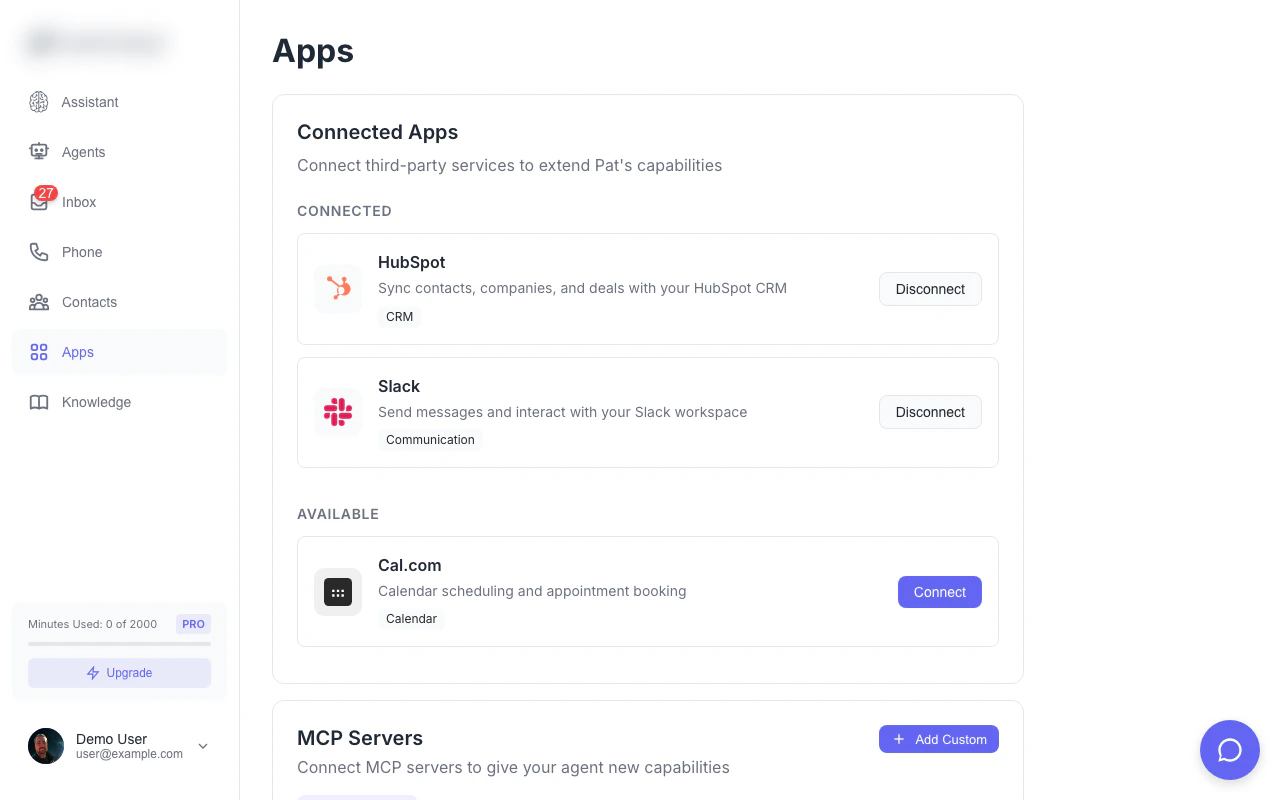 Magpipe supports three types of integrations:
| Type | Description | Examples |
| ---------------------- | ------------------------------------------- | ------------------------------------ |
| **OAuth Integrations** | Connect with a click using OAuth | HubSpot, Slack, Cal.com |
| **MCP Catalog** | Pre-configured MCP servers ready to connect | Brave Search, GitHub, Notion, Stripe |
| **Custom MCP Servers** | Add your own MCP-compatible servers | Internal APIs, custom tools |
## OAuth Integrations
### Available Integrations
Create contacts, search CRM, add notes
Send messages, list channels
Check availability, book appointments
### Connecting an Integration
1. Go to **Settings → Apps**
2. Find the integration you want
3. Click **Connect**
4. Authorize access in the popup
5. Integration is now available to your agents
### HubSpot Tools
Once connected, your agent can:
| Tool | Description |
| ------------------------- | ---------------------------------------- |
| `hubspot_create_contact` | Create a new contact in HubSpot |
| `hubspot_search_contacts` | Search contacts by name, email, or phone |
| `hubspot_get_contact` | Get full contact details by email |
| `hubspot_create_note` | Add a note to a contact record |
**Example conversation:**
> **Caller**: "Can you add me to your system? I'm John Smith, [john@example.com](mailto:john@example.com)"
>
> **Agent**: *Creates contact in HubSpot* "I've added you to our system, John. Is there anything else I can help with?"
### Slack Tools
| Tool | Description |
| --------------------- | -------------------------------------------- |
| `slack_send_message` | Send a message to a channel |
| `slack_list_channels` | List available channels (public and private) |
Private channels are fully supported. The Magpipe bot must be invited to any private channel you want to use. If you connected Slack before March 2026, disconnect and reconnect to grant the updated permissions.
### Calendar Tools
| Tool | Description |
| ----------------------------- | ------------------------- |
| `check_calendar_availability` | Find available time slots |
| `book_calendar_appointment` | Schedule an appointment |
## MCP Server Catalog
Magpipe supports three types of integrations:
| Type | Description | Examples |
| ---------------------- | ------------------------------------------- | ------------------------------------ |
| **OAuth Integrations** | Connect with a click using OAuth | HubSpot, Slack, Cal.com |
| **MCP Catalog** | Pre-configured MCP servers ready to connect | Brave Search, GitHub, Notion, Stripe |
| **Custom MCP Servers** | Add your own MCP-compatible servers | Internal APIs, custom tools |
## OAuth Integrations
### Available Integrations
Create contacts, search CRM, add notes
Send messages, list channels
Check availability, book appointments
### Connecting an Integration
1. Go to **Settings → Apps**
2. Find the integration you want
3. Click **Connect**
4. Authorize access in the popup
5. Integration is now available to your agents
### HubSpot Tools
Once connected, your agent can:
| Tool | Description |
| ------------------------- | ---------------------------------------- |
| `hubspot_create_contact` | Create a new contact in HubSpot |
| `hubspot_search_contacts` | Search contacts by name, email, or phone |
| `hubspot_get_contact` | Get full contact details by email |
| `hubspot_create_note` | Add a note to a contact record |
**Example conversation:**
> **Caller**: "Can you add me to your system? I'm John Smith, [john@example.com](mailto:john@example.com)"
>
> **Agent**: *Creates contact in HubSpot* "I've added you to our system, John. Is there anything else I can help with?"
### Slack Tools
| Tool | Description |
| --------------------- | -------------------------------------------- |
| `slack_send_message` | Send a message to a channel |
| `slack_list_channels` | List available channels (public and private) |
Private channels are fully supported. The Magpipe bot must be invited to any private channel you want to use. If you connected Slack before March 2026, disconnect and reconnect to grant the updated permissions.
### Calendar Tools
| Tool | Description |
| ----------------------------- | ------------------------- |
| `check_calendar_availability` | Find available time slots |
| `book_calendar_appointment` | Schedule an appointment |
## MCP Server Catalog
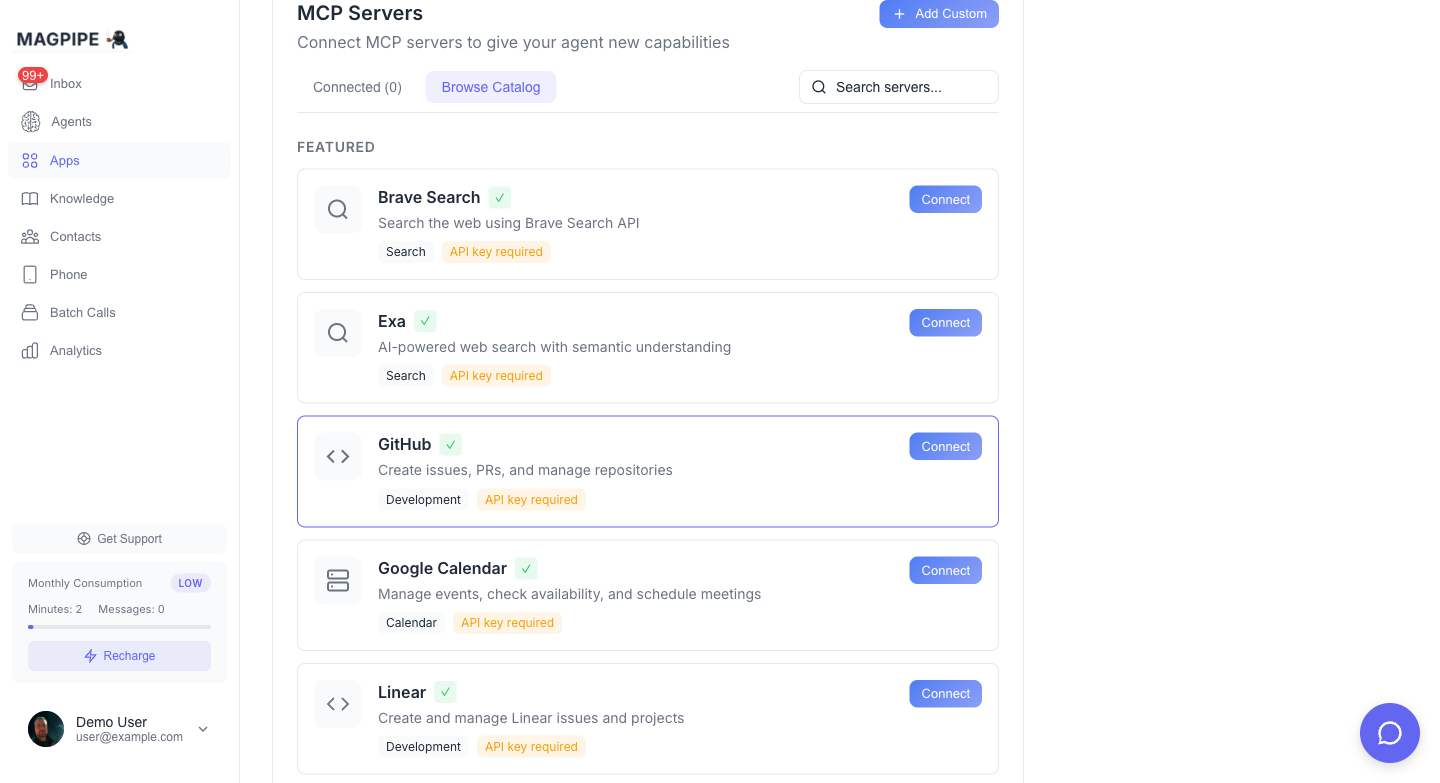 The MCP (Model Context Protocol) catalog includes 40+ pre-configured servers for popular services.
### Featured Servers
| Server | Category | Tools |
| ------------------- | ------------------ | ------------------------- |
| **Brave Search** | Search | Web search, summarization |
| **GitHub** | Development | Repos, issues, PRs |
| **Notion** | Productivity | Pages, databases |
| **Stripe** | Payments | Customers, charges |
| **Shopify** | E-commerce | Orders, products |
| **Salesforce** | CRM | Leads, opportunities |
| **Linear** | Project Management | Issues, projects |
| **Google Calendar** | Calendar | Events, availability |
### Connecting a Catalog Server
1. Go to **Settings → Apps → MCP Servers**
2. Browse the catalog
3. Click **Connect** on the server you want
4. Enter your API key (if required)
5. Tools are now available to your agents
Most MCP servers require an API key from the service provider. Check the server's documentation for how to obtain one.
### Full Catalog
Brave Search, Exa, Perplexity
GitHub, GitLab, Linear, Sentry
Notion, Asana, Trello, Airtable, Jira
Slack, Discord, Twilio
HubSpot, Salesforce, Zendesk
Stripe, Shopify
PostgreSQL, MongoDB, Supabase, SQLite
Cloudflare, Vercel, AWS
Google Drive, Dropbox
Mailchimp, Mailgun
Figma
Zapier, Make
## Custom MCP Servers
Add your own MCP-compatible servers to give agents access to internal tools and APIs.
### Adding a Custom Server
1. Go to **Settings → Apps → MCP Servers**
2. Click **Add Custom Server**
3. Enter:
* **Name**: Display name for the server
* **URL**: HTTPS endpoint (e.g., `https://mcp.yourcompany.com/v1`)
* **Auth Type**: None, API Key, or Bearer Token
* **API Key**: If required
4. Click **Validate** to test the connection
5. If successful, click **Add Server**
### Requirements
Custom MCP servers must:
* Use **HTTPS** (HTTP not allowed)
* Implement the [MCP JSON-RPC protocol](https://modelcontextprotocol.io)
* Respond to `tools/list` and `tools/call` methods
* Be publicly accessible (no localhost or internal IPs)
### Authentication Options
| Type | Header | Description |
| ------- | ----------------------- | -------------------- |
| None | - | No authentication |
| API Key | `X-API-Key` | API key in header |
| Bearer | `Authorization: Bearer` | Token authentication |
### Example MCP Server Response
```json theme={null}
// tools/list response
{
"jsonrpc": "2.0",
"result": {
"tools": [
{
"name": "lookup_order",
"description": "Look up an order by ID",
"inputSchema": {
"type": "object",
"properties": {
"order_id": { "type": "string" }
},
"required": ["order_id"]
}
}
]
}
}
```
## How Agents Use Tools
When your agent is on a call or chat, it can invoke any connected tool:
```
Caller: "What's the status of my order 12345?"
↓
Agent decides to call: lookup_order({ order_id: "12345" })
↓
MCP server returns order details
↓
Agent: "Your order 12345 shipped yesterday and should arrive Friday."
```
### Tool Naming
Tools are prefixed by their source:
| Source | Format | Example |
| ----------------- | --------------- | ------------------------ |
| Built-in | `tool_name` | `send_sms` |
| OAuth Integration | `provider_tool` | `hubspot_create_contact` |
| MCP Server | `server:tool` | `brave_search:search` |
### Preview Mode
Destructive actions use a preview-then-execute pattern:
1. **Preview**: Agent shows what will happen
2. **Confirm**: User approves the action
3. **Execute**: Action is performed
This prevents accidental changes and gives users control.
## Built-in Tools
Every agent has access to these core tools:
| Tool | Description |
| ---------------------- | ------------------------- |
| `send_sms` | Send an SMS message |
| `call_contact` | Initiate a phone call |
| `list_contacts` | List contacts |
| `add_contact` | Add a new contact |
| `schedule_sms` | Schedule SMS for later |
| `search_business` | Look up business info |
| `add_knowledge_source` | Add URL to knowledge base |
## Managing Integrations
### Check Status
View all connected integrations in **Settings → Apps**. Each shows:
* Connection status (connected, expired, error)
* Last used timestamp
* Available tools
### Disconnect
To remove an integration:
1. Go to **Settings → Apps**
2. Find the integration
3. Click **Disconnect**
4. Confirm removal
Disconnecting an integration immediately removes agent access to those tools. Active calls using the integration may encounter errors.
### Refresh Tokens
OAuth integrations automatically refresh tokens before expiry. If a token expires:
1. The integration shows "Expired" status
2. Click **Reconnect** to re-authorize
3. Tools are available again
## Tool Execution Logs
All tool executions are logged for debugging and audit:
* Tool name and source
* Input parameters
* Output/response
* Success/failure status
* Execution time
Access logs in **Settings → Apps → Activity Log**.
## API Access
### List Available Tools
```bash theme={null}
curl "https://api.magpipe.ai/functions/v1/mcp-tools" \
-H "Authorization: Bearer YOUR_API_KEY"
```
Response:
```json theme={null}
{
"tools": [
{ "name": "send_sms", "description": "Send SMS message", ... },
{ "name": "hubspot_create_contact", "description": "Create HubSpot contact", ... }
],
"integrations": {
"connected": ["hubspot", "slack"],
"available": ["cal_com", "notion"]
},
"mcp_servers": [
{ "id": "...", "name": "Brave Search", "type": "catalog", "tools": [...] }
]
}
```
### Execute a Tool
```bash theme={null}
curl -X POST "https://api.magpipe.ai/functions/v1/mcp-execute" \
-H "Authorization: Bearer YOUR_API_KEY" \
-H "Content-Type: application/json" \
-d '{
"tool_name": "hubspot_search_contacts",
"arguments": {
"query": "john@example.com"
},
"mode": "execute"
}'
```
## Security
* **HTTPS Only**: All MCP servers must use HTTPS
* **Token Encryption**: API keys are stored encrypted
* **Row-Level Security**: Users can only access their own integrations
* **Audit Logging**: All tool executions are logged
* **URL Validation**: Internal/localhost URLs are blocked
## FAQ
Yes! Agents can use any connected tool during live voice calls. The agent decides when to invoke tools based on the conversation.
Go to Settings → Apps to see all connected integrations and their available tools. The agent automatically has access to all tools from connected integrations.
Currently, agents have access to all connected tools. Per-agent tool restrictions are on the roadmap.
MCP calls have a 30-second timeout. If a server doesn't respond in time, the agent will gracefully handle the error and continue the conversation.
Yes! Follow the [MCP specification](https://modelcontextprotocol.io) to build a compatible server, then add it as a custom server.
The MCP (Model Context Protocol) catalog includes 40+ pre-configured servers for popular services.
### Featured Servers
| Server | Category | Tools |
| ------------------- | ------------------ | ------------------------- |
| **Brave Search** | Search | Web search, summarization |
| **GitHub** | Development | Repos, issues, PRs |
| **Notion** | Productivity | Pages, databases |
| **Stripe** | Payments | Customers, charges |
| **Shopify** | E-commerce | Orders, products |
| **Salesforce** | CRM | Leads, opportunities |
| **Linear** | Project Management | Issues, projects |
| **Google Calendar** | Calendar | Events, availability |
### Connecting a Catalog Server
1. Go to **Settings → Apps → MCP Servers**
2. Browse the catalog
3. Click **Connect** on the server you want
4. Enter your API key (if required)
5. Tools are now available to your agents
Most MCP servers require an API key from the service provider. Check the server's documentation for how to obtain one.
### Full Catalog
Brave Search, Exa, Perplexity
GitHub, GitLab, Linear, Sentry
Notion, Asana, Trello, Airtable, Jira
Slack, Discord, Twilio
HubSpot, Salesforce, Zendesk
Stripe, Shopify
PostgreSQL, MongoDB, Supabase, SQLite
Cloudflare, Vercel, AWS
Google Drive, Dropbox
Mailchimp, Mailgun
Figma
Zapier, Make
## Custom MCP Servers
Add your own MCP-compatible servers to give agents access to internal tools and APIs.
### Adding a Custom Server
1. Go to **Settings → Apps → MCP Servers**
2. Click **Add Custom Server**
3. Enter:
* **Name**: Display name for the server
* **URL**: HTTPS endpoint (e.g., `https://mcp.yourcompany.com/v1`)
* **Auth Type**: None, API Key, or Bearer Token
* **API Key**: If required
4. Click **Validate** to test the connection
5. If successful, click **Add Server**
### Requirements
Custom MCP servers must:
* Use **HTTPS** (HTTP not allowed)
* Implement the [MCP JSON-RPC protocol](https://modelcontextprotocol.io)
* Respond to `tools/list` and `tools/call` methods
* Be publicly accessible (no localhost or internal IPs)
### Authentication Options
| Type | Header | Description |
| ------- | ----------------------- | -------------------- |
| None | - | No authentication |
| API Key | `X-API-Key` | API key in header |
| Bearer | `Authorization: Bearer` | Token authentication |
### Example MCP Server Response
```json theme={null}
// tools/list response
{
"jsonrpc": "2.0",
"result": {
"tools": [
{
"name": "lookup_order",
"description": "Look up an order by ID",
"inputSchema": {
"type": "object",
"properties": {
"order_id": { "type": "string" }
},
"required": ["order_id"]
}
}
]
}
}
```
## How Agents Use Tools
When your agent is on a call or chat, it can invoke any connected tool:
```
Caller: "What's the status of my order 12345?"
↓
Agent decides to call: lookup_order({ order_id: "12345" })
↓
MCP server returns order details
↓
Agent: "Your order 12345 shipped yesterday and should arrive Friday."
```
### Tool Naming
Tools are prefixed by their source:
| Source | Format | Example |
| ----------------- | --------------- | ------------------------ |
| Built-in | `tool_name` | `send_sms` |
| OAuth Integration | `provider_tool` | `hubspot_create_contact` |
| MCP Server | `server:tool` | `brave_search:search` |
### Preview Mode
Destructive actions use a preview-then-execute pattern:
1. **Preview**: Agent shows what will happen
2. **Confirm**: User approves the action
3. **Execute**: Action is performed
This prevents accidental changes and gives users control.
## Built-in Tools
Every agent has access to these core tools:
| Tool | Description |
| ---------------------- | ------------------------- |
| `send_sms` | Send an SMS message |
| `call_contact` | Initiate a phone call |
| `list_contacts` | List contacts |
| `add_contact` | Add a new contact |
| `schedule_sms` | Schedule SMS for later |
| `search_business` | Look up business info |
| `add_knowledge_source` | Add URL to knowledge base |
## Managing Integrations
### Check Status
View all connected integrations in **Settings → Apps**. Each shows:
* Connection status (connected, expired, error)
* Last used timestamp
* Available tools
### Disconnect
To remove an integration:
1. Go to **Settings → Apps**
2. Find the integration
3. Click **Disconnect**
4. Confirm removal
Disconnecting an integration immediately removes agent access to those tools. Active calls using the integration may encounter errors.
### Refresh Tokens
OAuth integrations automatically refresh tokens before expiry. If a token expires:
1. The integration shows "Expired" status
2. Click **Reconnect** to re-authorize
3. Tools are available again
## Tool Execution Logs
All tool executions are logged for debugging and audit:
* Tool name and source
* Input parameters
* Output/response
* Success/failure status
* Execution time
Access logs in **Settings → Apps → Activity Log**.
## API Access
### List Available Tools
```bash theme={null}
curl "https://api.magpipe.ai/functions/v1/mcp-tools" \
-H "Authorization: Bearer YOUR_API_KEY"
```
Response:
```json theme={null}
{
"tools": [
{ "name": "send_sms", "description": "Send SMS message", ... },
{ "name": "hubspot_create_contact", "description": "Create HubSpot contact", ... }
],
"integrations": {
"connected": ["hubspot", "slack"],
"available": ["cal_com", "notion"]
},
"mcp_servers": [
{ "id": "...", "name": "Brave Search", "type": "catalog", "tools": [...] }
]
}
```
### Execute a Tool
```bash theme={null}
curl -X POST "https://api.magpipe.ai/functions/v1/mcp-execute" \
-H "Authorization: Bearer YOUR_API_KEY" \
-H "Content-Type: application/json" \
-d '{
"tool_name": "hubspot_search_contacts",
"arguments": {
"query": "john@example.com"
},
"mode": "execute"
}'
```
## Security
* **HTTPS Only**: All MCP servers must use HTTPS
* **Token Encryption**: API keys are stored encrypted
* **Row-Level Security**: Users can only access their own integrations
* **Audit Logging**: All tool executions are logged
* **URL Validation**: Internal/localhost URLs are blocked
## FAQ
Yes! Agents can use any connected tool during live voice calls. The agent decides when to invoke tools based on the conversation.
Go to Settings → Apps to see all connected integrations and their available tools. The agent automatically has access to all tools from connected integrations.
Currently, agents have access to all connected tools. Per-agent tool restrictions are on the roadmap.
MCP calls have a 30-second timeout. If a server doesn't respond in time, the agent will gracefully handle the error and continue the conversation.
Yes! Follow the [MCP specification](https://modelcontextprotocol.io) to build a compatible server, then add it as a custom server.