> ## Documentation Index
> Fetch the complete documentation index at: https://docs.magpipe.ai/llms.txt
> Use this file to discover all available pages before exploring further.
# Knowledge Base
> Give your AI agents contextual knowledge about your business
## Overview
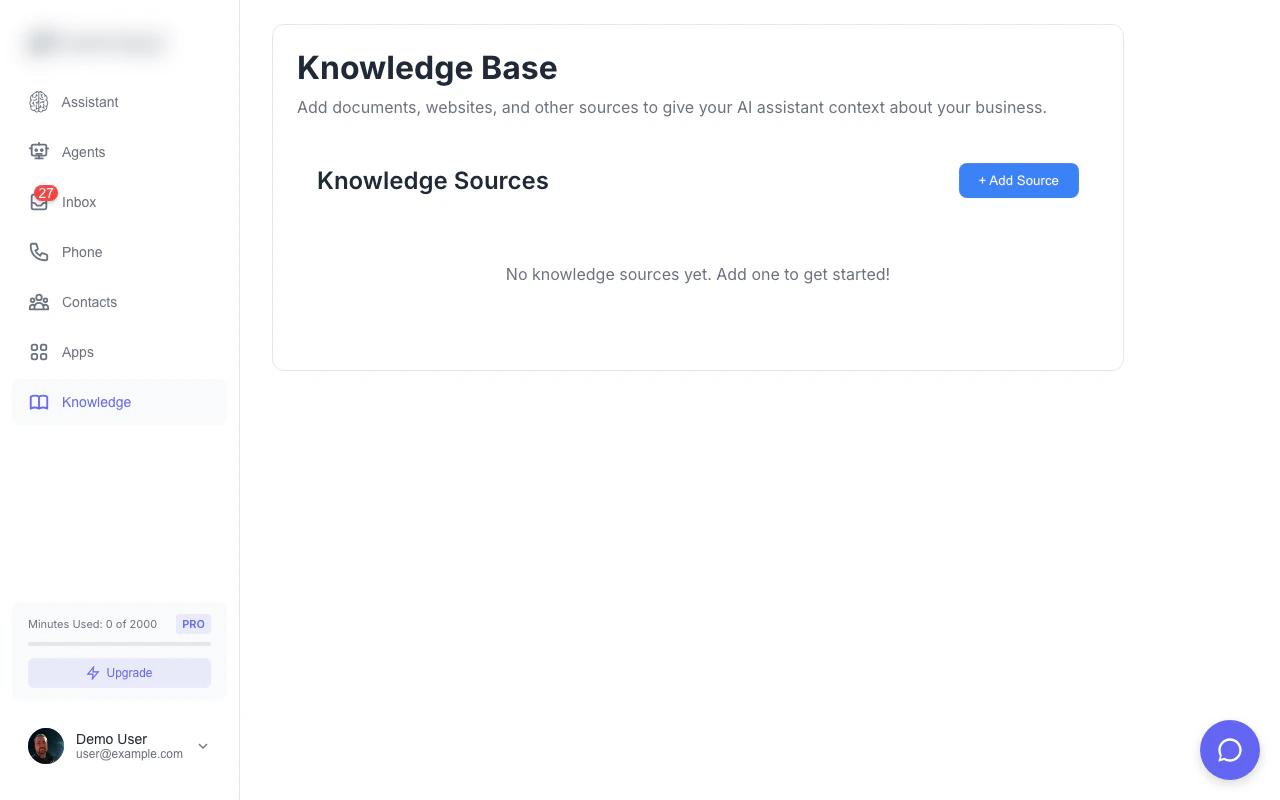
The Knowledge Base is your agent's memory. It stores information about your business - FAQs, services, pricing, policies - that agents reference when answering questions. Using RAG (Retrieval Augmented Generation), agents can provide accurate, contextual responses based on your actual content rather than making things up.
 ## How It Works
### Vector Search Technology
Magpipe uses pgvector for semantic search:
1. **Content Ingestion**
* You add a URL or document
* Content is fetched and cleaned
* Text is split into chunks (\~500 tokens each)
2. **Embedding Generation**
* Each chunk is converted to a vector embedding
* Embeddings capture semantic meaning
* Stored in PostgreSQL with pgvector
3. **Runtime Retrieval**
* When a caller asks a question
* Question is converted to an embedding
* Similar chunks are found via cosine similarity
* Top 3-5 most relevant chunks are retrieved
4. **Context Injection**
* Retrieved chunks are added to the agent's context
* Agent uses this information to answer accurately
* Responses cite actual content from your knowledge base
### Why RAG?
Without knowledge base:
> "What are your business hours?"
> "I don't have that information." ❌
With knowledge base:
> "What are your business hours?"
> "We're open Monday through Friday, 9 AM to 5 PM, and Saturday from 10 AM to 2 PM." ✓
## Adding Knowledge Sources
## How It Works
### Vector Search Technology
Magpipe uses pgvector for semantic search:
1. **Content Ingestion**
* You add a URL or document
* Content is fetched and cleaned
* Text is split into chunks (\~500 tokens each)
2. **Embedding Generation**
* Each chunk is converted to a vector embedding
* Embeddings capture semantic meaning
* Stored in PostgreSQL with pgvector
3. **Runtime Retrieval**
* When a caller asks a question
* Question is converted to an embedding
* Similar chunks are found via cosine similarity
* Top 3-5 most relevant chunks are retrieved
4. **Context Injection**
* Retrieved chunks are added to the agent's context
* Agent uses this information to answer accurately
* Responses cite actual content from your knowledge base
### Why RAG?
Without knowledge base:
> "What are your business hours?"
> "I don't have that information." ❌
With knowledge base:
> "What are your business hours?"
> "We're open Monday through Friday, 9 AM to 5 PM, and Saturday from 10 AM to 2 PM." ✓
## Adding Knowledge Sources
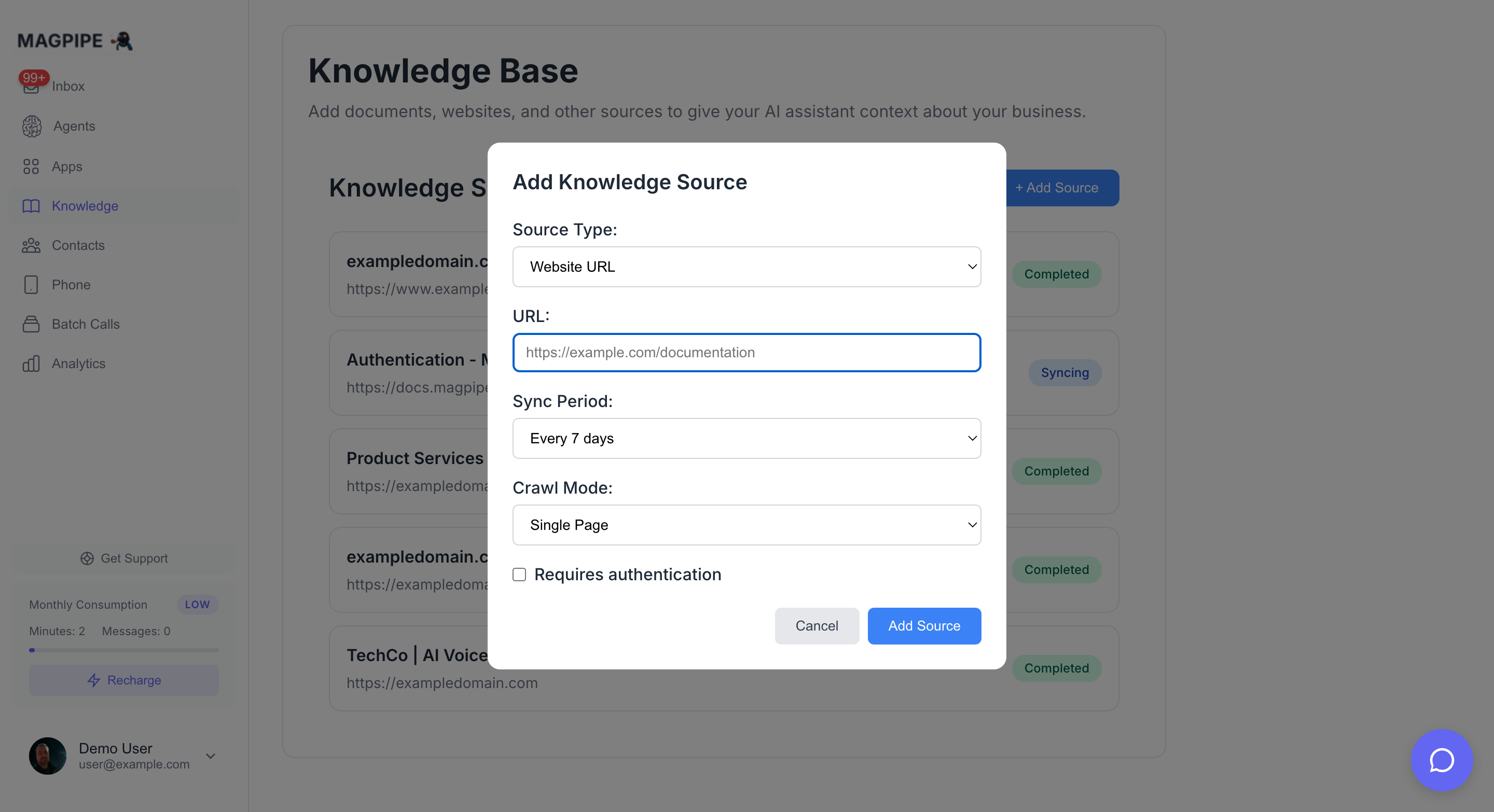 Magpipe offers three ways to add knowledge:
Crawl content from any public webpage or entire site.
Paste text directly - no URL needed.
Upload PDF or text files.
Magpipe offers three ways to add knowledge:
Crawl content from any public webpage or entire site.
Paste text directly - no URL needed.
Upload PDF or text files.
 ### From URL
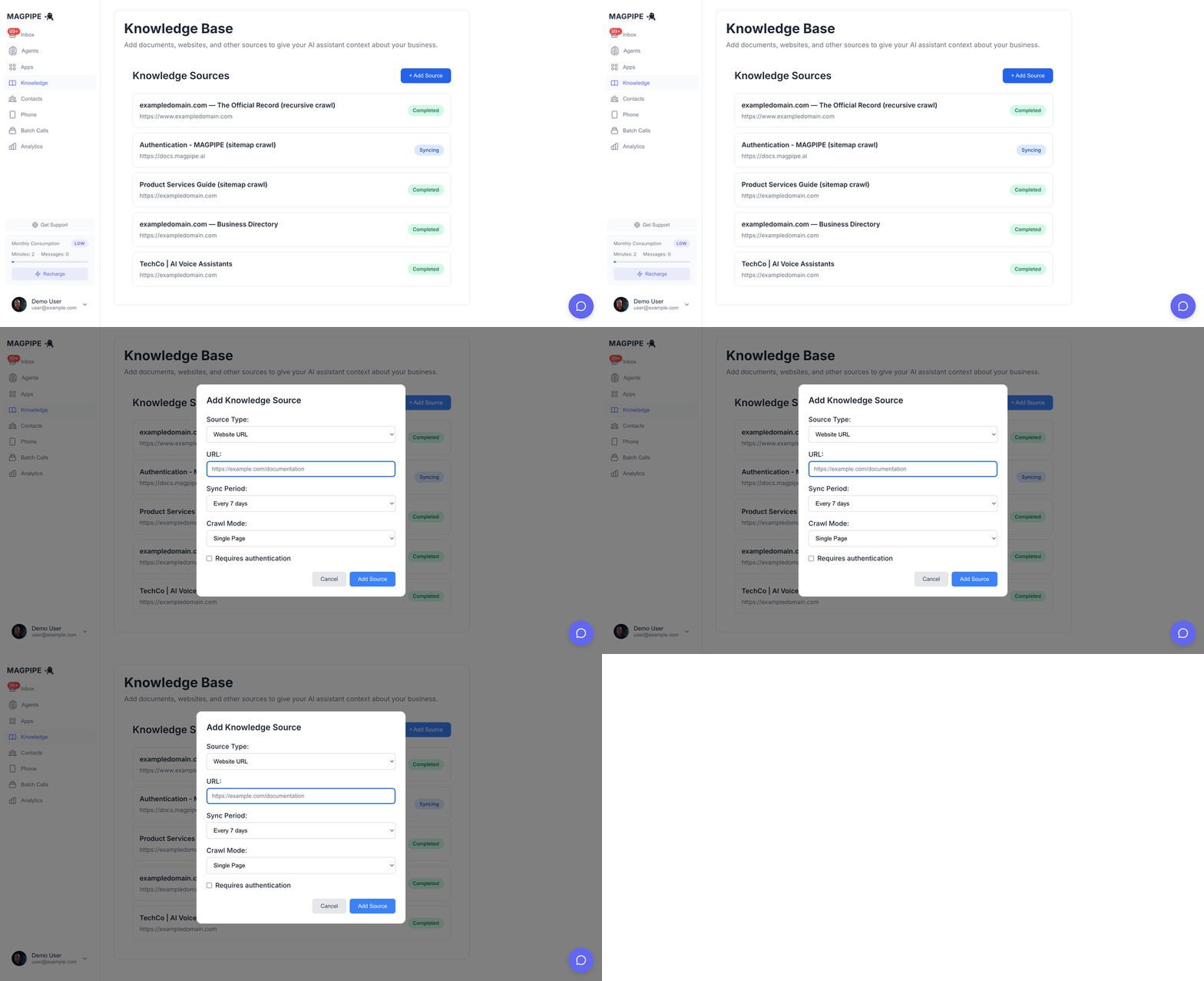
Add content from any public webpage:
Go to **Knowledge** from the main navigation.
Click the **+ Add Source** button.
Paste the full URL of the webpage to import.
Example: `https://yoursite.com/faq`
Select how much content to fetch (see Crawl Modes below).
Choose how often to re-fetch content:
* Every 24 hours
* Every 7 days
* Every month
* Every 3 months
Click **Add Source**. Processing begins immediately.
### Crawl Modes
Choose how much of a website to crawl:
| Mode | Description | Best For |
| --------------- | ------------------------------ | -------------------------------------- |
| **Single Page** | Fetch one URL only | Individual pages, blog posts |
| **Sitemap** | Crawl all URLs in sitemap.xml | Documentation sites, organized content |
| **Recursive** | Follow links from starting URL | Sites without sitemaps |
#### Single Page Mode
* Fetches and processes one URL immediately
* Fastest option - results in seconds
* Good for FAQs, about pages, individual articles
#### Sitemap Mode
* Automatically discovers sitemap.xml
* Crawls all pages listed in the sitemap
* Handles sitemap indexes (nested sitemaps)
* Respects robots.txt rules
* Progress tracked in real-time
Sitemap mode looks for sitemaps at common locations: `/sitemap.xml`, `/sitemap_index.xml`, and references in robots.txt.
#### Recursive Mode
* Starts from your URL and follows internal links
* Configure **crawl depth** (1-5 levels)
* Configure **max pages** (up to 500)
* Only follows same-domain links
* Skips login pages, file downloads, and non-content URLs
**Advanced Options (Recursive/Sitemap):**
| Option | Description | Default |
| ------------------ | ----------------------------------------- | ------- |
| Max Pages | Maximum pages to crawl | 100 |
| Crawl Depth | How deep to follow links (recursive only) | 3 |
| Respect robots.txt | Honor crawl restrictions | Yes |
### Paste Content
Add knowledge directly without a URL:
1. Click **+ Add Source**
2. Select the **Paste Content** tab
3. Enter a **title** for the content
4. Paste your text (minimum 50 characters)
5. Click **Add Source**
Use paste for content that isn't on the web: internal documentation, transcripts, custom FAQs, or curated information.
### Upload File
Upload PDF or text documents:
1. Click **+ Add Source**
2. Select the **Upload File** tab
3. Enter a **title** for the file
4. Click **Choose File** or drag and drop
5. Click **Upload**
**Supported Files:**
| Type | Extension | Notes |
| ---------- | --------- | ---------------------------- |
| PDF | `.pdf` | Text extracted automatically |
| Plain Text | `.txt` | Direct import |
| Markdown | `.md` | Direct import |
Maximum file size is 500KB. Scanned PDFs (images of text) may not extract properly - use text-based PDFs when possible.
### Protected Pages
For pages behind authentication:
**Bearer Token / API Key:**
1. Check "Requires authentication"
2. Select "Bearer Token"
3. Enter your token: `your-api-key-here`
**Basic Auth:**
1. Check "Requires authentication"
2. Select "Basic Auth"
3. Enter username and password
### Supported Content Types
| Type | Support |
| ------------- | ---------------- |
| HTML pages | ✓ Full support |
| Plain text | ✓ Full support |
| PDF documents | ✓ Text extracted |
| Markdown | ✓ Full support |
| JSON/XML | ✓ Parsed as text |
| Images | ✗ Not supported |
| Video | ✗ Not supported |
## Managing Sources
### Source Dashboard
Each knowledge source displays:
| Field | Description |
| --------------- | ----------------------------------- |
| **Title** | Extracted page title or custom name |
| **URL** | Source location |
| **Status** | `syncing`, `completed`, `failed` |
| **Chunks** | Number of text chunks created |
| **Last Synced** | Timestamp of last successful sync |
| **Next Sync** | When automatic re-sync will occur |
### Source Statuses
* **Syncing** - Content is being fetched and processed
* **Completed** - Successfully processed and indexed
* **Failed** - Error occurred (click to see details)
### Editing Sources
Click a source to:
* Change the sync schedule
* Update authentication credentials
* Force an immediate re-sync
* View processing logs
### Deleting Sources
To remove a knowledge source:
1. Click the source to expand
2. Click **Delete Source**
3. Confirm deletion
Deleting a source removes all associated content immediately. Your agent will no longer have access to this information.
### Crawl Progress Tracking
For sitemap and recursive crawls, track progress in real-time:
* **Progress bar** shows percentage complete
* **Pages crawled** / **Pages discovered** counters
* **Current URL** being processed
* **Failed pages** count (with details)
The page auto-refreshes every 5 seconds during active crawls. A notification appears when the crawl completes.
#### Viewing Parsed URLs
After a multi-page crawl completes:
1. Click the source to expand
2. Click **View Parsed URLs**
3. See all crawled pages with:
* Page title
* URL
* Chunk count per page
## Content Best Practices
### What to Add
Your FAQ page is ideal - it contains pre-written Q\&A pairs that translate perfectly to agent responses.
Add pages describing what you offer and pricing. Agents can accurately quote prices and explain services.
Include your story, mission, and team info. Agents can answer "tell me about your company" naturally.
Add pages with address, hours, directions, parking info. Critical for "where are you located?" questions.
Include return policies, cancellation policies, terms. Agents can explain policies accurately.
Add product pages. Agents can describe features and specifications to callers.
### What NOT to Add
* **Entire websites** - Too much noise, dilutes relevance
* **Login-protected portals** - Customer-specific data
* **Frequently changing content** - Will become stale
* **Competitor information** - Could confuse the agent
* **Internal documents** - Security risk
### Content Quality Tips
1. **Keep it factual** - Agents repeat what's in the knowledge base
2. **Use clear language** - Avoid jargon unless your customers use it
3. **Structure with headings** - Helps chunking algorithm
4. **Include common variations** - "hours" and "business hours" both work
5. **Update regularly** - Re-sync when your content changes
## Automatic Sync
### How Sync Works
* At the scheduled interval, Magpipe re-fetches your URL
* Content is compared to existing version
* If changed, new chunks are generated
* Old chunks are replaced atomically
* Agent immediately uses new content
### Sync Schedules
| Schedule | Best For |
| ------------------ | -------------------------------- |
| **Every 24 hours** | Frequently updated content |
| **Every 7 days** | Weekly-changing information |
| **Every month** | Relatively stable content |
| **Every 3 months** | Static content (policies, about) |
### Manual Re-sync
Force an immediate re-sync:
1. Click the knowledge source
2. Click **Sync Now**
3. Wait for processing to complete
## Agent Integration
### Per-Agent Knowledge
Each agent can access:
* All knowledge sources you've added
* Relevant chunks are retrieved per-question
* No configuration needed - automatic
### Prompt Integration
Knowledge context is automatically injected:
```
[System Prompt - your configuration]
[Knowledge Context]
The following information was retrieved from the knowledge base:
--- From: FAQ Page ---
Q: What are your business hours?
A: We're open Monday-Friday 9 AM to 5 PM, Saturday 10 AM to 2 PM.
--- From: Services Page ---
Our basic plan starts at $29/month and includes...
[End Knowledge Context]
[User Question]
What time do you open on Saturdays?
```
### Knowledge Limitations
* **3-5 chunks** retrieved per question (most relevant)
* **\~2000 tokens** max knowledge context per response
* Chunks prioritized by relevance score
* Less relevant chunks truncated if limit exceeded
## Monitoring & Analytics
### Knowledge Usage
Track how your knowledge base is being used:
* Which sources are accessed most
* Common questions by topic
* Retrieval success rate
* Gaps in knowledge (unanswered questions)
### Retrieval Logs
View what knowledge was used in each conversation:
1. Open a conversation in Inbox
2. View the transcript
3. See which knowledge chunks were retrieved
## Limits
| Resource | Limit |
| ------------------- | ------------------ |
| Knowledge sources | 50 per account |
| Maximum page size | 1 MB |
| Maximum file upload | 500 KB |
| Pages per crawl | 500 max |
| Crawl depth | 5 levels max |
| Chunks per source | \~500 |
| Total chunks | 10,000 per account |
| Sync frequency | Minimum 24 hours |
| Chunk size | \~3,000 characters |
## Troubleshooting
### Source Shows "Failed"
Common causes:
* URL is not accessible
* Page requires JavaScript to render
* Authentication credentials incorrect
* Content exceeds size limit
**Solution:** Click the source to see the error message, fix the issue, and retry.
### JavaScript-Rendered Pages
Some websites require JavaScript to display content. Magpipe automatically tries multiple fallback strategies:
1. Direct fetch (fastest)
2. Firecrawl API (JavaScript rendering)
3. Jina Reader API (fallback)
4. Microlink API (final fallback)
If your page still fails, the content may be:
* Behind a login wall
* Loaded dynamically after page load
* Protected by bot detection
### Agent Not Using Knowledge
Check:
1. Source status is "completed"
2. Content was successfully chunked (count > 0)
3. Question is related to the content
4. Try asking a direct question from the content
### Outdated Information
If agent gives old information:
1. Check when source last synced
2. Force a manual re-sync
3. Verify the source URL shows current content
Add sources programmatically
Retrieve all knowledge sources
### From URL
Add content from any public webpage:
Go to **Knowledge** from the main navigation.
Click the **+ Add Source** button.
Paste the full URL of the webpage to import.
Example: `https://yoursite.com/faq`
Select how much content to fetch (see Crawl Modes below).
Choose how often to re-fetch content:
* Every 24 hours
* Every 7 days
* Every month
* Every 3 months
Click **Add Source**. Processing begins immediately.
### Crawl Modes
Choose how much of a website to crawl:
| Mode | Description | Best For |
| --------------- | ------------------------------ | -------------------------------------- |
| **Single Page** | Fetch one URL only | Individual pages, blog posts |
| **Sitemap** | Crawl all URLs in sitemap.xml | Documentation sites, organized content |
| **Recursive** | Follow links from starting URL | Sites without sitemaps |
#### Single Page Mode
* Fetches and processes one URL immediately
* Fastest option - results in seconds
* Good for FAQs, about pages, individual articles
#### Sitemap Mode
* Automatically discovers sitemap.xml
* Crawls all pages listed in the sitemap
* Handles sitemap indexes (nested sitemaps)
* Respects robots.txt rules
* Progress tracked in real-time
Sitemap mode looks for sitemaps at common locations: `/sitemap.xml`, `/sitemap_index.xml`, and references in robots.txt.
#### Recursive Mode
* Starts from your URL and follows internal links
* Configure **crawl depth** (1-5 levels)
* Configure **max pages** (up to 500)
* Only follows same-domain links
* Skips login pages, file downloads, and non-content URLs
**Advanced Options (Recursive/Sitemap):**
| Option | Description | Default |
| ------------------ | ----------------------------------------- | ------- |
| Max Pages | Maximum pages to crawl | 100 |
| Crawl Depth | How deep to follow links (recursive only) | 3 |
| Respect robots.txt | Honor crawl restrictions | Yes |
### Paste Content
Add knowledge directly without a URL:
1. Click **+ Add Source**
2. Select the **Paste Content** tab
3. Enter a **title** for the content
4. Paste your text (minimum 50 characters)
5. Click **Add Source**
Use paste for content that isn't on the web: internal documentation, transcripts, custom FAQs, or curated information.
### Upload File
Upload PDF or text documents:
1. Click **+ Add Source**
2. Select the **Upload File** tab
3. Enter a **title** for the file
4. Click **Choose File** or drag and drop
5. Click **Upload**
**Supported Files:**
| Type | Extension | Notes |
| ---------- | --------- | ---------------------------- |
| PDF | `.pdf` | Text extracted automatically |
| Plain Text | `.txt` | Direct import |
| Markdown | `.md` | Direct import |
Maximum file size is 500KB. Scanned PDFs (images of text) may not extract properly - use text-based PDFs when possible.
### Protected Pages
For pages behind authentication:
**Bearer Token / API Key:**
1. Check "Requires authentication"
2. Select "Bearer Token"
3. Enter your token: `your-api-key-here`
**Basic Auth:**
1. Check "Requires authentication"
2. Select "Basic Auth"
3. Enter username and password
### Supported Content Types
| Type | Support |
| ------------- | ---------------- |
| HTML pages | ✓ Full support |
| Plain text | ✓ Full support |
| PDF documents | ✓ Text extracted |
| Markdown | ✓ Full support |
| JSON/XML | ✓ Parsed as text |
| Images | ✗ Not supported |
| Video | ✗ Not supported |
## Managing Sources
### Source Dashboard
Each knowledge source displays:
| Field | Description |
| --------------- | ----------------------------------- |
| **Title** | Extracted page title or custom name |
| **URL** | Source location |
| **Status** | `syncing`, `completed`, `failed` |
| **Chunks** | Number of text chunks created |
| **Last Synced** | Timestamp of last successful sync |
| **Next Sync** | When automatic re-sync will occur |
### Source Statuses
* **Syncing** - Content is being fetched and processed
* **Completed** - Successfully processed and indexed
* **Failed** - Error occurred (click to see details)
### Editing Sources
Click a source to:
* Change the sync schedule
* Update authentication credentials
* Force an immediate re-sync
* View processing logs
### Deleting Sources
To remove a knowledge source:
1. Click the source to expand
2. Click **Delete Source**
3. Confirm deletion
Deleting a source removes all associated content immediately. Your agent will no longer have access to this information.
### Crawl Progress Tracking
For sitemap and recursive crawls, track progress in real-time:
* **Progress bar** shows percentage complete
* **Pages crawled** / **Pages discovered** counters
* **Current URL** being processed
* **Failed pages** count (with details)
The page auto-refreshes every 5 seconds during active crawls. A notification appears when the crawl completes.
#### Viewing Parsed URLs
After a multi-page crawl completes:
1. Click the source to expand
2. Click **View Parsed URLs**
3. See all crawled pages with:
* Page title
* URL
* Chunk count per page
## Content Best Practices
### What to Add
Your FAQ page is ideal - it contains pre-written Q\&A pairs that translate perfectly to agent responses.
Add pages describing what you offer and pricing. Agents can accurately quote prices and explain services.
Include your story, mission, and team info. Agents can answer "tell me about your company" naturally.
Add pages with address, hours, directions, parking info. Critical for "where are you located?" questions.
Include return policies, cancellation policies, terms. Agents can explain policies accurately.
Add product pages. Agents can describe features and specifications to callers.
### What NOT to Add
* **Entire websites** - Too much noise, dilutes relevance
* **Login-protected portals** - Customer-specific data
* **Frequently changing content** - Will become stale
* **Competitor information** - Could confuse the agent
* **Internal documents** - Security risk
### Content Quality Tips
1. **Keep it factual** - Agents repeat what's in the knowledge base
2. **Use clear language** - Avoid jargon unless your customers use it
3. **Structure with headings** - Helps chunking algorithm
4. **Include common variations** - "hours" and "business hours" both work
5. **Update regularly** - Re-sync when your content changes
## Automatic Sync
### How Sync Works
* At the scheduled interval, Magpipe re-fetches your URL
* Content is compared to existing version
* If changed, new chunks are generated
* Old chunks are replaced atomically
* Agent immediately uses new content
### Sync Schedules
| Schedule | Best For |
| ------------------ | -------------------------------- |
| **Every 24 hours** | Frequently updated content |
| **Every 7 days** | Weekly-changing information |
| **Every month** | Relatively stable content |
| **Every 3 months** | Static content (policies, about) |
### Manual Re-sync
Force an immediate re-sync:
1. Click the knowledge source
2. Click **Sync Now**
3. Wait for processing to complete
## Agent Integration
### Per-Agent Knowledge
Each agent can access:
* All knowledge sources you've added
* Relevant chunks are retrieved per-question
* No configuration needed - automatic
### Prompt Integration
Knowledge context is automatically injected:
```
[System Prompt - your configuration]
[Knowledge Context]
The following information was retrieved from the knowledge base:
--- From: FAQ Page ---
Q: What are your business hours?
A: We're open Monday-Friday 9 AM to 5 PM, Saturday 10 AM to 2 PM.
--- From: Services Page ---
Our basic plan starts at $29/month and includes...
[End Knowledge Context]
[User Question]
What time do you open on Saturdays?
```
### Knowledge Limitations
* **3-5 chunks** retrieved per question (most relevant)
* **\~2000 tokens** max knowledge context per response
* Chunks prioritized by relevance score
* Less relevant chunks truncated if limit exceeded
## Monitoring & Analytics
### Knowledge Usage
Track how your knowledge base is being used:
* Which sources are accessed most
* Common questions by topic
* Retrieval success rate
* Gaps in knowledge (unanswered questions)
### Retrieval Logs
View what knowledge was used in each conversation:
1. Open a conversation in Inbox
2. View the transcript
3. See which knowledge chunks were retrieved
## Limits
| Resource | Limit |
| ------------------- | ------------------ |
| Knowledge sources | 50 per account |
| Maximum page size | 1 MB |
| Maximum file upload | 500 KB |
| Pages per crawl | 500 max |
| Crawl depth | 5 levels max |
| Chunks per source | \~500 |
| Total chunks | 10,000 per account |
| Sync frequency | Minimum 24 hours |
| Chunk size | \~3,000 characters |
## Troubleshooting
### Source Shows "Failed"
Common causes:
* URL is not accessible
* Page requires JavaScript to render
* Authentication credentials incorrect
* Content exceeds size limit
**Solution:** Click the source to see the error message, fix the issue, and retry.
### JavaScript-Rendered Pages
Some websites require JavaScript to display content. Magpipe automatically tries multiple fallback strategies:
1. Direct fetch (fastest)
2. Firecrawl API (JavaScript rendering)
3. Jina Reader API (fallback)
4. Microlink API (final fallback)
If your page still fails, the content may be:
* Behind a login wall
* Loaded dynamically after page load
* Protected by bot detection
### Agent Not Using Knowledge
Check:
1. Source status is "completed"
2. Content was successfully chunked (count > 0)
3. Question is related to the content
4. Try asking a direct question from the content
### Outdated Information
If agent gives old information:
1. Check when source last synced
2. Force a manual re-sync
3. Verify the source URL shows current content
Add sources programmatically
Retrieve all knowledge sources