> ## Documentation Index
> Fetch the complete documentation index at: https://docs.magpipe.ai/llms.txt
> Use this file to discover all available pages before exploring further.
# System Functions
> Built-in functions that extend your AI agent's capabilities
## Overview
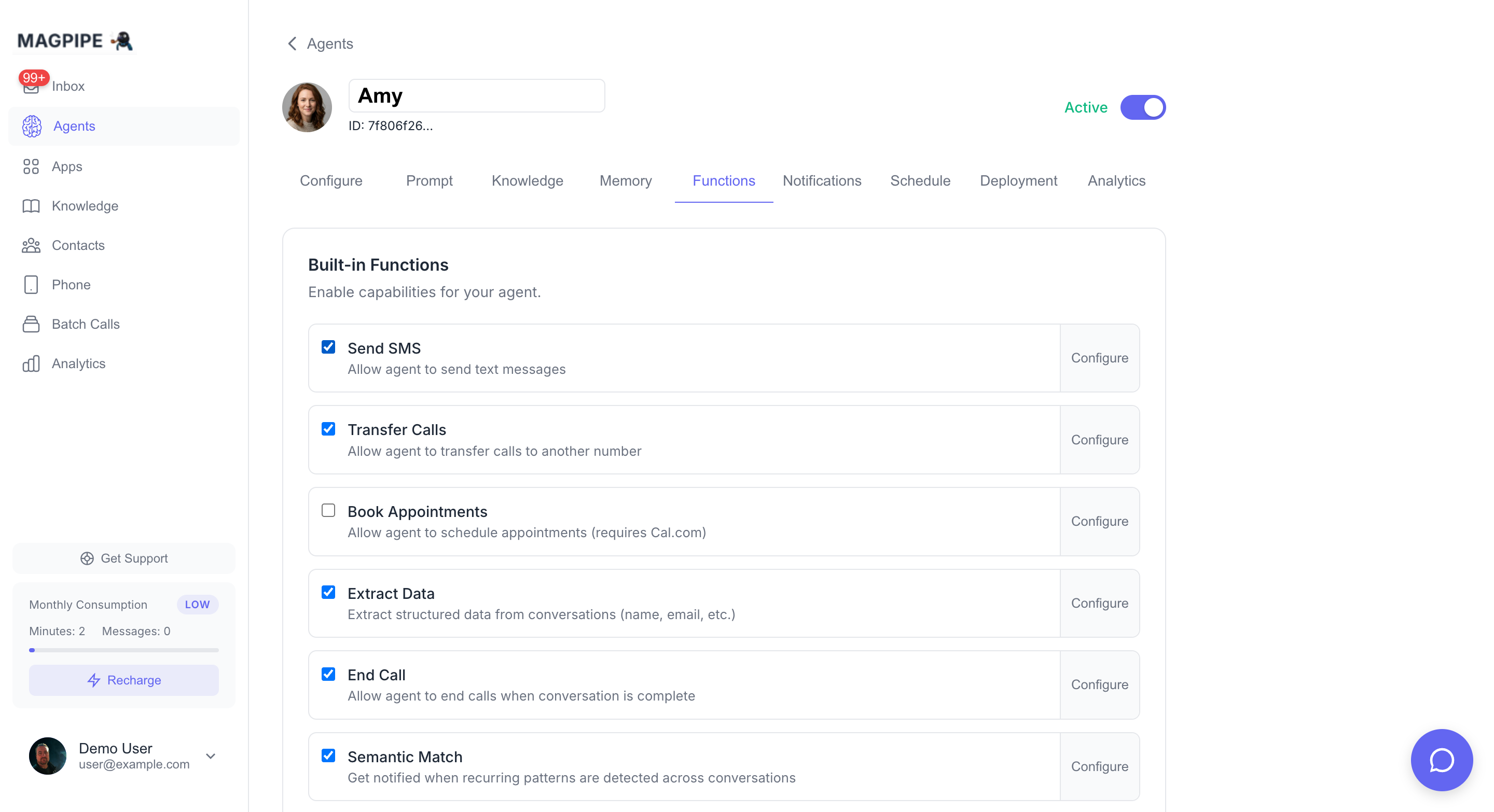
System Functions are pre-built capabilities available to all AI agents. Unlike [Custom Functions](/features/custom-functions) which call external webhooks, System Functions are built into the platform and handle common tasks like ending calls, transferring to humans, and sending messages.
 ## Available Functions
### End Call
Allows the agent to hang up when the conversation is complete.
| Setting | Description |
| ------------------ | -------------------------------------------- |
| **Enable/Disable** | Toggle whether the agent can end calls |
| **Condition** | Customize when the agent should end the call |
**Default Condition:**
```
End the phone call. Use this when the conversation is complete,
the caller says goodbye, or there is nothing more to discuss.
```
**Custom Condition Examples:**
* "End the call after confirming the appointment and saying goodbye"
* "End the call only after the caller explicitly says goodbye or asks to hang up"
* "End the call after completing the order and providing the confirmation number"
When End Call is disabled, calls will only end when the caller hangs up.
***
### Transfer
Transfer the call to another phone number when needed.
| Setting | Description |
| -------------------- | ------------------------------------------- |
| **Enable/Disable** | Toggle whether the agent can transfer calls |
| **Transfer Numbers** | Configure destination numbers with labels |
**Configuration:**
1. Go to **Agents** → Select agent → **Functions** tab
2. Enable **Transfer** toggle
3. Click **Configure** to add transfer destinations
Each transfer destination has:
* **Label**: Name the agent uses (e.g., "Sales", "Support", "Mobile")
* **Phone Number**: Destination in E.164 format (+1234567890)
**Example Usage:**
```
Caller: "Can I speak to a real person?"
Agent: "Of course, let me transfer you to our support team."
[Agent transfers call to configured support number]
```
***
### SMS
Send text messages during or after calls.
| Setting | Description |
| ------------------ | ------------------------------------- |
| **Enable/Disable** | Toggle whether the agent can send SMS |
**Capabilities:**
* Send follow-up information after calls
* Text links, confirmations, or details
* Respond to caller requests for written info
**Example Usage:**
```
Caller: "Can you text me the address?"
Agent: "Absolutely, I'll send that to you right now."
[Agent sends SMS with address details]
```
***
### Extract Data
Collect structured information from conversations.
| Setting | Description |
| ------------------ | --------------------------- |
| **Enable/Disable** | Toggle data extraction |
| **Variables** | Define what data to collect |
**Variable Types:**
* **Text**: Names, addresses, notes
* **Number**: Phone numbers, quantities, amounts
* **Boolean**: Yes/no confirmations
* **Enum**: Selection from predefined options
**Configuration:**
1. Go to **Agents** → Select agent → **Functions** tab
2. Enable **Extract Data** toggle
3. Click **Configure** to define variables
Each variable has:
* **Name**: Variable identifier (snake\_case)
* **Type**: Data type to collect
* **Description**: Helps AI understand what to collect
**Example Variables:**
| Name | Type | Description |
| ---------------- | ------- | -------------------------------- |
| `caller_name` | Text | The caller's full name |
| `email` | Text | Email address for follow-up |
| `party_size` | Number | Number of guests for reservation |
| `needs_callback` | Boolean | Whether caller wants a callback |
***
### Booking
Schedule appointments via calendar integration.
| Setting | Description |
| ------------------ | -------------------------- |
| **Enable/Disable** | Toggle appointment booking |
| **Calendar** | Connected calendar service |
**Supported Integrations:**
* Google Calendar
* Cal.com
* Calendly (coming soon)
**Configuration:**
1. Connect your calendar in **Apps** → **Integrations**
2. Go to **Agents** → Select agent → **Functions** tab
3. Enable **Booking** toggle
4. Click **Configure** to set availability
**Example Usage:**
```
Caller: "I'd like to schedule an appointment for next week"
Agent: "I can help with that. I have openings on Tuesday at 2pm
or Wednesday at 10am. Which works better for you?"
```
## Configuring System Functions
All system functions are configured in the **Functions** tab of your agent settings:
1. Navigate to **Agents** in the sidebar
2. Select the agent you want to configure
3. Click the **Functions** tab
4. Toggle functions on/off
5. Click **Configure** to customize each function
Changes save automatically.
## Best Practices
Write specific end call conditions so your agent knows exactly when to hang up
Use descriptive labels like "Sales Team" instead of just "Office"
Only extract data you'll actually use - too many variables can confuse the AI
Make test calls to verify each function works as expected
## Available Functions
### End Call
Allows the agent to hang up when the conversation is complete.
| Setting | Description |
| ------------------ | -------------------------------------------- |
| **Enable/Disable** | Toggle whether the agent can end calls |
| **Condition** | Customize when the agent should end the call |
**Default Condition:**
```
End the phone call. Use this when the conversation is complete,
the caller says goodbye, or there is nothing more to discuss.
```
**Custom Condition Examples:**
* "End the call after confirming the appointment and saying goodbye"
* "End the call only after the caller explicitly says goodbye or asks to hang up"
* "End the call after completing the order and providing the confirmation number"
When End Call is disabled, calls will only end when the caller hangs up.
***
### Transfer
Transfer the call to another phone number when needed.
| Setting | Description |
| -------------------- | ------------------------------------------- |
| **Enable/Disable** | Toggle whether the agent can transfer calls |
| **Transfer Numbers** | Configure destination numbers with labels |
**Configuration:**
1. Go to **Agents** → Select agent → **Functions** tab
2. Enable **Transfer** toggle
3. Click **Configure** to add transfer destinations
Each transfer destination has:
* **Label**: Name the agent uses (e.g., "Sales", "Support", "Mobile")
* **Phone Number**: Destination in E.164 format (+1234567890)
**Example Usage:**
```
Caller: "Can I speak to a real person?"
Agent: "Of course, let me transfer you to our support team."
[Agent transfers call to configured support number]
```
***
### SMS
Send text messages during or after calls.
| Setting | Description |
| ------------------ | ------------------------------------- |
| **Enable/Disable** | Toggle whether the agent can send SMS |
**Capabilities:**
* Send follow-up information after calls
* Text links, confirmations, or details
* Respond to caller requests for written info
**Example Usage:**
```
Caller: "Can you text me the address?"
Agent: "Absolutely, I'll send that to you right now."
[Agent sends SMS with address details]
```
***
### Extract Data
Collect structured information from conversations.
| Setting | Description |
| ------------------ | --------------------------- |
| **Enable/Disable** | Toggle data extraction |
| **Variables** | Define what data to collect |
**Variable Types:**
* **Text**: Names, addresses, notes
* **Number**: Phone numbers, quantities, amounts
* **Boolean**: Yes/no confirmations
* **Enum**: Selection from predefined options
**Configuration:**
1. Go to **Agents** → Select agent → **Functions** tab
2. Enable **Extract Data** toggle
3. Click **Configure** to define variables
Each variable has:
* **Name**: Variable identifier (snake\_case)
* **Type**: Data type to collect
* **Description**: Helps AI understand what to collect
**Example Variables:**
| Name | Type | Description |
| ---------------- | ------- | -------------------------------- |
| `caller_name` | Text | The caller's full name |
| `email` | Text | Email address for follow-up |
| `party_size` | Number | Number of guests for reservation |
| `needs_callback` | Boolean | Whether caller wants a callback |
***
### Booking
Schedule appointments via calendar integration.
| Setting | Description |
| ------------------ | -------------------------- |
| **Enable/Disable** | Toggle appointment booking |
| **Calendar** | Connected calendar service |
**Supported Integrations:**
* Google Calendar
* Cal.com
* Calendly (coming soon)
**Configuration:**
1. Connect your calendar in **Apps** → **Integrations**
2. Go to **Agents** → Select agent → **Functions** tab
3. Enable **Booking** toggle
4. Click **Configure** to set availability
**Example Usage:**
```
Caller: "I'd like to schedule an appointment for next week"
Agent: "I can help with that. I have openings on Tuesday at 2pm
or Wednesday at 10am. Which works better for you?"
```
## Configuring System Functions
All system functions are configured in the **Functions** tab of your agent settings:
1. Navigate to **Agents** in the sidebar
2. Select the agent you want to configure
3. Click the **Functions** tab
4. Toggle functions on/off
5. Click **Configure** to customize each function
Changes save automatically.
## Best Practices
Write specific end call conditions so your agent knows exactly when to hang up
Use descriptive labels like "Sales Team" instead of just "Office"
Only extract data you'll actually use - too many variables can confuse the AI
Make test calls to verify each function works as expected