> ## Documentation Index
> Fetch the complete documentation index at: https://docs.magpipe.ai/llms.txt
> Use this file to discover all available pages before exploring further.
# White Labeling
> Customize your portal with your own logo and favicon
## Overview
White labeling lets you personalize your Magpipe portal with your own branding. Upload your company logo and favicon to make the dashboard feel like your own product. This is perfect for agencies presenting the platform to clients or businesses that want a cohesive branded experience.
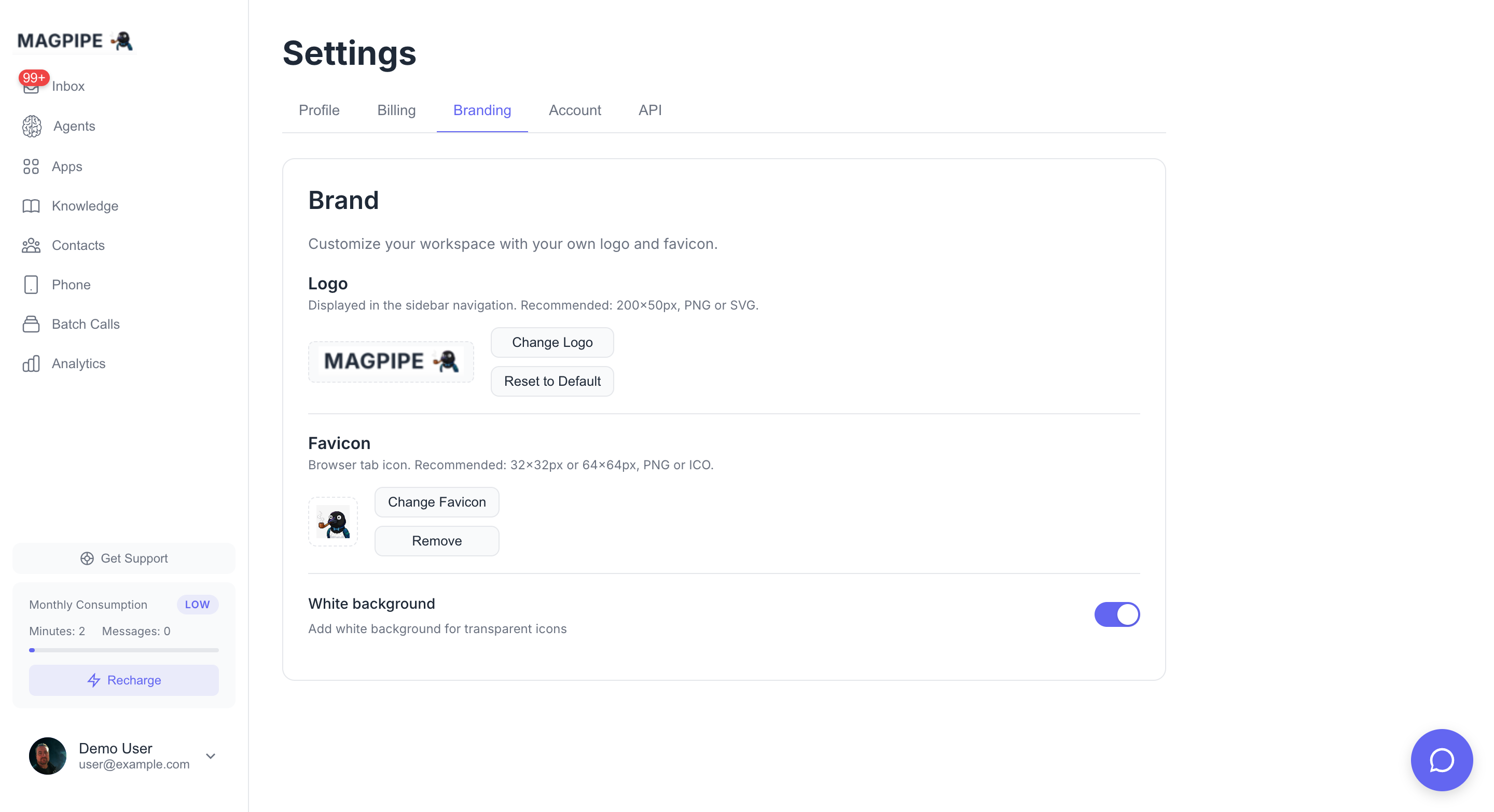 ## What You Can Customize
### Logo
Your logo appears in the sidebar navigation of the portal.
**Specifications:**
* **Recommended size**: 200x50 pixels
* **Formats**: PNG, SVG, or JPEG
* **Max file size**: 2MB
* **Background**: Transparent recommended
### Favicon
Your favicon appears in the browser tab when using the portal.
**Specifications:**
* **Recommended size**: 32x32 or 64x64 pixels
* **Formats**: PNG or ICO
* **Max file size**: 500KB
## Setting Up Your Brand
### Uploading Your Logo
Navigate to **Settings** from the main navigation.
Scroll down to the **Brand** section.
Click **Upload Logo** and select your image file.
Your logo appears in the preview. It will now show in the sidebar.
### Changing Your Logo
If you already have a logo uploaded:
1. Go to **Settings** → **Brand**
2. Click **Change Logo**
3. Select your new image
4. The old logo is replaced immediately
### Removing Your Logo
To remove your logo and return to the default:
1. Go to **Settings** → **Brand**
2. Click **Remove** under the logo preview
3. The sidebar returns to showing "Magpipe" text
### Uploading Your Favicon
Navigate to **Settings** from the main navigation.
Scroll down to the **Brand** section.
Click **Upload Favicon** and select your icon file.
Check your browser tab - your favicon should appear immediately.
### Changing Your Favicon
1. Go to **Settings** → **Brand**
2. Click **Change Favicon**
3. Select your new icon
4. The browser tab updates immediately
### Removing Your Favicon
1. Go to **Settings** → **Brand**
2. Click **Remove** under the favicon preview
3. The default Magpipe favicon returns
## Where Your Branding Appears
### Logo Locations
Your uploaded logo displays in:
* **Sidebar navigation** - Top of the left sidebar
* **Login page** - When you sign in (if configured)
### Favicon Locations
Your uploaded favicon displays in:
* **Browser tab** - The small icon next to the page title
* **Bookmarks** - When users bookmark the page
* **Mobile home screen** - If added as a web app
## Best Practices
### Logo Design Tips
1. **Use a horizontal layout** - The sidebar space is wide, not tall
2. **Keep it simple** - Detailed logos may be hard to read at small sizes
3. **Use transparent background** - Works better with light and dark themes
4. **Test both themes** - Verify your logo is visible in light and dark mode
5. **Use vector format** - SVG scales better than PNG
### Favicon Design Tips
1. **Keep it recognizable** - Very simple icon that's clear at 16x16px
2. **Use your brand mark** - Just the icon/symbol, not full logo
3. **High contrast** - Make sure it's visible against browser chrome
4. **Square format** - Favicons are always square
### File Optimization
**For logos:**
* Compress PNG files to reduce load time
* SVG is ideal for crisp rendering at any size
* Avoid files over 500KB even though 2MB is allowed
**For favicons:**
* 32x32px is the sweet spot for most browsers
* PNG with transparency works well
* ICO format if you need legacy browser support
## Use Cases
### Agencies
Present Magpipe as your own platform to clients:
1. Upload your agency logo
2. Upload your agency favicon
3. Clients see your branding when using the portal
### Businesses
Create a cohesive experience for your team:
1. Use your company logo
2. Match your other internal tools
3. Reinforce your brand identity
### Resellers
Offer a branded experience to customers:
1. Each customer can set their own logo
2. Their team members see their company branding
3. No mention of Magpipe in the interface
## Troubleshooting
### Logo Not Appearing
1. **Check file size** - Must be under 2MB
2. **Verify format** - PNG, SVG, or JPEG only
3. **Clear browser cache** - Hard refresh with Ctrl/Cmd + Shift + R
4. **Try different browser** - Rule out browser-specific issues
### Logo Looks Blurry
1. **Use higher resolution** - At least 400x100px for retina displays
2. **Try SVG format** - Vector graphics never get blurry
3. **Check original file** - Ensure source image is high quality
### Favicon Not Updating
1. **Clear browser cache** - Favicons are heavily cached
2. **Close and reopen tab** - Sometimes required for update
3. **Check file format** - PNG or ICO only
4. **Verify file size** - Must be under 500KB
### Logo Too Large/Small
The logo container is fixed at 160x40px. If your logo appears:
* **Too small**: Use a logo designed for horizontal space
* **Cut off**: Ensure your logo fits within 200x50px recommended size
* **Stretched**: Maintain original aspect ratio in your source file
## Frequently Asked Questions
### Can I customize colors?
Currently, logo and favicon are the customizable brand elements. The portal uses Magpipe's color scheme.
### Does my branding show to callers?
No, branding is only for the web portal. Callers interact with your AI agent, which uses your agent's configured name and personality.
### Is there a custom domain option?
Custom domains are not currently available. Your portal is accessed at magpipe.ai.
### Do team members see my branding?
Yes, all team members in your organization see the same logo and favicon that you've uploaded.
All settings options
Manage your team
## What You Can Customize
### Logo
Your logo appears in the sidebar navigation of the portal.
**Specifications:**
* **Recommended size**: 200x50 pixels
* **Formats**: PNG, SVG, or JPEG
* **Max file size**: 2MB
* **Background**: Transparent recommended
### Favicon
Your favicon appears in the browser tab when using the portal.
**Specifications:**
* **Recommended size**: 32x32 or 64x64 pixels
* **Formats**: PNG or ICO
* **Max file size**: 500KB
## Setting Up Your Brand
### Uploading Your Logo
Navigate to **Settings** from the main navigation.
Scroll down to the **Brand** section.
Click **Upload Logo** and select your image file.
Your logo appears in the preview. It will now show in the sidebar.
### Changing Your Logo
If you already have a logo uploaded:
1. Go to **Settings** → **Brand**
2. Click **Change Logo**
3. Select your new image
4. The old logo is replaced immediately
### Removing Your Logo
To remove your logo and return to the default:
1. Go to **Settings** → **Brand**
2. Click **Remove** under the logo preview
3. The sidebar returns to showing "Magpipe" text
### Uploading Your Favicon
Navigate to **Settings** from the main navigation.
Scroll down to the **Brand** section.
Click **Upload Favicon** and select your icon file.
Check your browser tab - your favicon should appear immediately.
### Changing Your Favicon
1. Go to **Settings** → **Brand**
2. Click **Change Favicon**
3. Select your new icon
4. The browser tab updates immediately
### Removing Your Favicon
1. Go to **Settings** → **Brand**
2. Click **Remove** under the favicon preview
3. The default Magpipe favicon returns
## Where Your Branding Appears
### Logo Locations
Your uploaded logo displays in:
* **Sidebar navigation** - Top of the left sidebar
* **Login page** - When you sign in (if configured)
### Favicon Locations
Your uploaded favicon displays in:
* **Browser tab** - The small icon next to the page title
* **Bookmarks** - When users bookmark the page
* **Mobile home screen** - If added as a web app
## Best Practices
### Logo Design Tips
1. **Use a horizontal layout** - The sidebar space is wide, not tall
2. **Keep it simple** - Detailed logos may be hard to read at small sizes
3. **Use transparent background** - Works better with light and dark themes
4. **Test both themes** - Verify your logo is visible in light and dark mode
5. **Use vector format** - SVG scales better than PNG
### Favicon Design Tips
1. **Keep it recognizable** - Very simple icon that's clear at 16x16px
2. **Use your brand mark** - Just the icon/symbol, not full logo
3. **High contrast** - Make sure it's visible against browser chrome
4. **Square format** - Favicons are always square
### File Optimization
**For logos:**
* Compress PNG files to reduce load time
* SVG is ideal for crisp rendering at any size
* Avoid files over 500KB even though 2MB is allowed
**For favicons:**
* 32x32px is the sweet spot for most browsers
* PNG with transparency works well
* ICO format if you need legacy browser support
## Use Cases
### Agencies
Present Magpipe as your own platform to clients:
1. Upload your agency logo
2. Upload your agency favicon
3. Clients see your branding when using the portal
### Businesses
Create a cohesive experience for your team:
1. Use your company logo
2. Match your other internal tools
3. Reinforce your brand identity
### Resellers
Offer a branded experience to customers:
1. Each customer can set their own logo
2. Their team members see their company branding
3. No mention of Magpipe in the interface
## Troubleshooting
### Logo Not Appearing
1. **Check file size** - Must be under 2MB
2. **Verify format** - PNG, SVG, or JPEG only
3. **Clear browser cache** - Hard refresh with Ctrl/Cmd + Shift + R
4. **Try different browser** - Rule out browser-specific issues
### Logo Looks Blurry
1. **Use higher resolution** - At least 400x100px for retina displays
2. **Try SVG format** - Vector graphics never get blurry
3. **Check original file** - Ensure source image is high quality
### Favicon Not Updating
1. **Clear browser cache** - Favicons are heavily cached
2. **Close and reopen tab** - Sometimes required for update
3. **Check file format** - PNG or ICO only
4. **Verify file size** - Must be under 500KB
### Logo Too Large/Small
The logo container is fixed at 160x40px. If your logo appears:
* **Too small**: Use a logo designed for horizontal space
* **Cut off**: Ensure your logo fits within 200x50px recommended size
* **Stretched**: Maintain original aspect ratio in your source file
## Frequently Asked Questions
### Can I customize colors?
Currently, logo and favicon are the customizable brand elements. The portal uses Magpipe's color scheme.
### Does my branding show to callers?
No, branding is only for the web portal. Callers interact with your AI agent, which uses your agent's configured name and personality.
### Is there a custom domain option?
Custom domains are not currently available. Your portal is accessed at magpipe.ai.
### Do team members see my branding?
Yes, all team members in your organization see the same logo and favicon that you've uploaded.
All settings options
Manage your team