> ## Documentation Index
> Fetch the complete documentation index at: https://docs.magpipe.ai/llms.txt
> Use this file to discover all available pages before exploring further.
# Make Outbound Calls
> How to initiate calls with your AI agent
## Overview
Magpipe supports two types of outbound calls:
1. **Agent Call** - AI agent speaks to the recipient
2. **Callback Call** - You speak to the recipient (bridged through Magpipe)
## Making an Agent Call
Use this when you want your AI agent to call someone on your behalf.
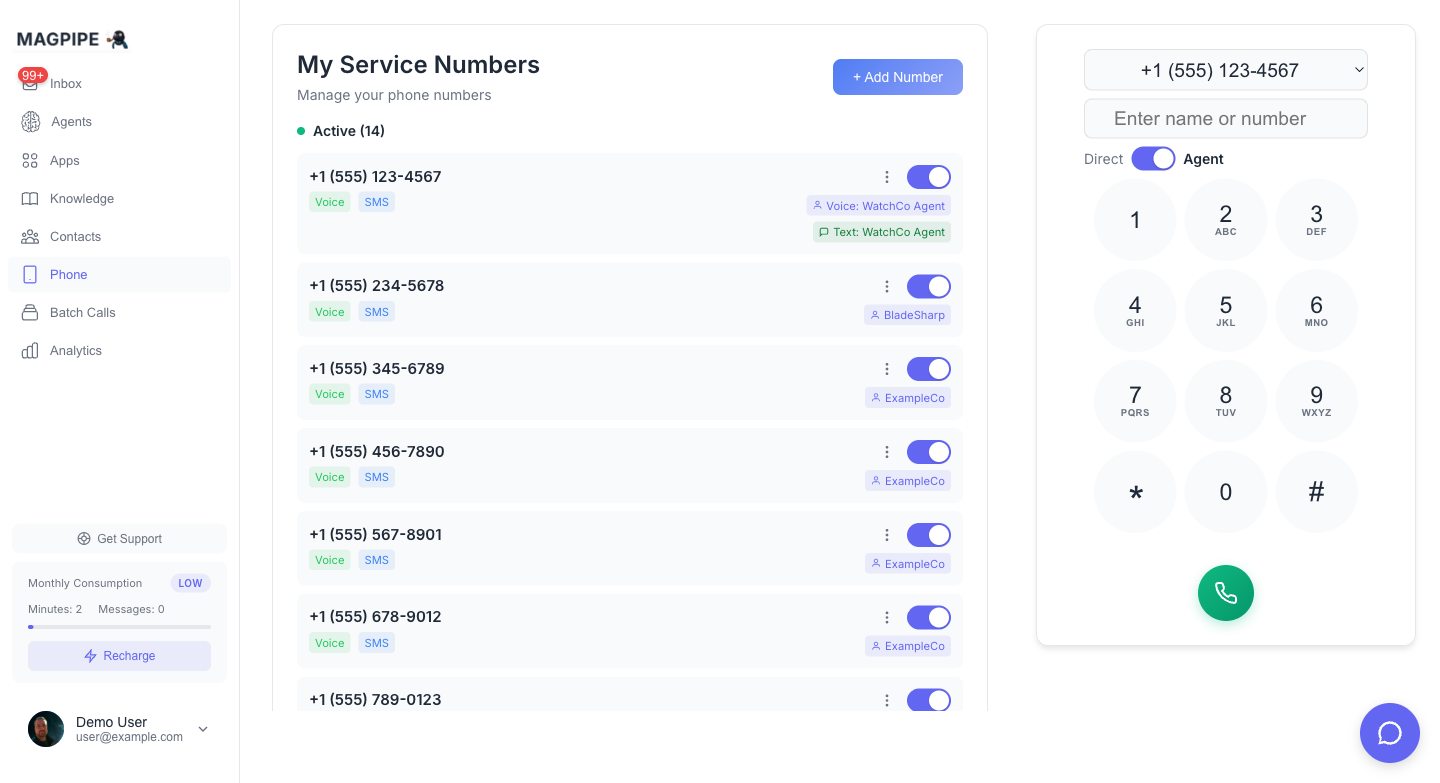
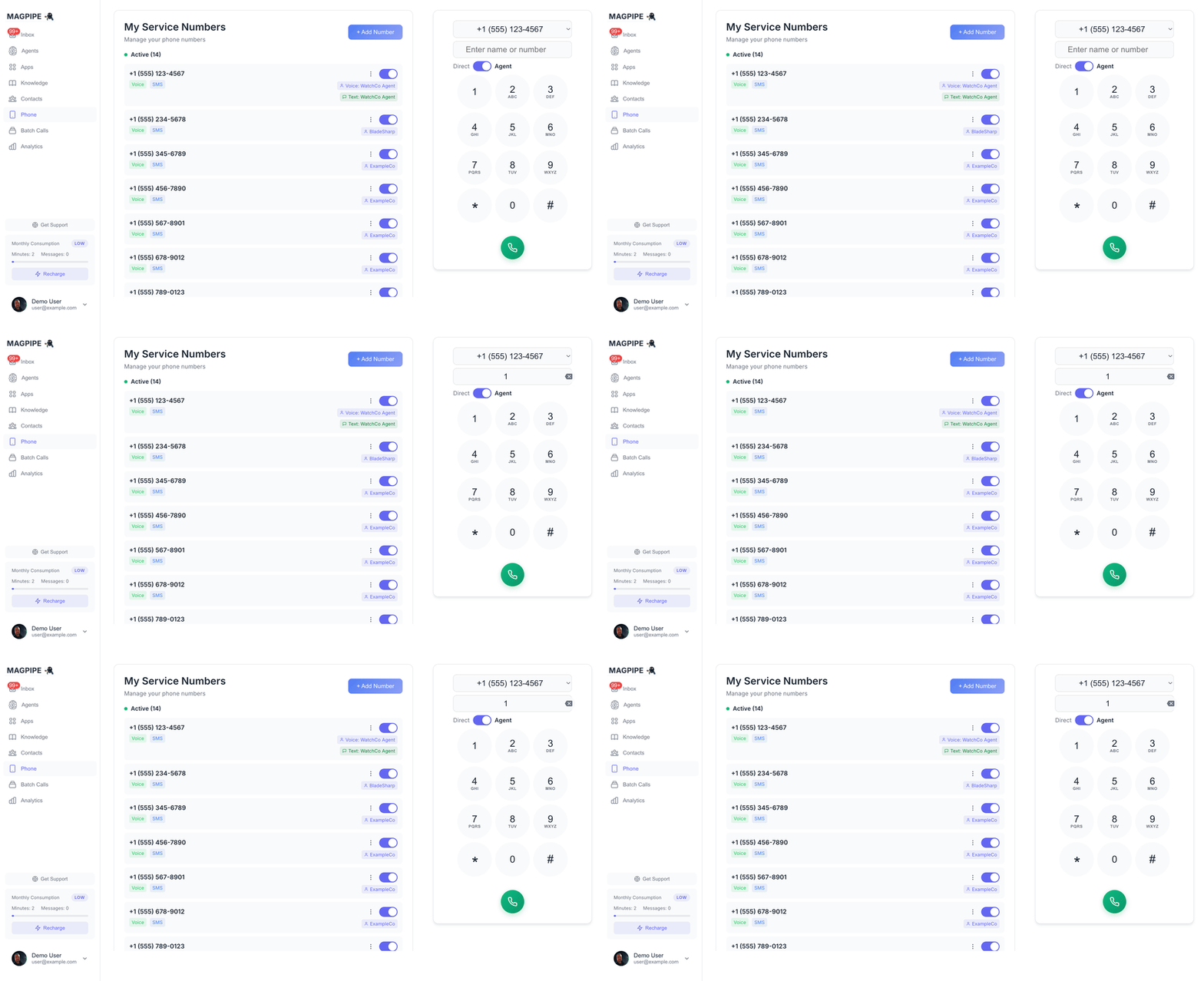 From the **Home** screen, you'll see the dialpad. Or tap the phone icon in the navigation.
Type or paste the phone number you want to call.
Choose which agent should make the call from the dropdown.
Tap the **Call** button. The agent will call the number and handle the conversation.
Watch the call status. The call will appear in your Inbox when complete.
### Agent Call Flow
1. Magpipe initiates call to recipient
2. Recipient answers
3. Your AI agent delivers its greeting
4. Agent handles the conversation
5. Call is recorded and transcribed
6. Call appears in Inbox
## Making a Callback Call
Use this when you want to speak to someone yourself, using your Magpipe number as caller ID.
From the **Home** screen, access the dialpad.
Type the phone number you want to call.
Toggle off "Use Agent" or select "No Agent".
Tap the **Call** button.
Magpipe calls YOUR phone first. Answer it.
Once you answer, Magpipe bridges you to the recipient.
### Callback Call Flow
1. Magpipe calls your registered phone
2. You answer
3. Magpipe then calls the recipient
4. When they answer, you're connected
5. Your Magpipe number shows as caller ID
## Call Settings
### From Number
Choose which of your Magpipe numbers to call from. This affects:
* Caller ID shown to recipient
* Which agent is used (for agent calls)
### Recording
Calls are recorded by default. Recordings and transcripts appear in the Inbox.
## Multilingual Calls
Agent calls use the same language setting as inbound calls. If your agent is set to **Multilingual**, it will detect and match the recipient's language during the conversation.
For single-language agents (French, Spanish, German), the agent speaks that language for the entire call.
Configure the language in your agent's **Basic Settings**.
## Tips
Before calling customers, test by calling your own cell phone to verify the experience.
For agent calls, you can customize the agent's goal: "You are calling to confirm their appointment tomorrow at 2pm."
All outbound calls appear in the Inbox with full transcripts and recordings.
## Limitations
* Outbound calls require a provisioned phone number
* Some regions may have restrictions on automated calls
* Always comply with local telemarketing regulations
From the **Home** screen, you'll see the dialpad. Or tap the phone icon in the navigation.
Type or paste the phone number you want to call.
Choose which agent should make the call from the dropdown.
Tap the **Call** button. The agent will call the number and handle the conversation.
Watch the call status. The call will appear in your Inbox when complete.
### Agent Call Flow
1. Magpipe initiates call to recipient
2. Recipient answers
3. Your AI agent delivers its greeting
4. Agent handles the conversation
5. Call is recorded and transcribed
6. Call appears in Inbox
## Making a Callback Call
Use this when you want to speak to someone yourself, using your Magpipe number as caller ID.
From the **Home** screen, access the dialpad.
Type the phone number you want to call.
Toggle off "Use Agent" or select "No Agent".
Tap the **Call** button.
Magpipe calls YOUR phone first. Answer it.
Once you answer, Magpipe bridges you to the recipient.
### Callback Call Flow
1. Magpipe calls your registered phone
2. You answer
3. Magpipe then calls the recipient
4. When they answer, you're connected
5. Your Magpipe number shows as caller ID
## Call Settings
### From Number
Choose which of your Magpipe numbers to call from. This affects:
* Caller ID shown to recipient
* Which agent is used (for agent calls)
### Recording
Calls are recorded by default. Recordings and transcripts appear in the Inbox.
## Multilingual Calls
Agent calls use the same language setting as inbound calls. If your agent is set to **Multilingual**, it will detect and match the recipient's language during the conversation.
For single-language agents (French, Spanish, German), the agent speaks that language for the entire call.
Configure the language in your agent's **Basic Settings**.
## Tips
Before calling customers, test by calling your own cell phone to verify the experience.
For agent calls, you can customize the agent's goal: "You are calling to confirm their appointment tomorrow at 2pm."
All outbound calls appear in the Inbox with full transcripts and recordings.
## Limitations
* Outbound calls require a provisioned phone number
* Some regions may have restrictions on automated calls
* Always comply with local telemarketing regulations