> ## Documentation Index
> Fetch the complete documentation index at: https://docs.magpipe.ai/llms.txt
> Use this file to discover all available pages before exploring further.
# Receive Inbound Calls
> How your AI agent handles incoming calls
## Overview
When someone calls your Magpipe number, your AI agent automatically answers and handles the conversation.
 ## How It Works
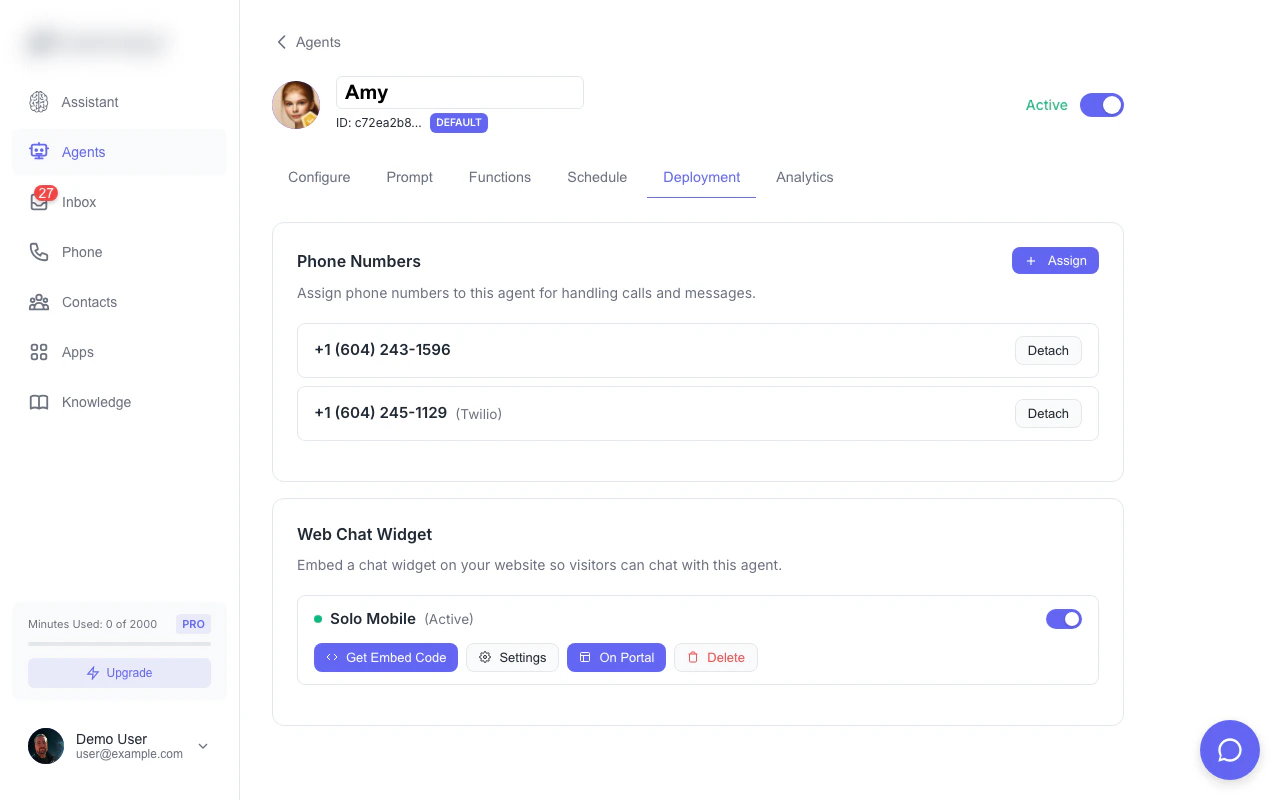
Someone calls the phone number you've provisioned in Magpipe.
Your AI agent picks up and delivers the greeting message you configured.
The agent responds naturally based on its system prompt and knowledge base.
When the conversation finishes, the call is recorded and transcribed.
The call appears in your Inbox with the full recording and transcript.
## Agent Capabilities
During a call, your agent can:
### Answer Questions
Using its system prompt and knowledge base to provide accurate information.
### Book Appointments
If Google Calendar is connected, the agent can check availability and schedule appointments.
### Take Messages
Collect information from callers to pass along to you.
### Transfer Calls
Hand off to a human when needed (requires transfer number configuration).
### Provide Information
Share business hours, location, pricing, and other details from its training.
## Call Recording
All calls are recorded by default:
* **Audio recording** - Full call audio
* **Transcript** - AI-generated text transcript
* **Duration** - Call length
* **Timestamp** - When the call occurred
Access recordings in the **Inbox** by clicking on any call.
## After-Hours Calls
When a call comes in outside your agent's scheduled hours, behavior depends on your configuration:
### With Forwarding Number
If you've configured an **After-Hours Call Forwarding** number in your agent's Schedule Settings:
1. The call is routed to your AI agent
2. The agent greets the caller and lets them know it's after hours
3. The agent transfers the call to your forwarding number
### Without Forwarding Number
If no forwarding number is configured:
1. The caller hears: "This Magpipe agent is currently off duty."
2. The call ends
## Agent Schedule
Set business hours for your agent:
1. Open the agent settings
2. Go to **Schedule** tab
3. Configure available hours for each day
4. Set timezone
5. Optionally set an **After-Hours Call Forwarding** number
During scheduled hours, calls are handled normally by the AI agent. Outside scheduled hours, the after-hours behavior above applies.
## Multilingual Calls
Your agent's language setting controls how it speaks on calls.
| Setting | Behavior |
| ---------------- | -------------------------------------------------------------------------- |
| **English** | Agent speaks English (default) |
| **Multilingual** | Agent starts in English and switches if the caller speaks another language |
| **French** | Agent speaks only French |
| **Spanish** | Agent speaks only Spanish |
| **German** | Agent speaks only German |
In **Multilingual** mode, the agent detects the caller's language in real time and switches seamlessly — no caller action needed.
Configure the language in your agent's **Basic Settings**.
## Monitoring Calls
View all incoming calls in the **Inbox**:
* Filter by "Calls" to see only voice calls
* Click any call to view transcript and play recording
* See caller ID and call duration
* Check call status and disposition
## Tips
Callers want to speak, not listen. Keep your greeting under 10 seconds.
Common questions (hours, location, pricing) should be in the system prompt for quick answers.
Check transcripts to see what callers are asking, then improve your agent's knowledge.
Link your FAQ and website pages so the agent has more context.
## How It Works
Someone calls the phone number you've provisioned in Magpipe.
Your AI agent picks up and delivers the greeting message you configured.
The agent responds naturally based on its system prompt and knowledge base.
When the conversation finishes, the call is recorded and transcribed.
The call appears in your Inbox with the full recording and transcript.
## Agent Capabilities
During a call, your agent can:
### Answer Questions
Using its system prompt and knowledge base to provide accurate information.
### Book Appointments
If Google Calendar is connected, the agent can check availability and schedule appointments.
### Take Messages
Collect information from callers to pass along to you.
### Transfer Calls
Hand off to a human when needed (requires transfer number configuration).
### Provide Information
Share business hours, location, pricing, and other details from its training.
## Call Recording
All calls are recorded by default:
* **Audio recording** - Full call audio
* **Transcript** - AI-generated text transcript
* **Duration** - Call length
* **Timestamp** - When the call occurred
Access recordings in the **Inbox** by clicking on any call.
## After-Hours Calls
When a call comes in outside your agent's scheduled hours, behavior depends on your configuration:
### With Forwarding Number
If you've configured an **After-Hours Call Forwarding** number in your agent's Schedule Settings:
1. The call is routed to your AI agent
2. The agent greets the caller and lets them know it's after hours
3. The agent transfers the call to your forwarding number
### Without Forwarding Number
If no forwarding number is configured:
1. The caller hears: "This Magpipe agent is currently off duty."
2. The call ends
## Agent Schedule
Set business hours for your agent:
1. Open the agent settings
2. Go to **Schedule** tab
3. Configure available hours for each day
4. Set timezone
5. Optionally set an **After-Hours Call Forwarding** number
During scheduled hours, calls are handled normally by the AI agent. Outside scheduled hours, the after-hours behavior above applies.
## Multilingual Calls
Your agent's language setting controls how it speaks on calls.
| Setting | Behavior |
| ---------------- | -------------------------------------------------------------------------- |
| **English** | Agent speaks English (default) |
| **Multilingual** | Agent starts in English and switches if the caller speaks another language |
| **French** | Agent speaks only French |
| **Spanish** | Agent speaks only Spanish |
| **German** | Agent speaks only German |
In **Multilingual** mode, the agent detects the caller's language in real time and switches seamlessly — no caller action needed.
Configure the language in your agent's **Basic Settings**.
## Monitoring Calls
View all incoming calls in the **Inbox**:
* Filter by "Calls" to see only voice calls
* Click any call to view transcript and play recording
* See caller ID and call duration
* Check call status and disposition
## Tips
Callers want to speak, not listen. Keep your greeting under 10 seconds.
Common questions (hours, location, pricing) should be in the system prompt for quick answers.
Check transcripts to see what callers are asking, then improve your agent's knowledge.
Link your FAQ and website pages so the agent has more context.