> ## Documentation Index
> Fetch the complete documentation index at: https://docs.magpipe.ai/llms.txt
> Use this file to discover all available pages before exploring further.
# SMS Messaging
> Send and receive text messages with your AI agent
## Overview
Your Magpipe phone numbers can send and receive SMS text messages. Your AI agent handles incoming texts automatically.
 ## Receiving SMS
When someone texts your Magpipe number:
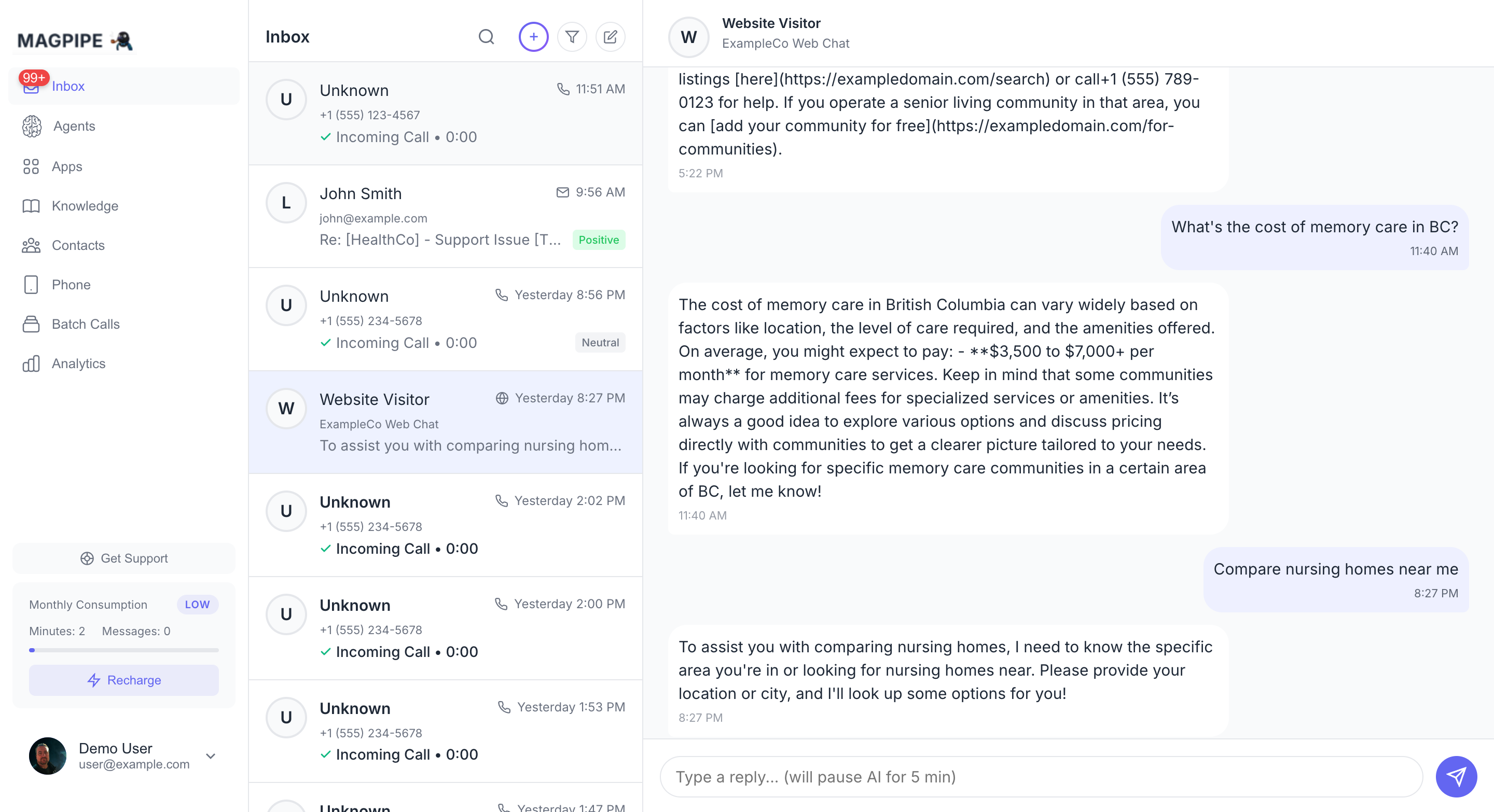
1. **Message received** - Text arrives at your number
2. **Agent responds** - AI generates a contextual response
3. **Reply sent** - Response is sent to the sender
4. **Inbox updated** - Conversation appears in your Inbox
If a dedicated text agent is assigned to the number, it handles SMS. Otherwise, the voice agent responds. This allows you to use a specialized text agent for SMS while keeping a different voice agent for calls on the same number.
## Sending SMS
### From the Inbox
1. Open an existing conversation
2. Type your message in the reply box
3. Tap **Send**
### New Conversation
1. Go to **Inbox**
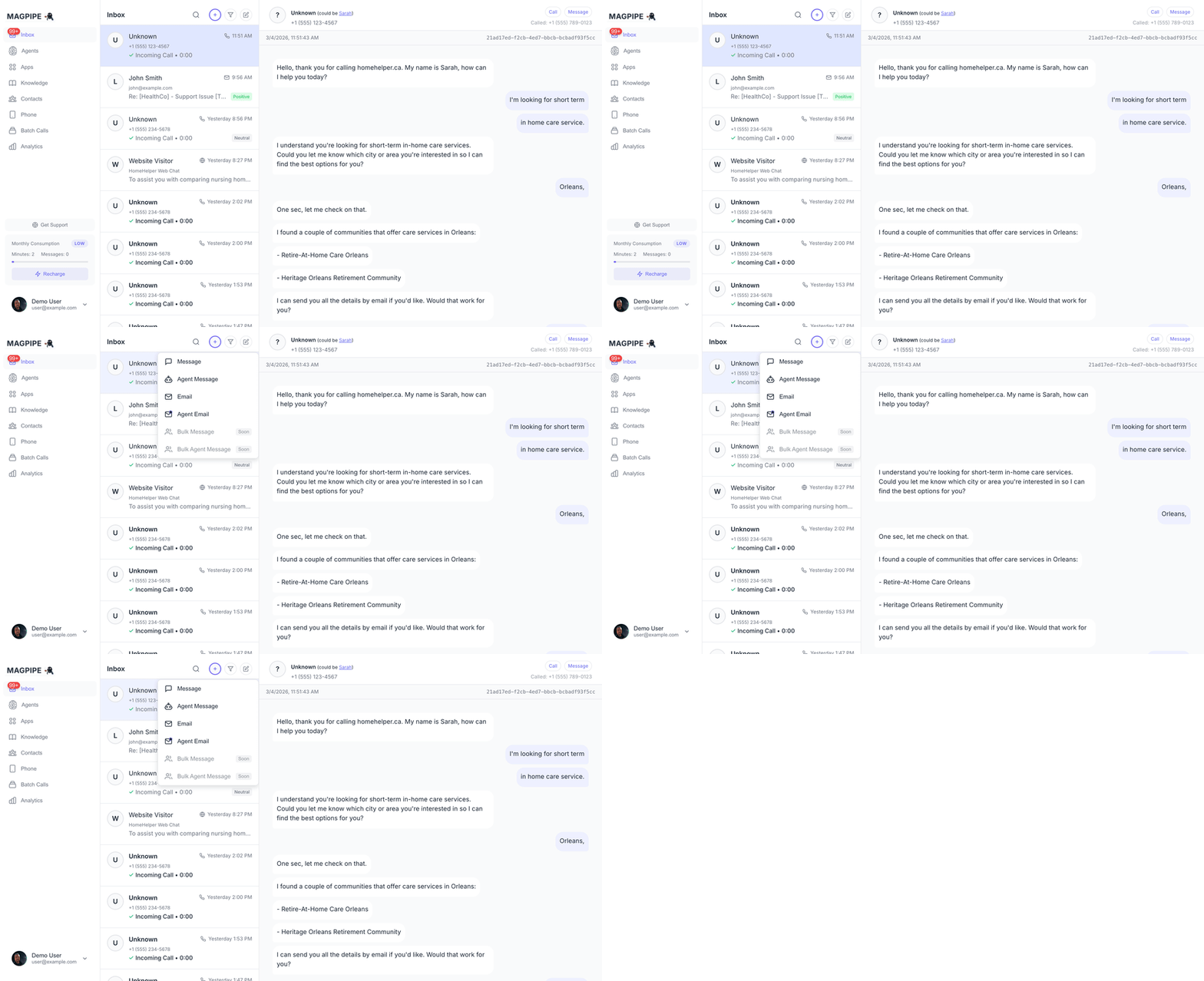
2. Tap the compose button
3. Enter the recipient's phone number
4. Type your message
5. Tap **Send**
## AI vs Manual Messages
### AI Messages
* Generated automatically when someone texts your number
* Based on agent's system prompt and knowledge
* Marked with "AI" indicator in the conversation
### Manual Messages
* You type and send yourself
* AI pauses for that conversation
* Resume AI by letting it respond to the next inbound message
## Conversation Context
The AI maintains context across messages:
```
Visitor: What are your hours?
Agent: We're open Monday-Friday, 9am to 5pm.
Visitor: Are you open Saturday?
Agent: We're closed on weekends, but you can leave a message and we'll respond Monday morning.
Visitor: Ok thanks
Agent: You're welcome! Have a great day.
```
The agent remembers the conversation flow and responds appropriately.
## SMS Schedule & After-Hours
You can set a separate schedule for SMS responses, independent of your call schedule.
### Configuring SMS Schedule
1. Open the agent settings
2. Go to **Schedule** tab
3. Configure the **Texts Schedule** section with hours for each day
4. Optionally set an **After-Hours SMS Forwarding** number
### After-Hours Behavior
When a text comes in outside your agent's SMS schedule:
**With forwarding number**: The inbound message is forwarded to your after-hours SMS number, and the sender receives: "This Magpipe agent is currently off duty."
**Without forwarding number**: The sender receives: "This Magpipe agent is currently off duty." No AI response is generated.
During scheduled hours, texts are handled normally by the AI agent.
## Multilingual SMS
Your agent's language setting applies to SMS as well as voice calls. The agent will respond to text messages in the configured language.
### Supported Languages
| Setting | Behavior |
| ---------------- | ------------------------------------------------------------------------------- |
| **English** | Responds in English (default) |
| **Multilingual** | Detects the language of each incoming message and responds in the same language |
| **French** | Always responds in French |
| **Spanish** | Always responds in Spanish |
| **German** | Always responds in German |
### Multilingual Mode
When set to **Multilingual**, the agent automatically detects what language each incoming text is written in and replies in that same language. This works seamlessly even when the sender switches languages mid-conversation:
```
Visitor: What are your hours?
Agent: We're open Monday-Friday, 9am to 5pm!
Visitor: ¿Tienen servicio los sábados?
Agent: Estamos cerrados los fines de semana, pero puedes dejarnos un mensaje y te responderemos el lunes.
Visitor: Merci, bonne journée!
Agent: Merci à vous aussi, bonne journée !
```
### Configuring Language
1. Open your agent's settings
2. Under **Basic Settings**, select a **Language**
3. The setting applies to both voice calls and SMS — no separate configuration needed
The language setting controls the agent's response language. Your system prompt can be written in any language — the agent will follow the language instruction regardless.
## Best Practices
SMS has character limits. Agent responses are automatically kept brief.
Tell the agent it's responding via text: "Keep responses under 160 characters when possible."
Check your Inbox regularly for conversations that might need human follow-up.
SMS is great for appointment confirmations, reminders, and quick updates.
## Limitations
* SMS is text-only (no images or media in agent responses)
* Some carriers may filter automated messages
* International SMS may have additional costs
* Message length affects segment count (and cost)
## Compliance
When using SMS for business:
* Honor opt-out requests ("STOP" messages)
* Don't send unsolicited marketing messages
* Include business identification
* Follow local regulations (TCPA, CASL, etc.)
## Receiving SMS
When someone texts your Magpipe number:
1. **Message received** - Text arrives at your number
2. **Agent responds** - AI generates a contextual response
3. **Reply sent** - Response is sent to the sender
4. **Inbox updated** - Conversation appears in your Inbox
If a dedicated text agent is assigned to the number, it handles SMS. Otherwise, the voice agent responds. This allows you to use a specialized text agent for SMS while keeping a different voice agent for calls on the same number.
## Sending SMS
### From the Inbox
1. Open an existing conversation
2. Type your message in the reply box
3. Tap **Send**
### New Conversation
1. Go to **Inbox**
2. Tap the compose button
3. Enter the recipient's phone number
4. Type your message
5. Tap **Send**
## AI vs Manual Messages
### AI Messages
* Generated automatically when someone texts your number
* Based on agent's system prompt and knowledge
* Marked with "AI" indicator in the conversation
### Manual Messages
* You type and send yourself
* AI pauses for that conversation
* Resume AI by letting it respond to the next inbound message
## Conversation Context
The AI maintains context across messages:
```
Visitor: What are your hours?
Agent: We're open Monday-Friday, 9am to 5pm.
Visitor: Are you open Saturday?
Agent: We're closed on weekends, but you can leave a message and we'll respond Monday morning.
Visitor: Ok thanks
Agent: You're welcome! Have a great day.
```
The agent remembers the conversation flow and responds appropriately.
## SMS Schedule & After-Hours
You can set a separate schedule for SMS responses, independent of your call schedule.
### Configuring SMS Schedule
1. Open the agent settings
2. Go to **Schedule** tab
3. Configure the **Texts Schedule** section with hours for each day
4. Optionally set an **After-Hours SMS Forwarding** number
### After-Hours Behavior
When a text comes in outside your agent's SMS schedule:
**With forwarding number**: The inbound message is forwarded to your after-hours SMS number, and the sender receives: "This Magpipe agent is currently off duty."
**Without forwarding number**: The sender receives: "This Magpipe agent is currently off duty." No AI response is generated.
During scheduled hours, texts are handled normally by the AI agent.
## Multilingual SMS
Your agent's language setting applies to SMS as well as voice calls. The agent will respond to text messages in the configured language.
### Supported Languages
| Setting | Behavior |
| ---------------- | ------------------------------------------------------------------------------- |
| **English** | Responds in English (default) |
| **Multilingual** | Detects the language of each incoming message and responds in the same language |
| **French** | Always responds in French |
| **Spanish** | Always responds in Spanish |
| **German** | Always responds in German |
### Multilingual Mode
When set to **Multilingual**, the agent automatically detects what language each incoming text is written in and replies in that same language. This works seamlessly even when the sender switches languages mid-conversation:
```
Visitor: What are your hours?
Agent: We're open Monday-Friday, 9am to 5pm!
Visitor: ¿Tienen servicio los sábados?
Agent: Estamos cerrados los fines de semana, pero puedes dejarnos un mensaje y te responderemos el lunes.
Visitor: Merci, bonne journée!
Agent: Merci à vous aussi, bonne journée !
```
### Configuring Language
1. Open your agent's settings
2. Under **Basic Settings**, select a **Language**
3. The setting applies to both voice calls and SMS — no separate configuration needed
The language setting controls the agent's response language. Your system prompt can be written in any language — the agent will follow the language instruction regardless.
## Best Practices
SMS has character limits. Agent responses are automatically kept brief.
Tell the agent it's responding via text: "Keep responses under 160 characters when possible."
Check your Inbox regularly for conversations that might need human follow-up.
SMS is great for appointment confirmations, reminders, and quick updates.
## Limitations
* SMS is text-only (no images or media in agent responses)
* Some carriers may filter automated messages
* International SMS may have additional costs
* Message length affects segment count (and cost)
## Compliance
When using SMS for business:
* Honor opt-out requests ("STOP" messages)
* Don't send unsolicited marketing messages
* Include business identification
* Follow local regulations (TCPA, CASL, etc.)