

Overview
Apps extend what your AI agents can do. Connect to your CRM, calendar, helpdesk, and more. When a caller asks to book an appointment, your agent checks your actual calendar. When a lead calls, their info is logged directly to your CRM.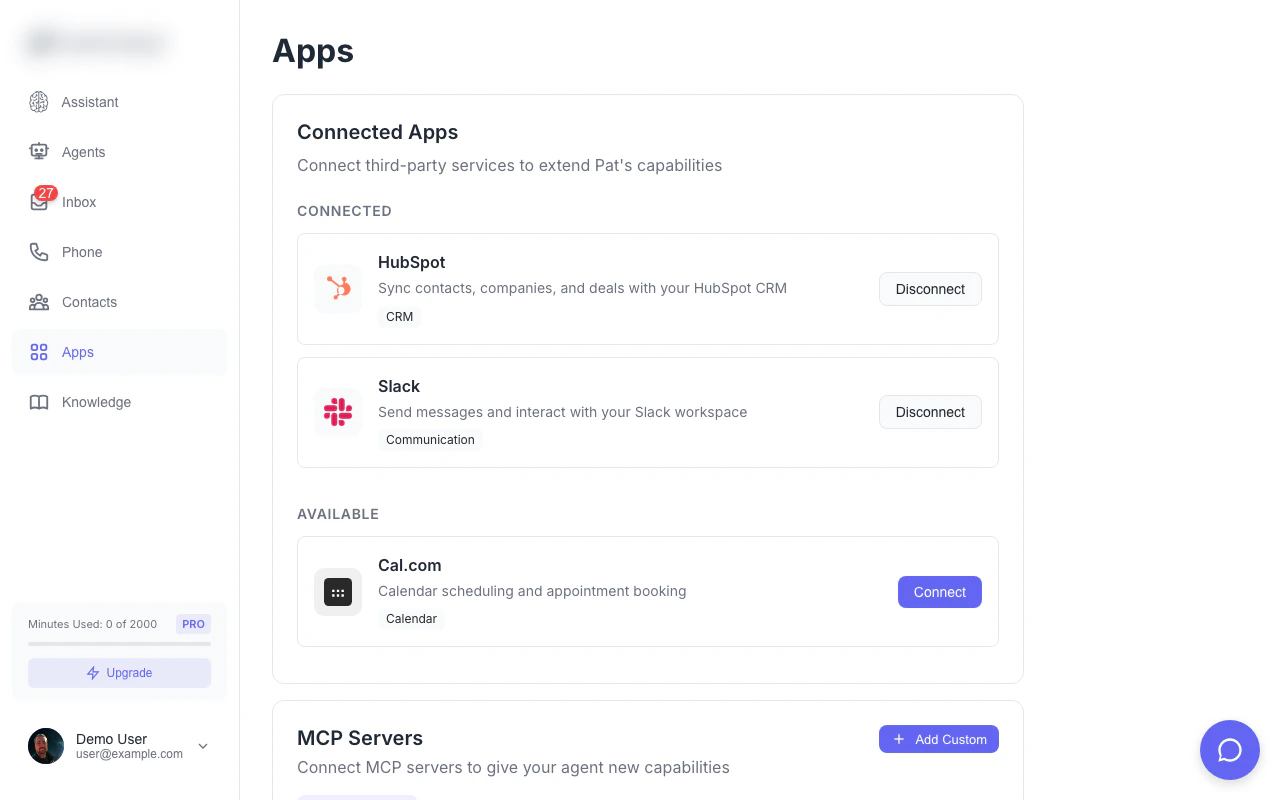
Connect external services like Slack, Cal.com, and CRMs to extend your agents
- Apps (global) - Connect external services like Cal.com, HubSpot, and Slack
- Functions (per-agent) - Enable built-in capabilities like SMS, transfers, and booking
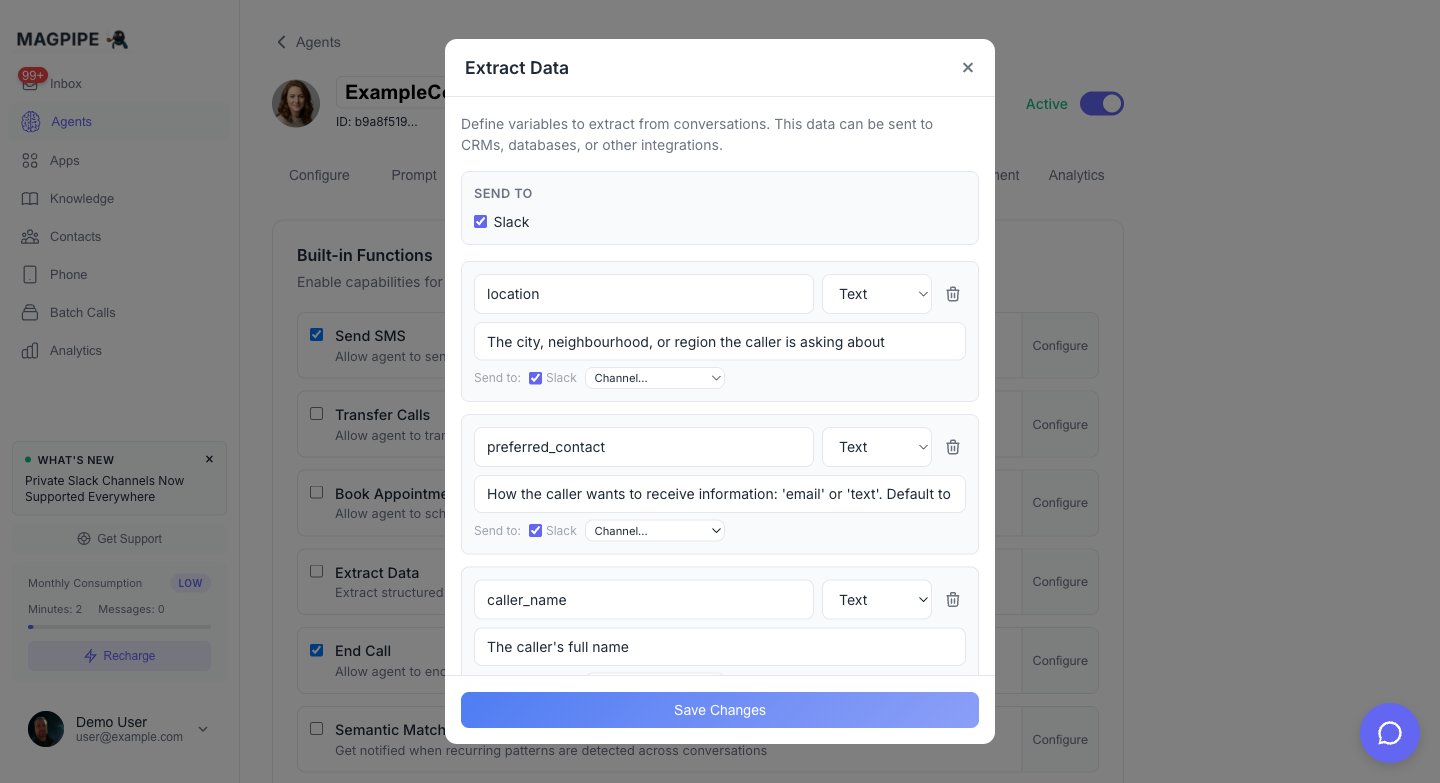
Configuring Slack channel routing on the Extract Data function
Connected Apps
Connected Apps are external services that your agents can use. Configure them once in the Apps section, then they’re available to all your agents.Cal.com (Calendar)
Book appointments and check availability. Features:- Check real-time calendar availability
- Book appointments during calls
- Send calendar invites automatically
- Respect busy times and working hours
- Cancel or reschedule bookings
- Go to Apps from the main navigation
- Find Cal.com and click Connect
- Sign in with your Cal.com account
- Grant calendar access
- Select which event types to use
HubSpot (CRM)
Sync contacts and log interactions. Features:- Import contacts from HubSpot
- Auto-create contacts for new callers
- Log calls to contact timeline
- Sync company information
- Update contact properties
- Go to Apps from the main navigation
- Find HubSpot and click Connect
- Create a Private App in HubSpot (Settings → Integrations → Private Apps)
- Enter your HubSpot API key
- Select data to sync
Slack (Team Chat)
Send notifications and interact with your team. Features:- Send messages to public and private channels
- Receive notifications for calls/messages
- Post call summaries
- Alert team to urgent calls
- Route extracted call data to specific channels
- Go to Apps from the main navigation
- Find Slack and click Connect
- Authorize Magpipe in Slack
- Select notification channels
Both public and private channels are supported. For private channels, invite the Magpipe bot to the channel first. If you connected Slack before March 2026, disconnect and reconnect to grant the
groups:read permission needed for private channels.Disconnecting Apps
To disconnect a connected app:- Go to Apps
- Find the app
- Click Disconnect
- Confirm
Agent Functions
Functions are built-in capabilities that you enable per-agent. Configure them in each agent’s Functions tab.Send SMS
Allow your agent to send text messages during or after calls. Use cases:- Send appointment confirmations
- Share links or documents
- Follow up after calls
- Send directions or contact info
- Go to your agent → Functions tab
- Toggle on Send SMS
Transfer Calls
Allow your agent to transfer calls to a human. Use cases:- Escalate complex issues
- Connect to sales team
- Route to specific departments
- Emergency transfers
- Go to your agent → Functions tab
- Toggle on Transfer Calls
- Set transfer number in Settings tab
Book Appointments
Allow your agent to schedule appointments via Cal.com. Requirements:- Cal.com must be connected in Apps
- Schedule consultations
- Book service appointments
- Reserve meeting times
- First connect Cal.com in Apps
- Go to your agent → Functions tab
- Toggle on Book Appointments
MCP Servers
MCP (Model Context Protocol) servers let you add custom tools beyond the built-in apps.What is MCP?
Model Context Protocol is an open standard for connecting AI to external tools. Magpipe supports any MCP-compatible server, giving you access to 40+ pre-built servers plus the ability to create custom ones.Available MCP Servers
Productivity
Productivity
- Google Drive - Search and access files
- Google Docs - Read and create documents
- Google Sheets - Read and write spreadsheets
- Dropbox - File storage access
- OneDrive - Microsoft file access
- Evernote - Note access
Communication
Communication
- Gmail - Read and send emails
- Outlook - Microsoft email
- Discord - Server messaging
- Microsoft Teams - Team chat
- Telegram - Bot messaging
- WhatsApp Business - Messaging
CRM & Sales
CRM & Sales
- Salesforce - Full CRM access
- Pipedrive - Deal management
- Zoho CRM - Contact management
- Close - Sales CRM
- Copper - Google-integrated CRM
- Freshsales - Sales automation
Support & Helpdesk
Support & Helpdesk
- Zendesk - Ticket management
- Freshdesk - Support tickets
- Intercom - Customer messaging
- Help Scout - Email support
- Front - Shared inbox
Project Management
Project Management
- Asana - Task management
- Monday.com - Work OS
- Trello - Kanban boards
- Jira - Issue tracking
- ClickUp - Productivity platform
- Basecamp - Project collaboration
E-commerce
E-commerce
- Shopify - Store management
- WooCommerce - WordPress commerce
- Stripe - Payment data
- Square - Point of sale
- BigCommerce - Online store
Marketing
Marketing
- Mailchimp - Email marketing
- ActiveCampaign - Marketing automation
- Klaviyo - E-commerce email
- Constant Contact - Email campaigns
- SendGrid - Transactional email
Analytics
Analytics
- Google Analytics - Web analytics
- Mixpanel - Product analytics
- Amplitude - Behavioral analytics
- Segment - Customer data
Development
Development
- GitHub - Repository access
- GitLab - DevOps platform
- Sentry - Error tracking
- PagerDuty - Incident management
- Datadog - Monitoring
Databases
Databases
- PostgreSQL - Query databases
- MySQL - Query databases
- MongoDB - Document database
- Redis - Cache access
- Supabase - Backend as a service
Other
Other
- Weather - Current conditions
- News - Headlines and articles
- Wikipedia - Encyclopedia search
- Web Search - General search
- Calculator - Math operations
Adding an MCP Server
- Go to Apps in the main navigation
- Scroll to MCP Servers section
- Click + Add MCP Server
- Enter server details:
- Name - Display name
- URL - Server endpoint
- Authentication - API key if required
- Click Test Connection
- Save if successful
Custom MCP Servers
Build your own MCP server for custom tools:- Implement the MCP specification
- Host your server (cloud function, VPS, etc.)
- Add the URL in Magpipe
- Your tools become available to agents
How Apps Work
Tool-Based Architecture
Each connected app provides “tools” that agents can use:Automatic Tool Selection
Agents automatically choose the right tool based on context. You don’t need to configure when to use each tool - the AI determines this naturally from the conversation.Prompt Guidance
Help agents use apps effectively by adding instructions to your system prompt:Data & Privacy
What Data is Shared
When you connect an app:- Magpipe receives OAuth tokens or API keys
- Agents can access data within granted scopes
- Call context may be sent to apps (e.g., contact lookup)
What Data is NOT Shared
- Call recordings are not sent to connected apps
- Full transcripts are not shared
- Personal notes are kept private
Troubleshooting
App Not Working
- Check connection status - Go to Apps, verify “Connected”
- Check permissions - Ensure sufficient scopes granted
- Check agent functions - Verify function enabled for agent
- Check tool usage - Review call transcript for tool calls
Authentication Errors
- OAuth tokens can expire - reconnect the app
- API keys may be revoked - check in third-party service
- Scopes may have changed - re-authorize with updated permissions
Slow Responses
App calls add latency:- Simple lookups: +200-500ms
- Complex queries: +1-2 seconds
- Database writes: +500ms-1s
Best Practices
Start Simple
- Begin with 1-2 key apps
- Test thoroughly with real calls
- Add more as needed
Security
- Only connect apps you actively need
- Use least-privilege permissions
- Regularly audit connected apps
- Disconnect unused apps
Agent Instructions
- Be explicit about when to use apps
- Provide fallback instructions if app fails
- Set expectations (“I’ll check the calendar…”)
MCP Documentation
Learn about Model Context Protocol
AI Agents
Configure agent functions