

Overview
Settings is your control center for configuring Magpipe. Manage your account, organization, team members, branding, notifications, and more. Access Settings from the main navigation menu.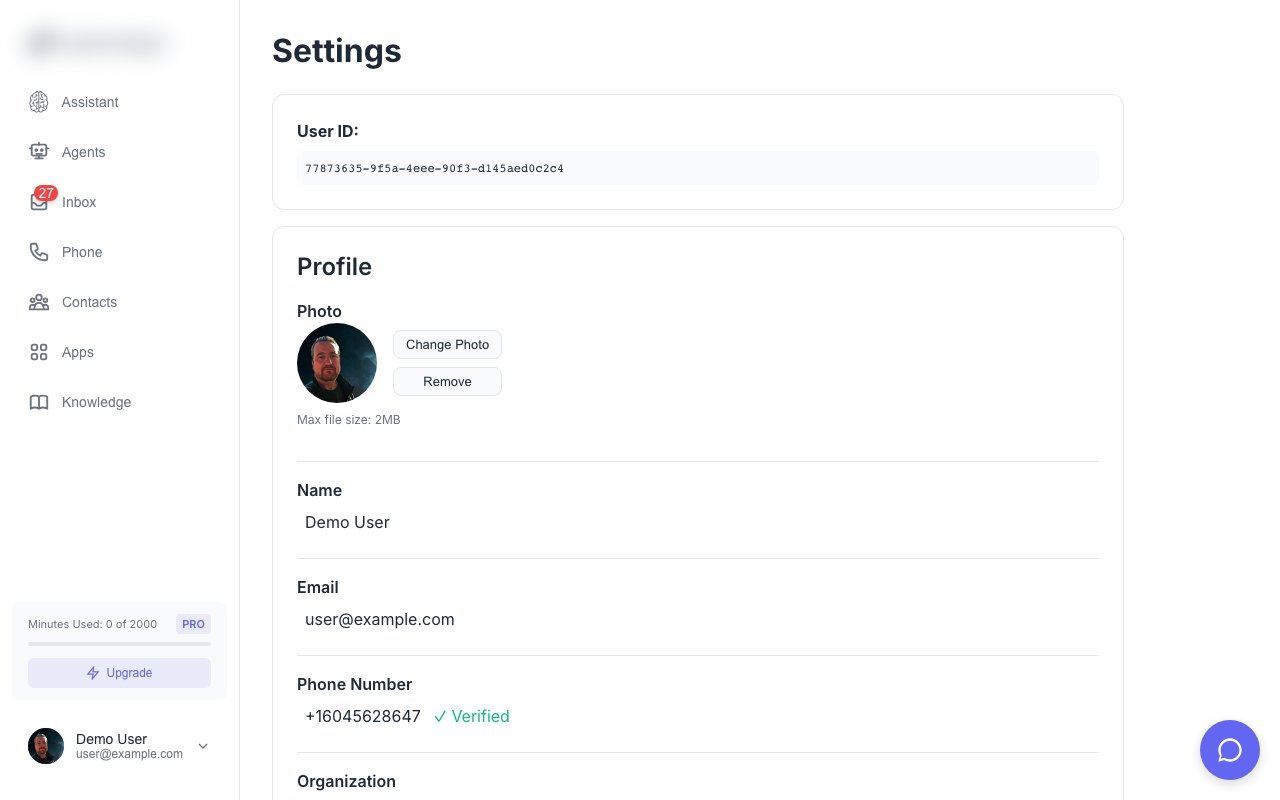
Settings page — manage your account, organization, and preferences
Account Settings
Profile
Your personal account information:Changing Email
- Go to Settings → Account
- Click Change Email
- Enter new email address
- Verify via email link
- New email becomes your login
Password
- Go to Settings → Account
- Click Change Password
- Enter current password
- Enter new password (twice)
- Save
- Minimum 8 characters
- At least one uppercase letter
- At least one number
Two-Factor Authentication
Add extra security with 2FA:1
Enable 2FA
Go to Settings → Security → Enable 2FA.
2
Scan QR Code
Use an authenticator app (Google Authenticator, Authy, etc.).
3
Enter Code
Enter the 6-digit code from your app.
4
Save Backup Codes
Save the backup codes in a secure location.
Delete Account
- Go to Settings → Account
- Scroll to Danger Zone
- Click Delete Account
- Type your email to confirm
- Click Permanently Delete
Organization Settings
General
Configure your organization:Default Agent
Set a fallback agent for calls to numbers without an assigned agent:- Go to Settings → Organization
- Find Default Agent
- Select an agent from dropdown
- Save
Timezone
Set the organization timezone for:- Call scheduling
- Agent business hours
- Report date ranges
Team Settings
Viewing Team Members
Go to Settings → Team to see:- All organization members
- Their roles (Owner, Admin, Member)
- Invitation status (pending/accepted)
- Last active date
Inviting Members
- Click Invite Team Member
- Enter email address
- Select role (Admin or Member)
- Send invitation
Changing Roles
- Find the team member
- Click their role
- Select new role
- Confirm change
Removing Members
- Find the team member
- Click Remove
- Confirm removal
Branding Settings
Logo
Upload your logo for white labeling:- Go to Settings → Branding
- Click Upload Logo
- Select image file (SVG or PNG)
- Preview and save
Colors
Customize your brand colors:
Enter hex codes (e.g.,
#6366f1) or use the color picker.
Product Name
Replace “Magpipe” with your brand:- Enter your product name
- Save changes
- Name appears in browser title and UI
Custom Domain
Set up your own domain for the dashboard. See White Labeling for instructions.Notification Settings
Notification preferences are configured per-agent in the Agent Detail → Notifications tab. Each agent can have independent Email, SMS, Push, and App notification settings. See Agent Notifications for details on configuring notification channels.Phone Settings
Transfer Number
Set the default number for call transfers:- Go to Settings → Phone
- Enter your Transfer Number
- Optionally set a Transfer Passcode
- Save
Caller ID
Configure outbound caller ID:- Calls show your Magpipe number
- Choose which number to display
- Verified numbers only
Call Recording
Toggle call recording on/off:- Go to Settings → Phone
- Toggle Record Calls
- Save
Check local laws regarding call recording and consent requirements.
Recording Retention
Set how long recordings are kept:Data & Privacy
Data Export
Download all your data:- Go to Settings → Data
- Click Export All Data
- Wait for export to process
- Download ZIP file
- Contacts (CSV)
- Call history (CSV)
- Messages (CSV)
- Agent configurations (JSON)
- Knowledge base content (JSON)
Data Retention
Configure automatic data cleanup:GDPR Requests
Handle data subject requests:- Access Request: Use Data Export
- Deletion Request: Delete contact + associated data
- Portability: Export in standard formats
API Settings
API Keys
Generate and manage API keys for programmatic access to the Magpipe REST API. Keys use themgp_ prefix and persist until revoked.
Generating a key:
- Go to Settings → API
- Click Generate New Key
- Enter a descriptive name (e.g., “Production Server”)
- Copy the full key immediately — it is only shown once
- The key appears in your keys list showing the prefix (
mgp_abc12345...)
Limits: Maximum 10 active API keys per account.
Using a key: Include it as a Bearer token in the
Authorization header:
Billing Settings
Current Plan
View your subscription:- Plan name and features
- Billing cycle
- Usage this period
- Next billing date
Usage
Monitor your usage:- Minutes used (voice)
- SMS sent/received
- API calls made
- Storage used
Payment Method
Manage payment:- Go to Settings → Billing
- Click Payment Method
- Add or update card
- Set as default
Invoices
View and download invoices:- All past invoices available
- Download PDF
- Auto-emailed monthly
Cancel Subscription
- Go to Settings → Billing
- Click Cancel Plan
- Select reason (optional)
- Confirm cancellation
Preferences
Language
Select your interface language:- English (default)
- More coming soon
Date Format
Choose date display format:- MM/DD/YYYY (US)
- DD/MM/YYYY (International)
- YYYY-MM-DD (ISO)
Theme
Select UI theme:- Light (default)
- Dark
- System (match OS)
Keyboard Shortcuts
View and customize keyboard shortcuts. Enable/disable globally or customize specific shortcuts.Troubleshooting
Settings Not Saving
- Check internet connection
- Refresh the page
- Try a different browser
- Clear browser cache
Permission Denied
If you can’t access certain settings:- Verify your role (some settings require Admin/Owner)
- Check organization permissions
- Contact your organization Owner
Missing Features
Some settings require specific plans:- White labeling: All plans
- Custom domain: Contact support
- Extended retention: Pro and above
Team Management
Manage team members
White Labeling
Customize branding