

Overview
Your Magpipe phone numbers can send and receive SMS text messages. Your AI agent handles incoming texts automatically.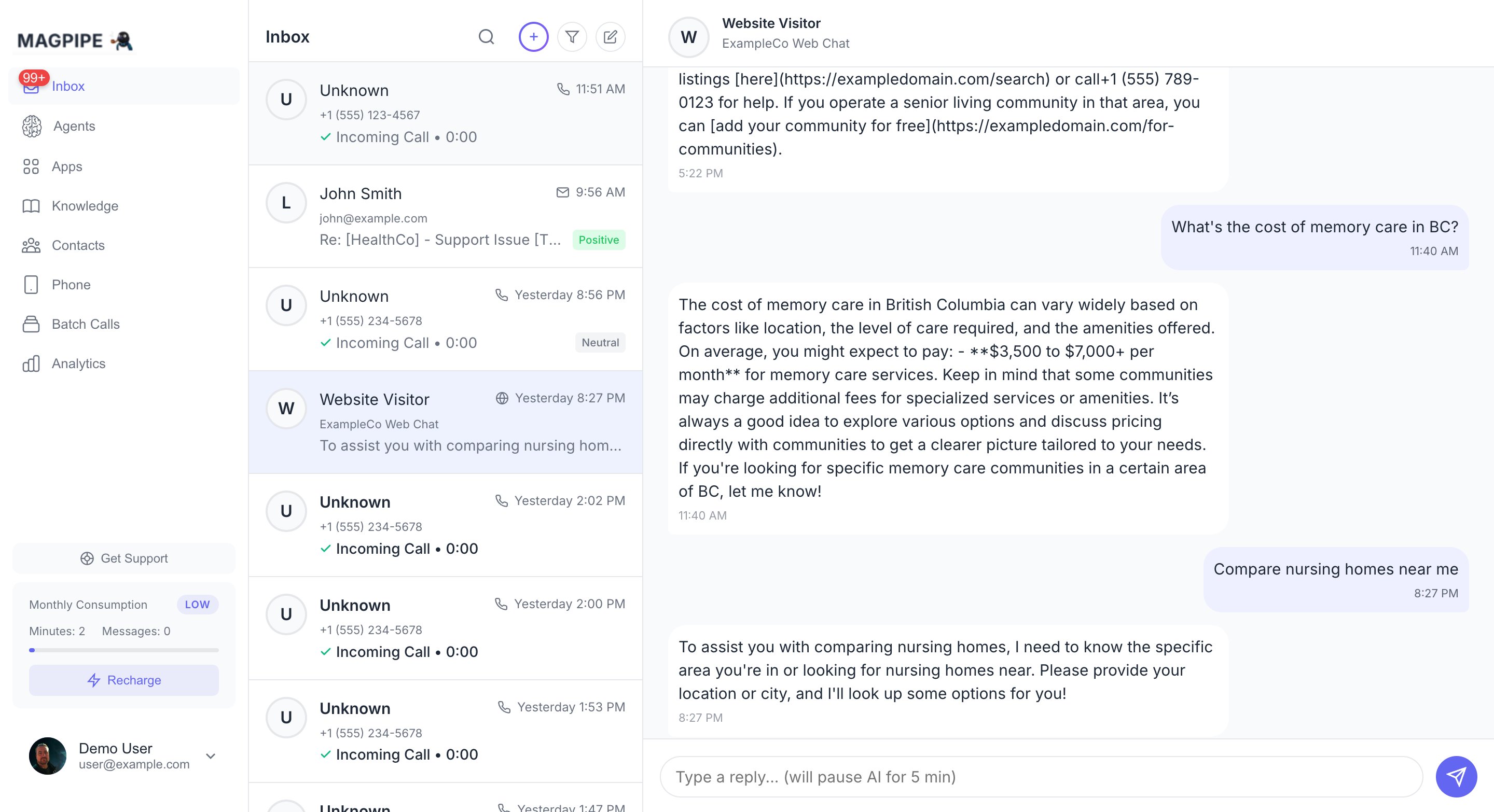
SMS conversations appear in your inbox with full AI transcripts
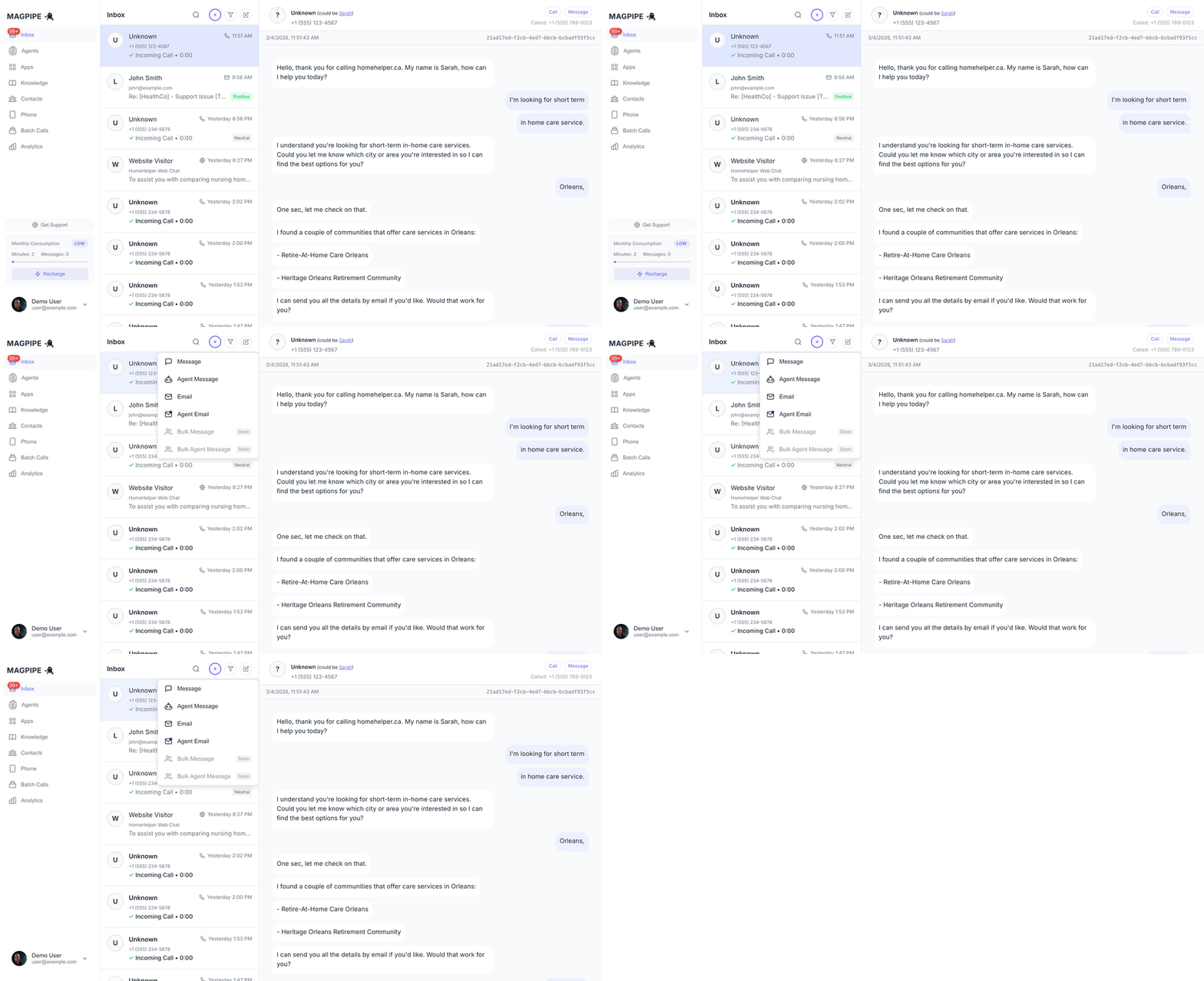
Composing a new SMS message from the inbox
Receiving SMS
When someone texts your Magpipe number:- Message received - Text arrives at your number
- Agent responds - AI generates a contextual response
- Reply sent - Response is sent to the sender
- Inbox updated - Conversation appears in your Inbox
Sending SMS
From the Inbox
- Open an existing conversation
- Type your message in the reply box
- Tap Send
New Conversation
- Go to Inbox
- Tap the compose button
- Enter the recipient’s phone number
- Type your message
- Tap Send
AI vs Manual Messages
AI Messages
- Generated automatically when someone texts your number
- Based on agent’s system prompt and knowledge
- Marked with “AI” indicator in the conversation
Manual Messages
- You type and send yourself
- AI pauses for that conversation
- Resume AI by letting it respond to the next inbound message
Conversation Context
The AI maintains context across messages:SMS Schedule & After-Hours
You can set a separate schedule for SMS responses, independent of your call schedule.Configuring SMS Schedule
- Open the agent settings
- Go to Schedule tab
- Configure the Texts Schedule section with hours for each day
- Optionally set an After-Hours SMS Forwarding number
After-Hours Behavior
When a text comes in outside your agent’s SMS schedule: With forwarding number: The inbound message is forwarded to your after-hours SMS number, and the sender receives: “This Magpipe agent is currently off duty.” Without forwarding number: The sender receives: “This Magpipe agent is currently off duty.” No AI response is generated. During scheduled hours, texts are handled normally by the AI agent.Multilingual SMS
Your agent’s language setting applies to SMS as well as voice calls. The agent will respond to text messages in the configured language.Supported Languages
Multilingual Mode
When set to Multilingual, the agent automatically detects what language each incoming text is written in and replies in that same language. This works seamlessly even when the sender switches languages mid-conversation:Configuring Language
- Open your agent’s settings
- Under Basic Settings, select a Language
- The setting applies to both voice calls and SMS — no separate configuration needed
The language setting controls the agent’s response language. Your system prompt can be written in any language — the agent will follow the language instruction regardless.
Best Practices
Keep responses concise
Keep responses concise
SMS has character limits. Agent responses are automatically kept brief.
Set expectations in your prompt
Set expectations in your prompt
Tell the agent it’s responding via text: “Keep responses under 160 characters when possible.”
Monitor the Inbox
Monitor the Inbox
Check your Inbox regularly for conversations that might need human follow-up.
Use for confirmations
Use for confirmations
SMS is great for appointment confirmations, reminders, and quick updates.
Limitations
- SMS is text-only (no images or media in agent responses)
- Some carriers may filter automated messages
- International SMS may have additional costs
- Message length affects segment count (and cost)
Compliance
When using SMS for business:- Honor opt-out requests (“STOP” messages)
- Don’t send unsolicited marketing messages
- Include business identification
- Follow local regulations (TCPA, CASL, etc.)