

Overview
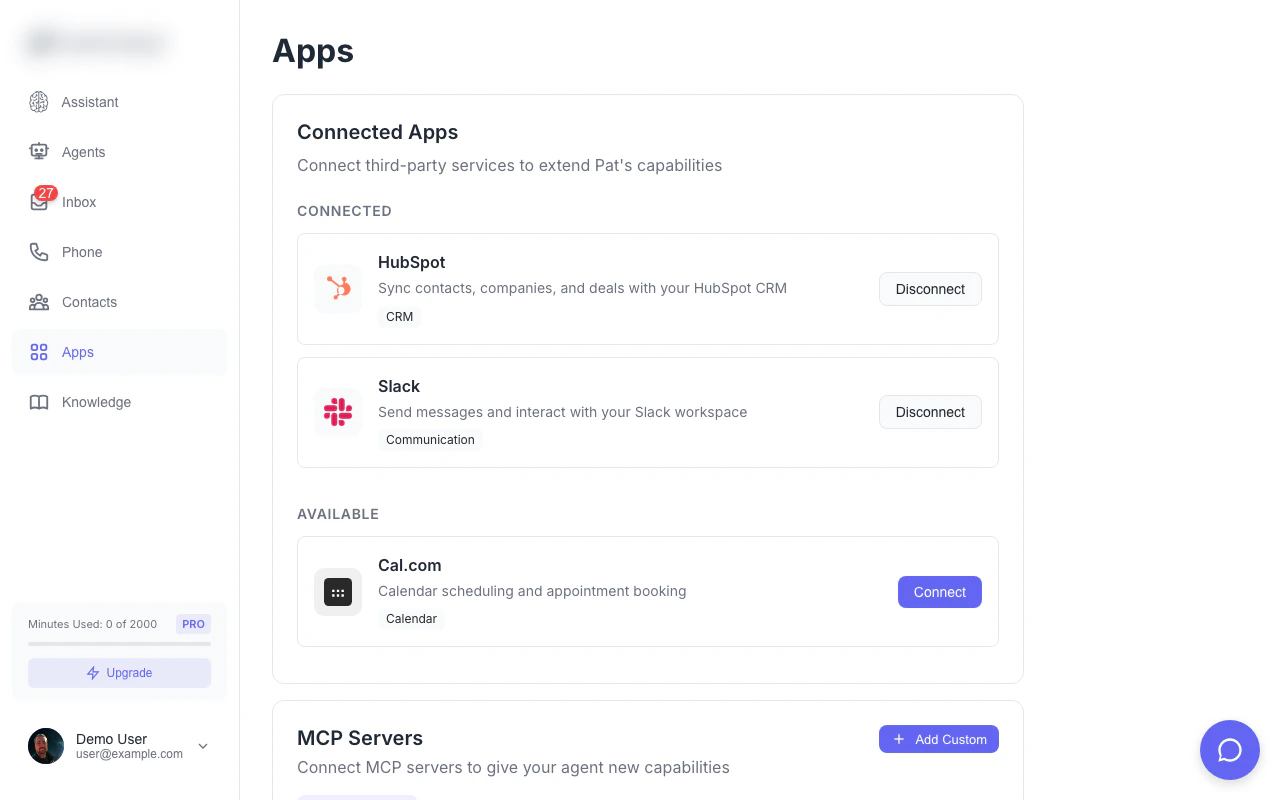
Connect OAuth services and MCP servers to extend your agent's capabilities
OAuth Integrations
Available Integrations
HubSpot
Create contacts, search CRM, add notes
Slack
Send messages, list channels
Cal.com
Check availability, book appointments
Connecting an Integration
- Go to Settings → Apps
- Find the integration you want
- Click Connect
- Authorize access in the popup
- Integration is now available to your agents
HubSpot Tools
Once connected, your agent can:
Example conversation:
Caller: “Can you add me to your system? I’m John Smith, john@example.com” Agent: Creates contact in HubSpot “I’ve added you to our system, John. Is there anything else I can help with?”
Slack Tools
Private channels are fully supported. The Magpipe bot must be invited to any private channel you want to use. If you connected Slack before March 2026, disconnect and reconnect to grant the updated permissions.
Calendar Tools
MCP Server Catalog
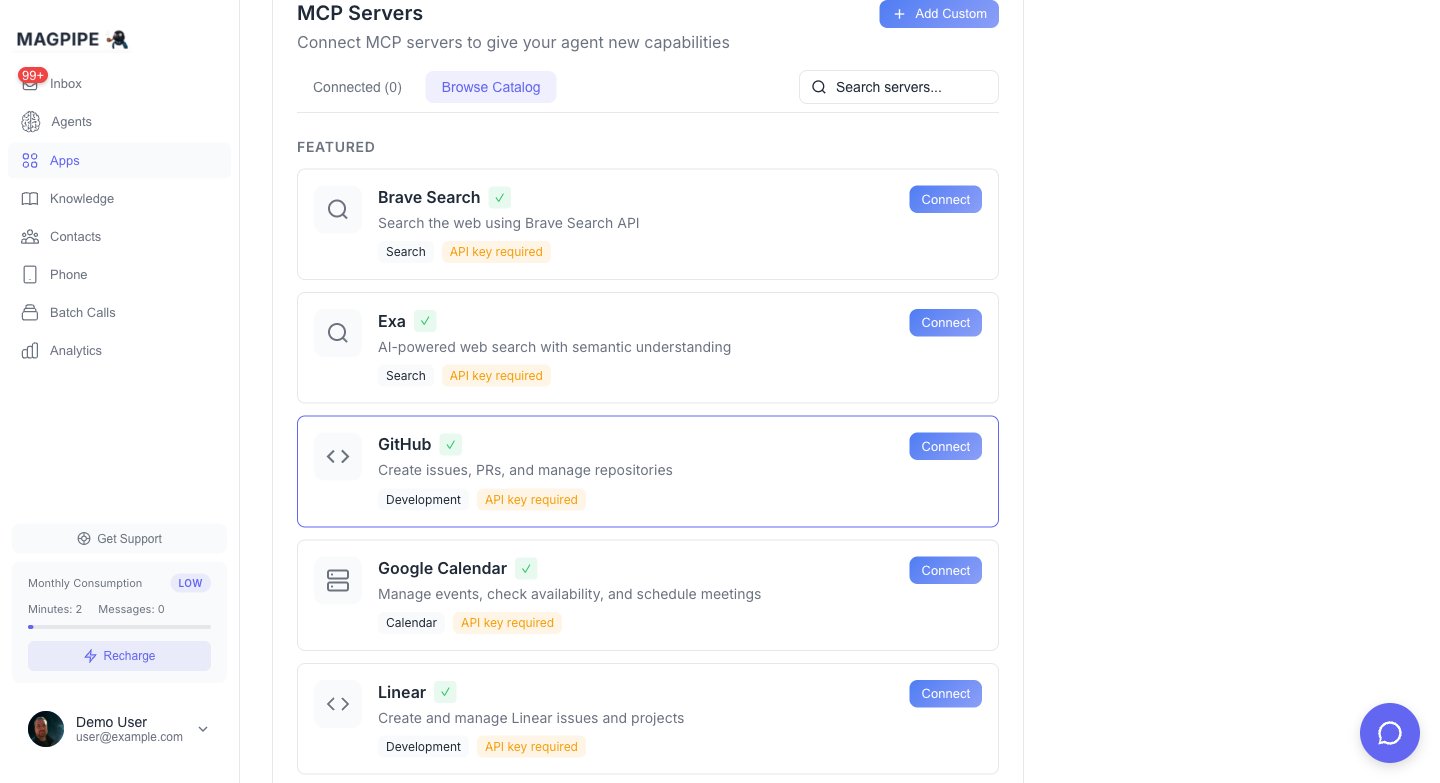
Browse and connect MCP servers from the catalog
Featured Servers
Connecting a Catalog Server
- Go to Settings → Apps → MCP Servers
- Browse the catalog
- Click Connect on the server you want
- Enter your API key (if required)
- Tools are now available to your agents
Most MCP servers require an API key from the service provider. Check the server’s documentation for how to obtain one.
Full Catalog
Search & AI
Search & AI
Brave Search, Exa, Perplexity
Development
Development
GitHub, GitLab, Linear, Sentry
Productivity
Productivity
Notion, Asana, Trello, Airtable, Jira
Communication
Communication
Slack, Discord, Twilio
CRM & Sales
CRM & Sales
HubSpot, Salesforce, Zendesk
E-commerce & Payments
E-commerce & Payments
Stripe, Shopify
Databases
Databases
PostgreSQL, MongoDB, Supabase, SQLite
Cloud & Infrastructure
Cloud & Infrastructure
Cloudflare, Vercel, AWS
Storage
Storage
Google Drive, Dropbox
Marketing
Marketing
Mailchimp, Mailgun
Design
Design
Figma
Automation
Automation
Zapier, Make
Custom MCP Servers
Add your own MCP-compatible servers to give agents access to internal tools and APIs.Adding a Custom Server
- Go to Settings → Apps → MCP Servers
- Click Add Custom Server
- Enter:
- Name: Display name for the server
- URL: HTTPS endpoint (e.g.,
https://mcp.yourcompany.com/v1) - Auth Type: None, API Key, or Bearer Token
- API Key: If required
- Click Validate to test the connection
- If successful, click Add Server
Requirements
Custom MCP servers must:- Use HTTPS (HTTP not allowed)
- Implement the MCP JSON-RPC protocol
- Respond to
tools/listandtools/callmethods - Be publicly accessible (no localhost or internal IPs)
Authentication Options
Example MCP Server Response
How Agents Use Tools
When your agent is on a call or chat, it can invoke any connected tool:Tool Naming
Tools are prefixed by their source:Preview Mode
Destructive actions use a preview-then-execute pattern:- Preview: Agent shows what will happen
- Confirm: User approves the action
- Execute: Action is performed
Built-in Tools
Every agent has access to these core tools:Managing Integrations
Check Status
View all connected integrations in Settings → Apps. Each shows:- Connection status (connected, expired, error)
- Last used timestamp
- Available tools
Disconnect
To remove an integration:- Go to Settings → Apps
- Find the integration
- Click Disconnect
- Confirm removal
Refresh Tokens
OAuth integrations automatically refresh tokens before expiry. If a token expires:- The integration shows “Expired” status
- Click Reconnect to re-authorize
- Tools are available again
Tool Execution Logs
All tool executions are logged for debugging and audit:- Tool name and source
- Input parameters
- Output/response
- Success/failure status
- Execution time
API Access
List Available Tools
Execute a Tool
Security
- HTTPS Only: All MCP servers must use HTTPS
- Token Encryption: API keys are stored encrypted
- Row-Level Security: Users can only access their own integrations
- Audit Logging: All tool executions are logged
- URL Validation: Internal/localhost URLs are blocked
FAQ
Can I use integrations on voice calls?
Can I use integrations on voice calls?
Yes! Agents can use any connected tool during live voice calls. The agent decides when to invoke tools based on the conversation.
How do I know which tools my agent can use?
How do I know which tools my agent can use?
Go to Settings → Apps to see all connected integrations and their available tools. The agent automatically has access to all tools from connected integrations.
Can I limit which tools an agent uses?
Can I limit which tools an agent uses?
Currently, agents have access to all connected tools. Per-agent tool restrictions are on the roadmap.
What if an MCP server is slow?
What if an MCP server is slow?
MCP calls have a 30-second timeout. If a server doesn’t respond in time, the agent will gracefully handle the error and continue the conversation.
Can I build my own MCP server?
Can I build my own MCP server?
Yes! Follow the MCP specification to build a compatible server, then add it as a custom server.