

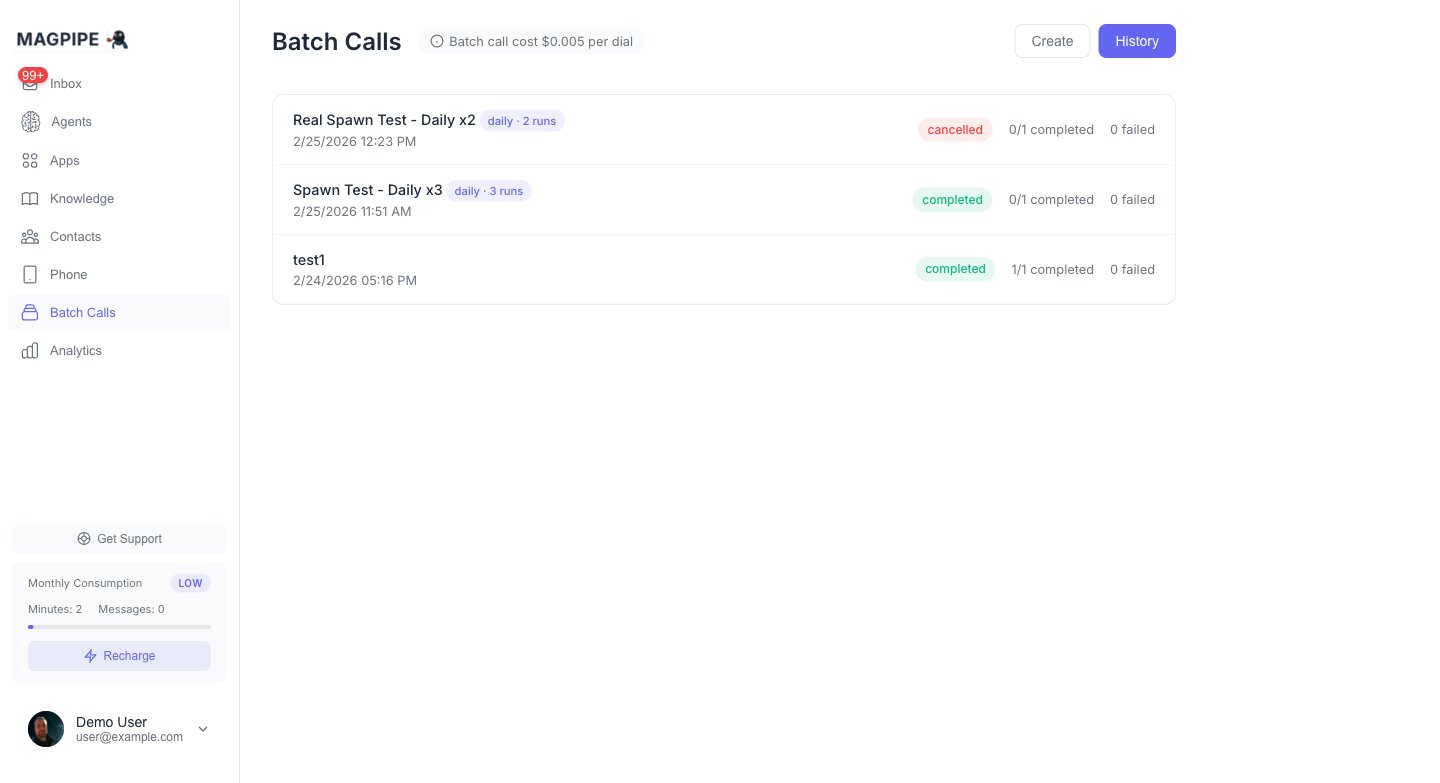
Create and monitor batch calling campaigns with scheduling and concurrency controls
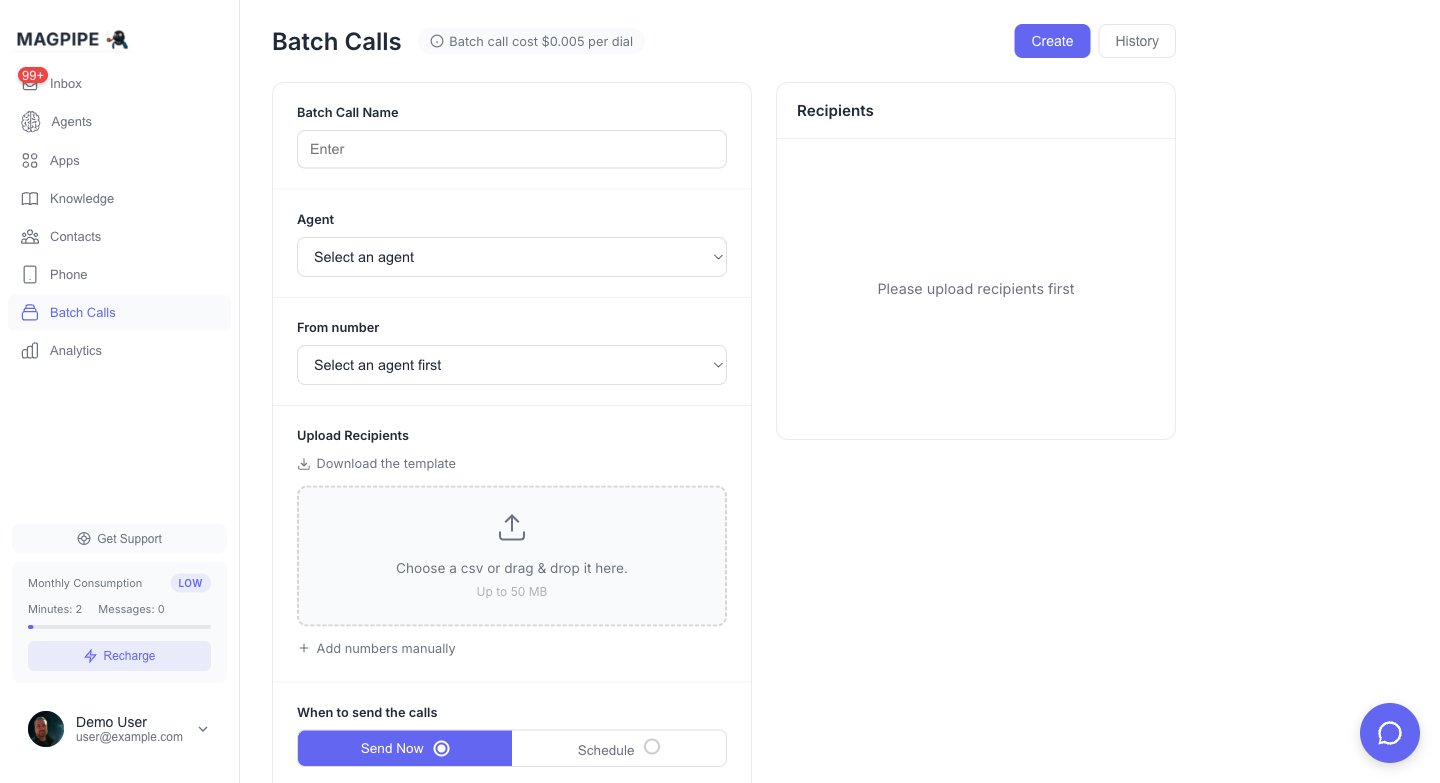
Configure agent, recipients, scheduling, and concurrency for a new batch
Overview
Batch Calling provides enterprise-grade outbound calling capabilities:- CSV Upload - Upload recipients via CSV file with a downloadable template
- Scheduling - Send now or schedule for a specific date and time
- Call Windows - Restrict calls to specific hours and days of the week
- Concurrency - Control how many calls run simultaneously
- Draft & History - Save drafts and track all batch campaigns
Use Cases
- Appointment reminders - Call patients/clients about upcoming appointments
- Follow-up campaigns - Reach out to leads after an event or inquiry
- Survey calls - Collect feedback from customers at scale
- Notification calls - Inform contacts about important updates
- Outreach campaigns - Introduce new products or services
How It Works
1. Create a Batch
Navigate to Batch Calls in the sidebar to access the feature. Fill in the batch configuration:- Batch Call Name - A descriptive name for your campaign
- From Number - Select which Magpipe phone number to call from (shows associated agent)
2. Upload Recipients
Upload a CSV file with your recipient list. Download the template for the correct format:name, first_name, last_name, phone, phone_number, mobile, and cell.
3. Configure Scheduling
- Send Now - Calls begin immediately after creation
- Schedule - Pick a specific date and time to start the campaign
4. Set Call Window
Control when calls can be made:- Time Range - e.g., 9:00 AM to 5:00 PM
- Days - Select which days of the week (default: Monday-Friday)
5. Concurrency Settings
- Reserved Concurrency - Slots reserved for inbound and other calls
- Batch Concurrency - Remaining slots allocated to batch calling
6. Send or Save Draft
- Save as Draft - Save your batch to edit and send later
- Send - Start the campaign (or schedule it)
7. Track Results
Switch to the History tab to view all batches with:- Status (draft, scheduled, running, completed, cancelled, failed)
- Completion counts and failure counts
- Click any batch to view individual recipient status updating in real-time
- Re-run completed or failed batches with one click
Batch Status Flow
Recipient Status
Each recipient’s status updates in real-time as the call progresses:Recurring Batches
Recurring batches repeat on a schedule — hourly, daily, weekly, or monthly. Each run calls ALL recipients again. This is useful for daily appointment reminders, recurring outreach campaigns, or weekly check-in calls.How It Works
Recurring batches use a parent-child model:- Parent batch stores the recurrence config and recipients template. Status =
recurring. - Child batch is an actual run, cloned from the parent. Has its own recipients and status tracking.
- When a child completes, the system automatically spawns the next child scheduled for the next occurrence.
Setting Up Recurrence
In the Create view, configure the Repeat section:- Frequency — None, Hourly, Daily, Weekly, or Monthly
- Interval — Every N units (e.g., every 2 days)
- End Condition — Never, After N runs, or On a specific date
window_days + window_start_time/window_end_time) is still respected for each run.
Managing a Recurring Series
From the History view, click a recurring batch to see:- Recurrence config — frequency, interval, end condition
- Run count — how many runs have completed
- Runs list — all past and current runs (click to see recipient details)
- Pause Series — stops new runs from spawning (active runs continue)
- Resume Series — resumes spawning new runs
- Cancel Series — cancels the parent and all scheduled/running children
Status Flow
API Example
Re-running Batches
Completed, cancelled, or failed batches can be re-run from the History view. Click the Re-Run button to reset all recipients back to pending and restart the campaign. This is useful for:- Retrying failed calls after fixing issues
- Re-running campaigns with updated agent prompts
- Reaching contacts who didn’t answer the first time
API Integration
You can create and manage batch calls programmatically via the API:Best Practices
Contact Preparation
- Verify phone numbers - Ensure all numbers are in E.164 format
- Segment your list - Group contacts by campaign type
- Check consent - Only call contacts who’ve opted in
Timing
- Business hours - Use call windows to restrict calling hours
- Time zones - Consider contact locations when setting windows
- Scheduling - Schedule campaigns for optimal pickup rates
Agent Configuration
Compliance
Limits
FAQ
Can I pause a running batch?
Can I pause a running batch?
Yes, you can cancel a running batch from the History view. All pending recipients will be marked as skipped.
What happens outside the call window?
What happens outside the call window?
The batch processor automatically pauses when outside your configured call window and resumes when the window reopens.
Can I edit a batch after creation?
Can I edit a batch after creation?
Only draft batches can be edited. Once a batch is scheduled or running, you can only cancel it.
How is billing handled?
How is billing handled?
Each dial costs $0.005 plus standard per-minute calling charges. Your credit balance is checked before each call.
What happens if my credits run out mid-batch?
What happens if my credits run out mid-batch?
The batch will pause when credits are insufficient. Add credits and restart the batch to continue.
How do recurring batches work?
How do recurring batches work?
Recurring batches use a parent-child model. The parent stores your config and recipients template. Each run creates a child batch that calls all recipients. When a run completes, the next one is automatically scheduled based on your frequency settings.
Can I pause a recurring series?
Can I pause a recurring series?
Yes, use the Pause Series button in the batch detail modal. Currently running calls will finish, but no new runs will start until you resume.