

Overview
Email integration lets you connect a Gmail account to your AI agents, bringing email conversations into your unified inbox alongside calls, texts, and chat. Your agents can monitor incoming emails, auto-enrich contacts from email senders, and respond on your behalf.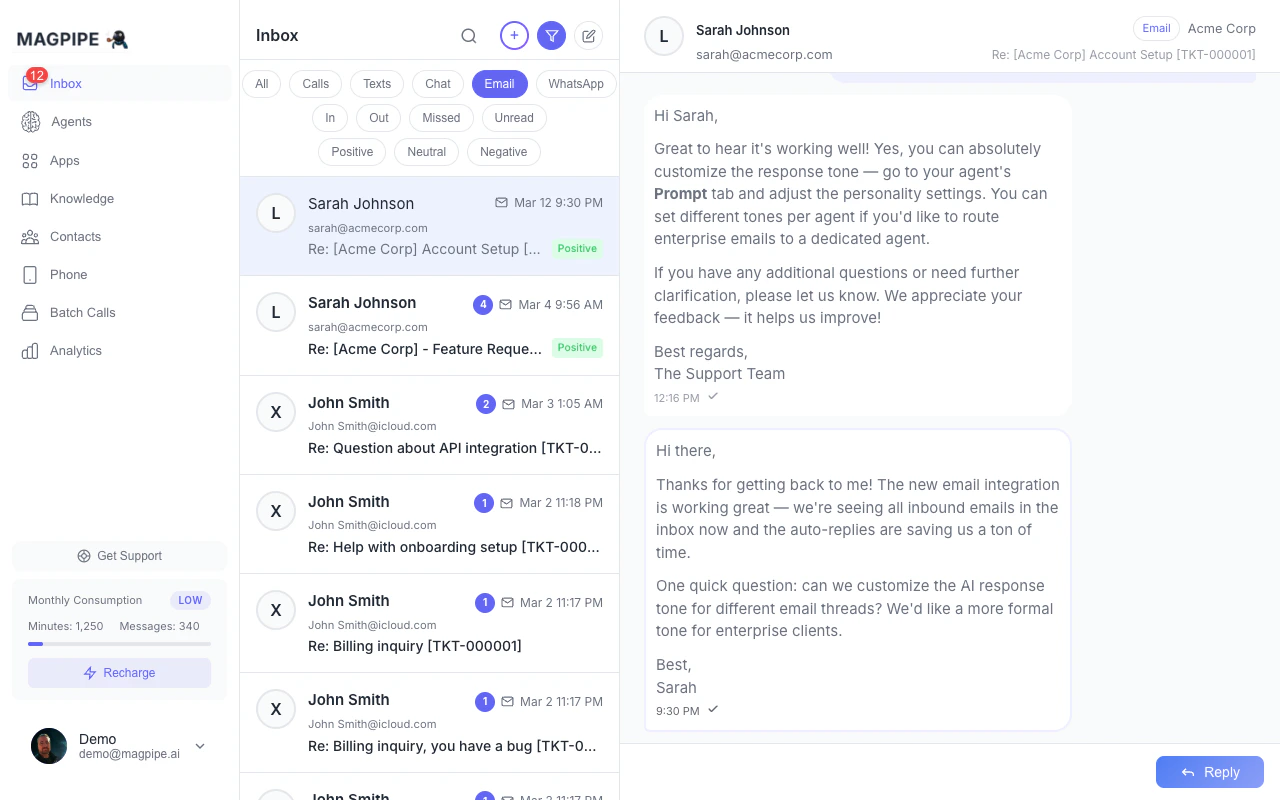
Email conversations appear in your inbox alongside calls and texts
How It Works
- Connect Gmail via OAuth in the agent’s Deploy tab
- Emails sync to your inbox automatically via push notifications
- Contacts are enriched — new email senders get company, phone, job title, and social profiles added automatically
- View and reply to email threads directly from the inbox
- Agent mode (optional) — let your AI agent draft or auto-send email replies
Connecting Gmail
1
Go to Agent Settings
Navigate to Agents → select your agent → Deploy tab.
2
Connect Gmail
In the Email section, click Connect Gmail. A Google OAuth popup will appear.
3
Authorize Access
Grant Magpipe permission to read and send email on your behalf. Only the connected Gmail address is accessed.
4
Configure Settings
Once connected, configure the email channel:
- Active toggle — Enable/disable email handling for this agent
- Send As — Optional: set a different reply-from address
- Agent Mode — Choose how the AI handles emails (see below)
One Gmail account can be connected to multiple agents. Each agent has its own email configuration.
Agent Email Modes
Control how your AI agent interacts with incoming emails:
Set the mode in Agents → Deploy → Email → Agent Mode.
Email in the Inbox
Viewing Email Threads
Email conversations appear in the inbox alongside your other communication channels. Filter to Email only using the type filter pills. Each email thread shows:- Sender name and email address
- Subject line
- Message preview
- Timestamp
- Contact avatar (if available)
Thread Detail View
Click an email thread to see the full conversation:- All messages displayed in chronological order
- From labels on each message
- Quoted text and email signatures are automatically stripped for clean reading
- Delivery status indicators
Quick Actions
From an email thread, you can:- Reply — Send a reply directly from the inbox
- Call — Call the contact (if phone number is known)
- Message — Send an SMS (if phone number is known)
- Email — Compose a new email
Contact Enrichment
When an email arrives from a new sender, the system automatically:- Looks up the sender using the email address
- Enriches the contact with publicly available data:
- Full name
- Company and job title
- Phone number
- LinkedIn, Twitter, and Facebook profiles
- Avatar/photo
- Merges with existing contacts — if the sender already exists as a phone contact, their record is updated with the email address and any missing fields. No duplicates are created.
Email Sync
Push Notifications
Email delivery uses Gmail Pub/Sub push notifications for near-real-time sync. When a new email arrives in Gmail, it’s pushed to your inbox within seconds.Fallback Polling
As a backup, the system polls Gmail every 30 minutes to catch any emails that might have been missed by the push mechanism.Watch Renewal
Gmail push notification subscriptions expire periodically. The system automatically renews them daily to ensure uninterrupted delivery.Managing Email
Detaching Email
To remove email from an agent:- Go to Agents → select agent → Deploy tab
- In the Email section, click Detach
- Confirm the removal
Multiple Agents
You can connect the same Gmail account to multiple agents. Each agent has independent settings for:- Active/inactive status
- Send-as address
- Agent mode (off/draft/auto)
Inbox
View all conversations including email
Contacts
Contact enrichment from email