

Overview
System Functions are pre-built capabilities available to all AI agents. Unlike Custom Functions which call external webhooks, System Functions are built into the platform and handle common tasks like ending calls, transferring to humans, and sending messages.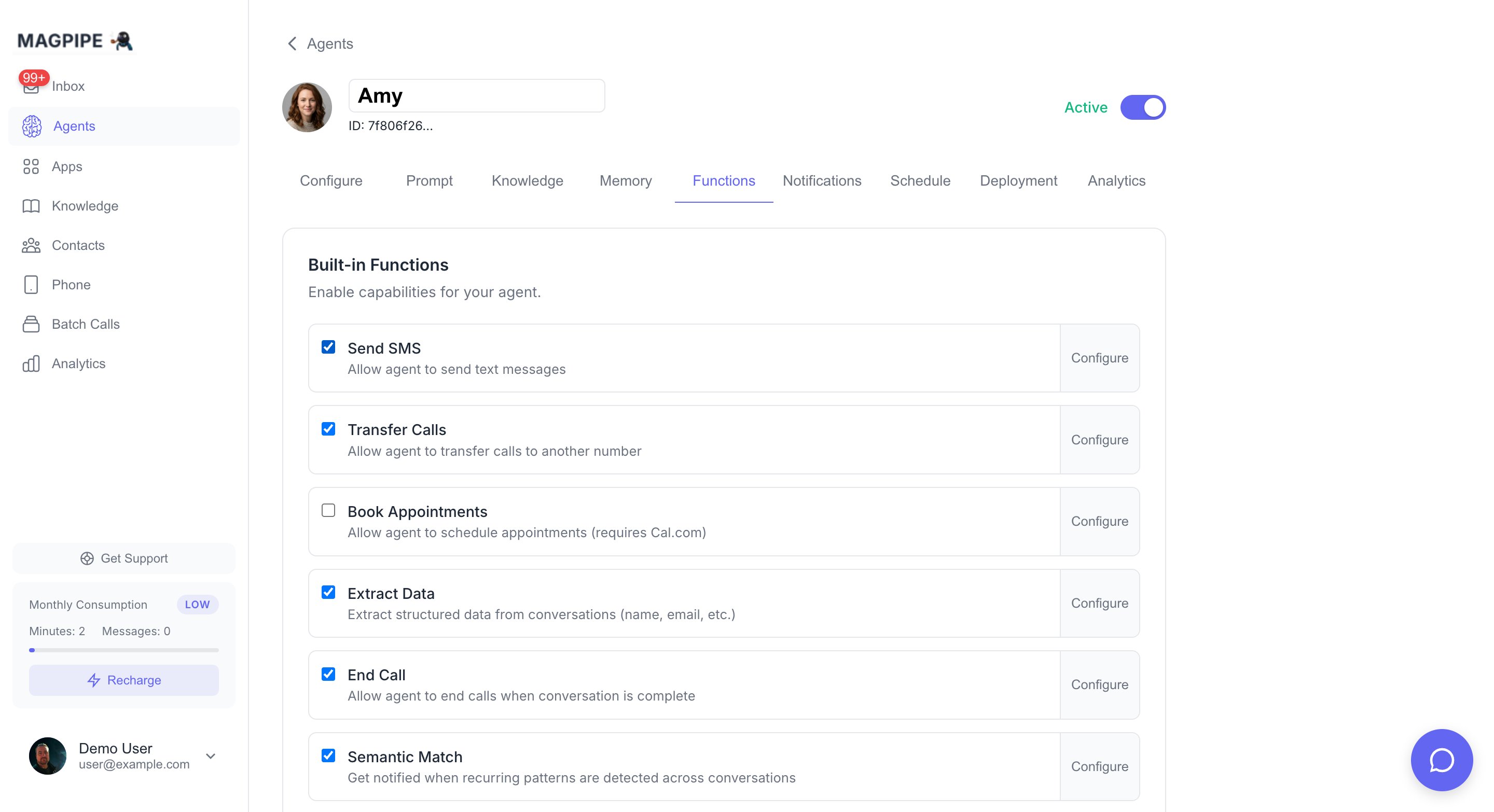
Toggle built-in functions on or off for each agent from the Functions tab
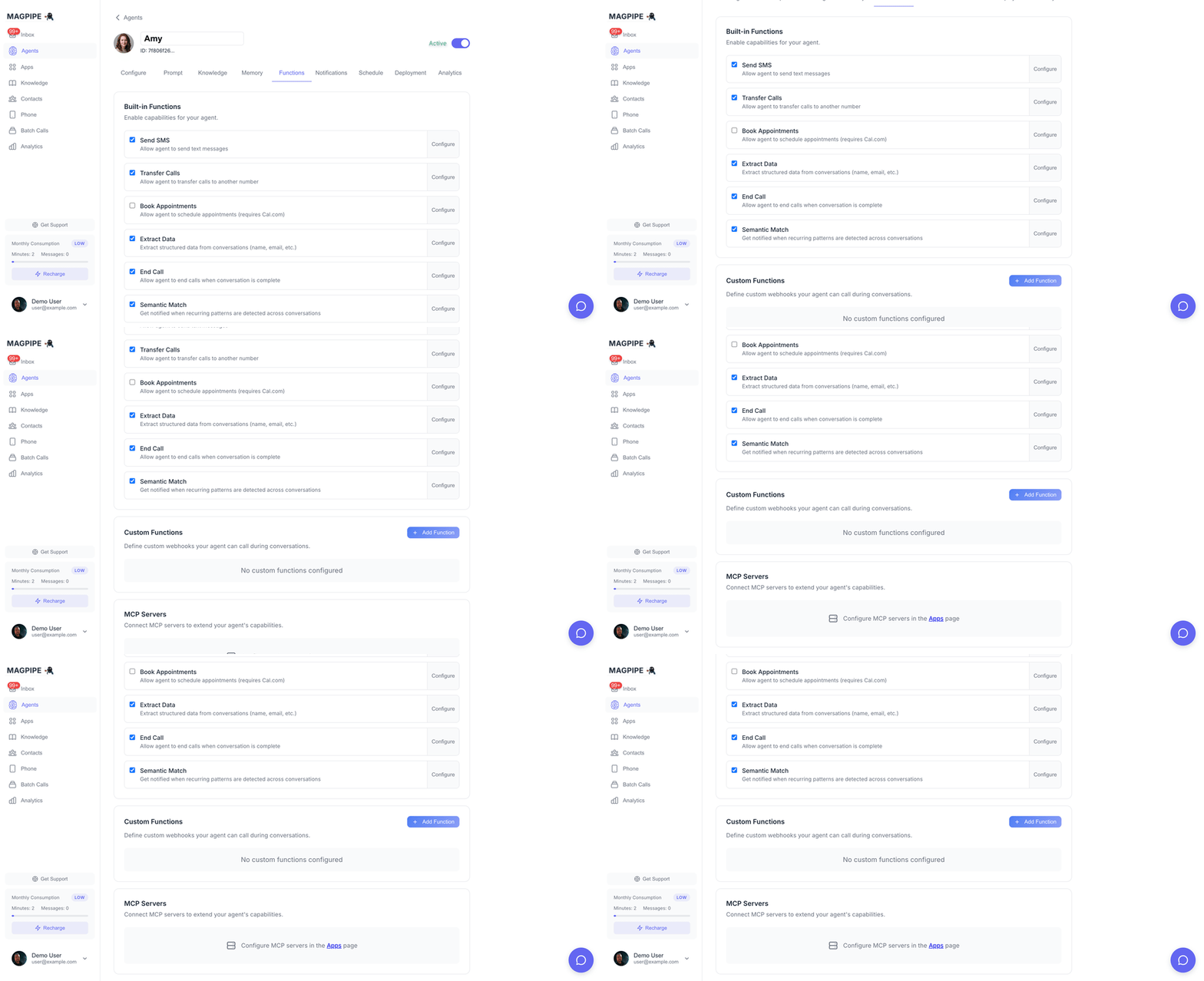
Scroll through all available system functions
Available Functions
End Call
Allows the agent to hang up when the conversation is complete.
Default Condition:
- “End the call after confirming the appointment and saying goodbye”
- “End the call only after the caller explicitly says goodbye or asks to hang up”
- “End the call after completing the order and providing the confirmation number”
When End Call is disabled, calls will only end when the caller hangs up.
Transfer
Transfer the call to another phone number when needed.
Configuration:
- Go to Agents → Select agent → Functions tab
- Enable Transfer toggle
- Click Configure to add transfer destinations
- Label: Name the agent uses (e.g., “Sales”, “Support”, “Mobile”)
- Phone Number: Destination in E.164 format (+1234567890)
SMS
Send text messages during or after calls.
Capabilities:
- Send follow-up information after calls
- Text links, confirmations, or details
- Respond to caller requests for written info
Extract Data
Collect structured information from conversations.
Variable Types:
- Text: Names, addresses, notes
- Number: Phone numbers, quantities, amounts
- Boolean: Yes/no confirmations
- Enum: Selection from predefined options
- Go to Agents → Select agent → Functions tab
- Enable Extract Data toggle
- Click Configure to define variables
- Name: Variable identifier (snake_case)
- Type: Data type to collect
- Description: Helps AI understand what to collect
Booking
Schedule appointments via calendar integration.
Supported Integrations:
- Google Calendar
- Cal.com
- Calendly (coming soon)
- Connect your calendar in Apps → Integrations
- Go to Agents → Select agent → Functions tab
- Enable Booking toggle
- Click Configure to set availability
Configuring System Functions
All system functions are configured in the Functions tab of your agent settings:- Navigate to Agents in the sidebar
- Select the agent you want to configure
- Click the Functions tab
- Toggle functions on/off
- Click Configure to customize each function
Best Practices
Clear Conditions
Write specific end call conditions so your agent knows exactly when to hang up
Label Transfer Numbers
Use descriptive labels like “Sales Team” instead of just “Office”
Extract What Matters
Only extract data you’ll actually use - too many variables can confuse the AI
Test Thoroughly
Make test calls to verify each function works as expected