

Overview
The Inbox is your unified communication center where all customer interactions converge. Whether someone calls your AI agent, sends a text message, chats on your website, or sends an email, every conversation appears here in real-time. Monitor, respond, and take over conversations when needed — all from a single interface.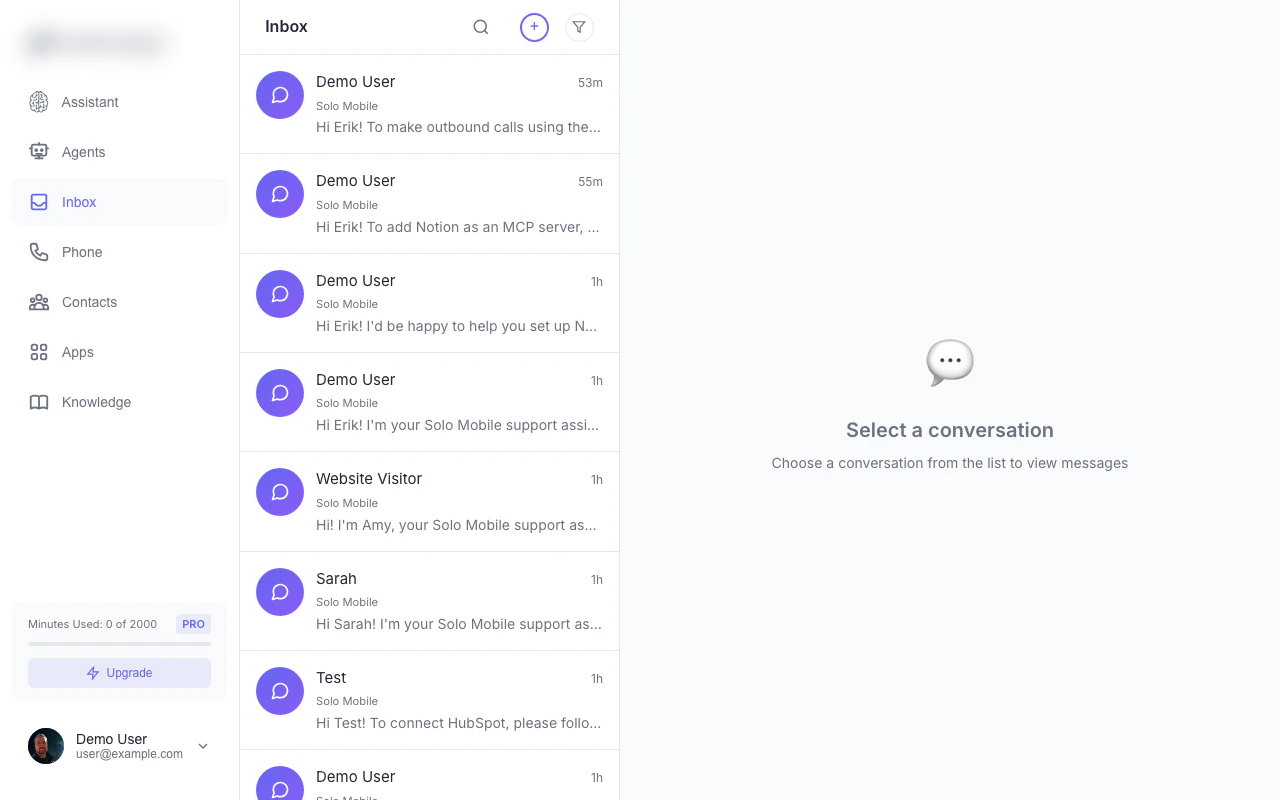
The inbox shows all conversations across calls, SMS, chat, and email
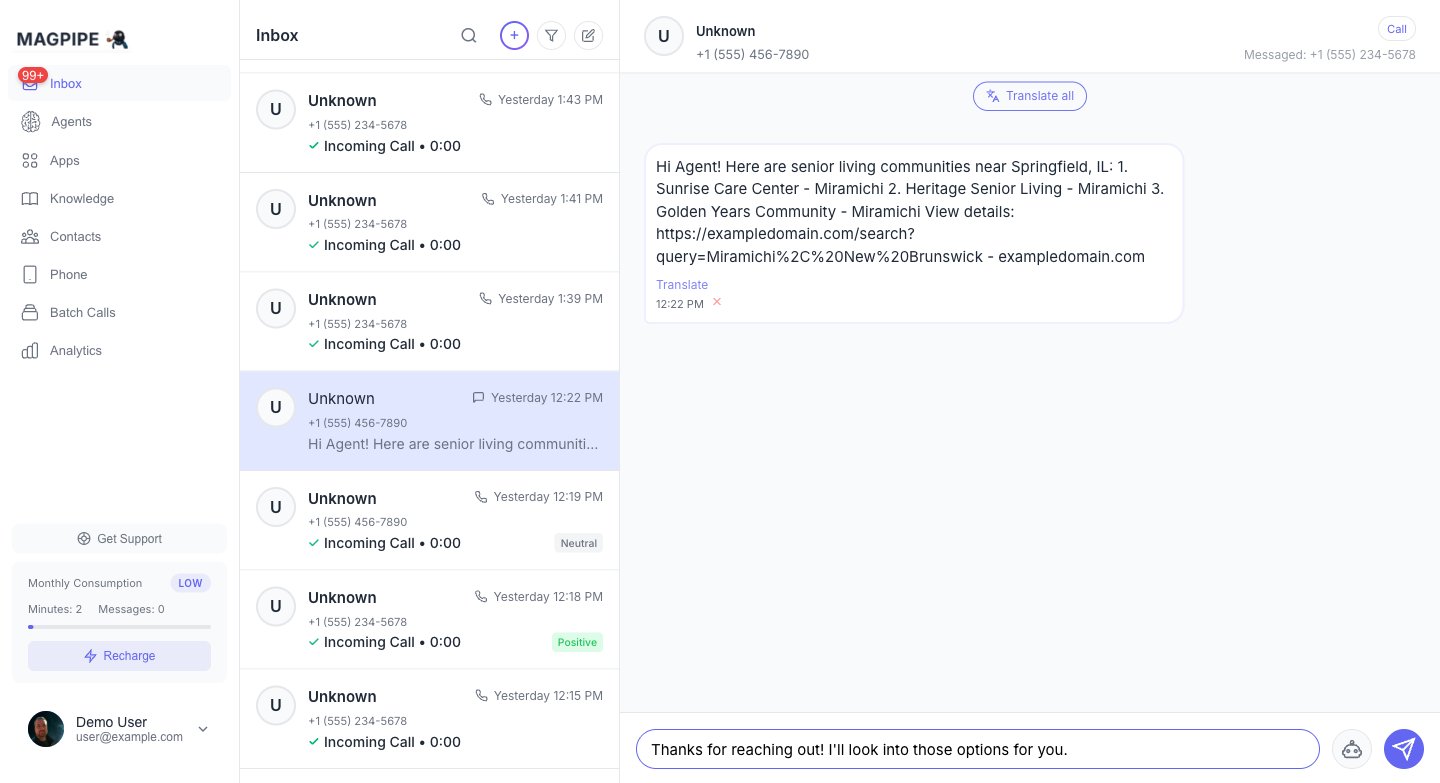
Replying to a conversation in the inbox
Conversation Types
Voice Calls
Phone calls handled by your AI agents:
Each call includes:
- Full audio recording (with playback controls)
- AI-generated transcript with speaker labels
- Call duration and timestamp
- Caller ID information
SMS Messages
Text message conversations:- Two-way SMS threads grouped by contact and service number
- AI-generated responses clearly marked
- Manual replies from team members
- Delivery status indicators (sent, pending, failed)
Website Chat
Conversations from your embedded chat widget:- Real-time message threads
- Visitor information (name, email if collected)
- Widget name shown in header
- AI responses marked with indicator
- Pause/Resume AI toggle
- Full email threads grouped by thread ID
- Subject line and sender info
- Quoted text automatically stripped for clean display
- Reply directly from the inbox
- Contact enrichment from email senders
Inbox Features
Real-Time Updates
The inbox updates automatically:- New conversations appear instantly via real-time subscriptions
- Messages arrive without refreshing
- Desktop notifications for new messages (if enabled)
Unread Indicators
Never miss a conversation:- Blue dot on unread conversations
- Badge count on inbox icon in navigation
- Conversations marked read when opened
- Mark All Read button to clear all unread indicators
Conversation List
Each conversation shows at a glance:- Contact name or phone number/email
- Avatar (from contacts or auto-generated)
- Last message preview (truncated)
- Timestamp (relative: “2m ago”, “Yesterday”)
- Type icon (phone, message, chat bubble, or envelope)
- Call status indicator for voice calls
- Unread count badge
Filtering
Find conversations quickly with combinable filters: Filter by Type:- All conversations
- Calls only
- Texts only
- Chat only
- Email only
- All
- Inbound
- Outbound
- Missed calls only
- Unread only
- Positive
- Neutral
- Negative
- Today
- Yesterday
- This week
- This month
- Phone number
- Contact name
- Message content
- Email address or subject
- Call transcript text
Conversation Detail View
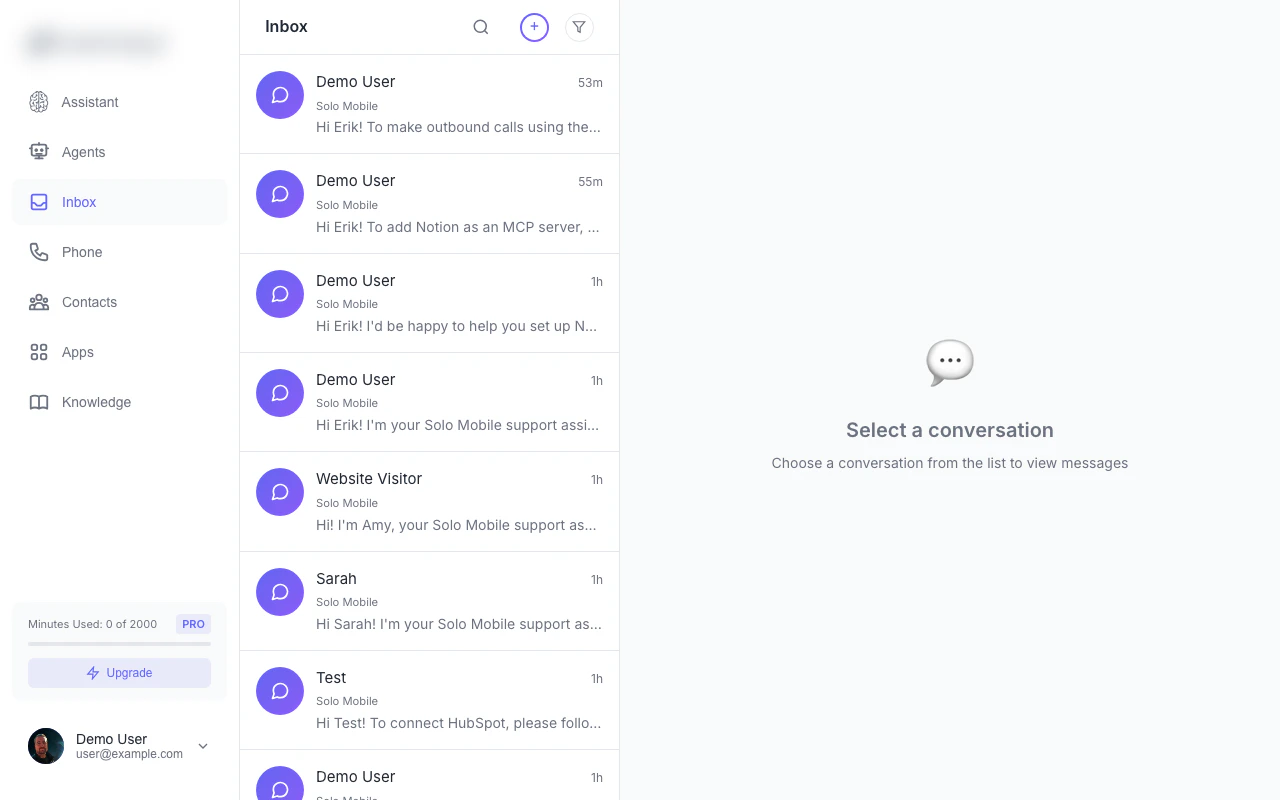
Open a conversation to see full transcripts, recordings, and contact details
Call Details
When viewing a call conversation:- Contact info with avatar, name, job title, social links
- Caller and callee phone numbers (clickable)
- Call timestamp and duration
- All recordings displayed with individual audio players
- Full transcript with speaker labels (Agent vs Caller)
- Translation link for multilingual conversations
- Quick actions: Call and Message buttons
- Play/pause control
- Multiple recordings per call (Main Call, Reconnect, Transfer, etc.)
- Recording ID for reference
SMS Details
When viewing a message conversation:- Contact name and phone number with avatar
- Service number indicator (which of your numbers)
- Messages in chronological order with timestamps
- Delivery status icons (sent, pending, failed)
- Per-message translation link
- Translate All button for full thread
- Reply input at the bottom
- Quick action: Call button
Email Details
When viewing an email conversation:- Contact name and email address
- Service number indicator
- Email subject line
- All messages in thread with sender labels
- Quoted text and signatures stripped for clean display
- Reply button
- Quick actions: Call, Message, and Email buttons
Chat Details
When viewing a chat conversation:- Visitor name and avatar
- Widget name
- Visitor email (if collected)
- AI Paused indicator when human has taken over
- Resume AI button to re-enable agent
- Message thread with input
- Infinite scroll for long conversations
Human Handoff
Taking Over a Conversation
You can intervene in any SMS or chat conversation:- Open the conversation from the inbox
- Type your message in the reply box
- Click Send to deliver your response
- Your message is delivered immediately
- The AI agent pauses for this conversation
- Your messages appear without the AI indicator
- Customer sees a seamless conversation
Chat AI Controls
For chat conversations specifically:- AI Paused indicator shows when you’ve taken over
- Resume AI button to let the agent handle responses again
Multi-Select & Deletion
Deleting Conversations
Remove conversations you no longer need:- Tap Edit in the inbox toolbar
- Tap Select to Delete to enter selection mode
- Check the conversations you want to remove
- Tap Delete (N) to confirm
- A confirmation modal appears before permanent deletion
Mobile Swipe Delete
On mobile devices, swipe left on any conversation to reveal the delete button.Mark All Read
Clear all unread indicators at once with the Mark All Read button in the Edit menu.Translation
For multilingual conversations:- Per-message translation links on SMS messages
- Translate All Messages button for full SMS threads
- Transcript translation for call recordings
- Translation respects your agent’s language setting
Contacts Integration
Auto-Created Contacts
When someone new calls, texts, or emails:- A contact is automatically created
- Phone number or email is saved
- Name added if provided during conversation or enriched from email data
Linked Contacts
If a contact already exists:- Conversation shows contact name and avatar
- Job title, company, and social links displayed
- All conversations linked to that contact
Email Contact Enrichment
When an email arrives from a new sender:- Contact data is automatically looked up (company, phone, job title, social profiles)
- If the person already exists as a phone contact, their record is updated with email data
- No duplicate contacts created
Mobile Experience
On mobile devices:- Full-screen conversation views with back button
- Swipe left to delete conversations
- Optimized touch targets
- Infinite scroll for conversation list
- Bottom navigation with unread badges
Notifications
Desktop Notifications
Enable browser notifications to get alerts for:- New incoming calls
- New SMS messages
- New chat messages
Push Notifications (PWA)
When installed as a PWA on your home screen:- Push notifications for new conversations
- Works even when the app isn’t open
- Requires iOS 16.4+ for iPhone
Email Integration
Connect Gmail for email in your inbox
Calls API
Retrieve calls programmatically
Messages API
Access message history via API
Chat Widget
Add chat to your website